Quick start
If you haven't added your company to Yandex Business yet, follow the instructions. It's free.
To create your company profile, you can use either Yandex Business or Yandex Maps. Editing company information can only be done through Yandex Business after confirming ownership.
Step 1. Log in
Note
Don't use your personal username, such as from Yandex Mail or Yandex Disk, because you won't be able to transfer your company to a different username.
Open Yandex Business and log in with your Yandex ID. If you don't have a username, sign up.
Open Yandex Maps and log in with your Yandex ID. If you don't have a username, sign up.
Step 2. Create a company profile
Find out if your business is on Yandex Maps.
- My business is not yet on Yandex Maps
-
- Go to the Businesses page.
- Enter the name of your company.
- Enter the main business category. To do this, start typing the category name and select one from the drop-down list. Once you add your company, you'll be able to choose two additional business categories.
- My business is already on Yandex Maps
- You need to confirm that you are the owner of the business. To do this, follow the instructions in the Confirm your ownership rights to the company section. You don't need to complete the rest of the “Quick start” instructions.
-
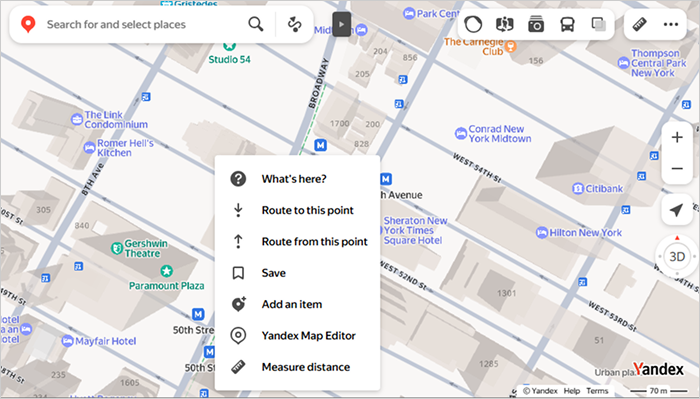
Right-click the map point where your organization is located.
What it looks like:
-
Under Add an item, select Business.
-
Enter the name of your company.
-
Enter the main business category and two additional business categories. To do this, start typing the category name and select one from the dropdown list.
- Tap the profile picture
 and select Map editor from the horizontal menu at the top.
 - Under Add new item, select Business.
- Enter the name of your company.
- Enter the main business category and two additional business categories. To do this, start typing the category name and select one from the dropdown list.
Step 3. Add an address
Enter the address of the office, store, or branch your customers visit. If the company only operates online and has no actual street address, select your city or region.
Step 4. Enter your phone number and website address
- Enter a phone number. After you register, users will see the number in the company profile, in Yandex Search, and in Yandex Maps.
- Enter your website or social media page.
If you need to confirm your contact details:
- Choose a convenient way to confirm your number: by SMS or with a call.
- Wait until a message arrives or an automated operator calls. Usually, the waiting time is less than 10 minutes.
- Enter the verification code to confirm your number.
Step 5. Wait for the review results
Submit a request and wait for verification. Sometimes, it takes up to three days. You can track the verification status in the Requests → Confirmation section.
After verification is complete, your company profile will be published online. Your company will be automatically added to Yandex Maps.
Users will be able to find your company in Yandex Search the next day after publication.
If your application status remains unchanged for more than two weeks, contact our support.
Enter information about your organization and tap Submit.
After adding your company, confirm your ownership rights to it. Wait until the moderation is complete. The results will be emailed to you and appear in the Edits tab in the profile.
Step 6. Fill out the company profile
You can edit or add details only in Yandex Business:
-
On the Businesses page, click the link with the company name.
-
In the menu on the left, go to About the business → Data.
-
Fill in your information. For more information, see Fill out the company information.
All data is moderated. The information must meet Yandex requirements.
What's next?
Use other Yandex Business features:
- If your business has multiple branches, combine them into a chain.
- View and respond to reviews.