Saving reports
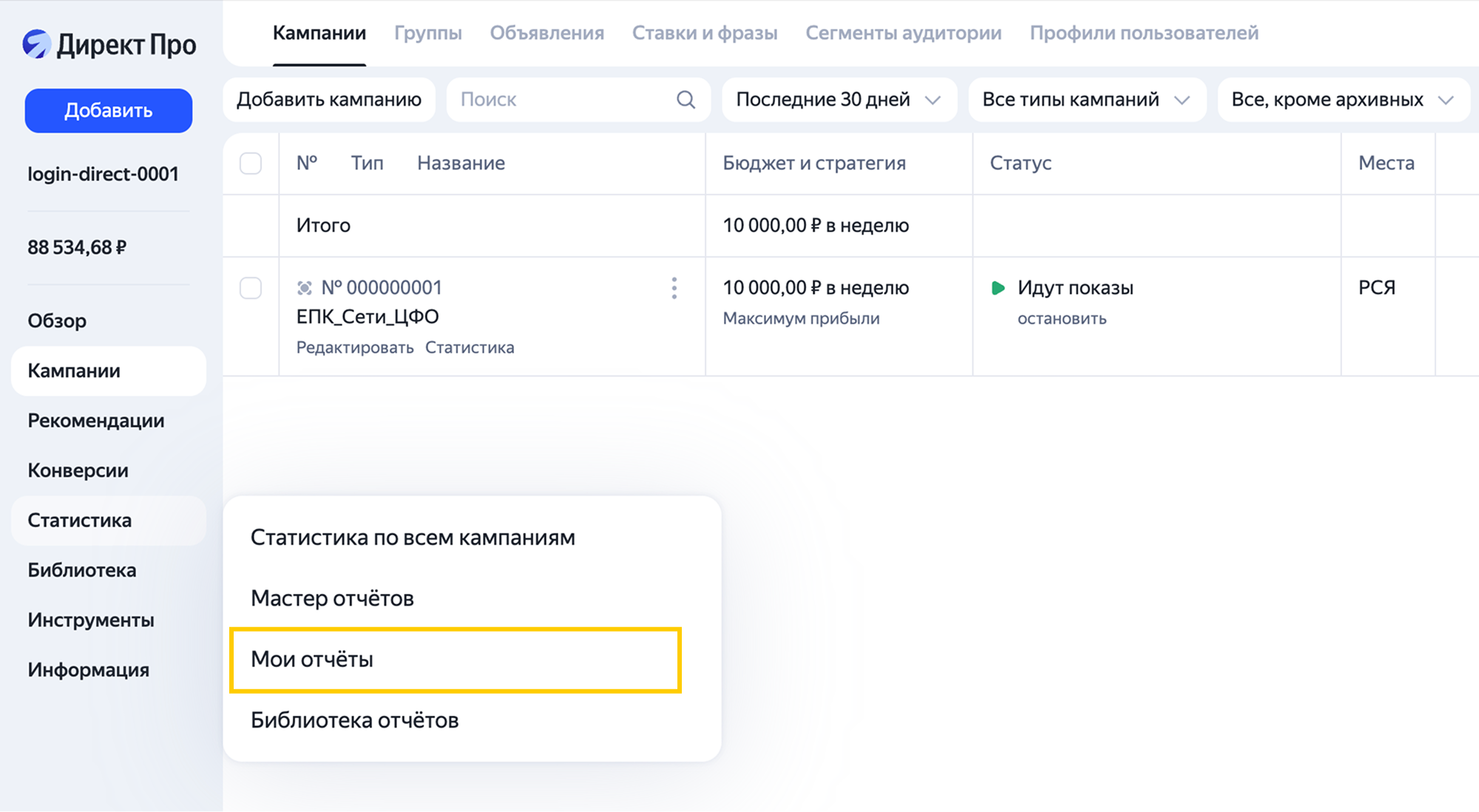
In the Report Wizard, you can save the reports too, not just their settings. To find your saved reports, go to the My reports tab in the Statistics section.
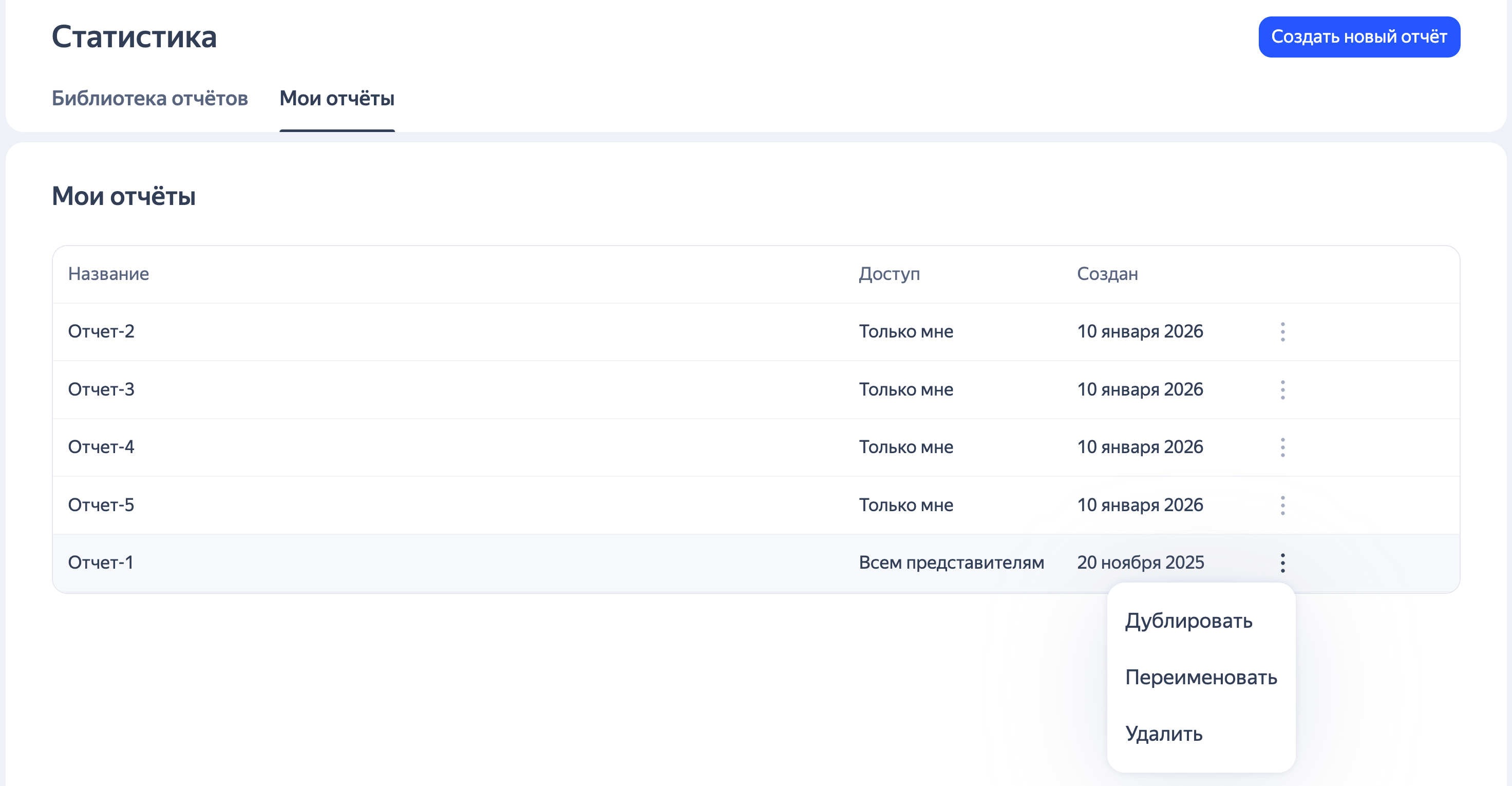
On the new tab, you'll find a list of reports with basic info: name, access level, and date created. Here you can also use quick actions: copy, rename, or delete a report.
To create a report, go to the Report Wizard using the side panel, or click Create report on the My reports page. Once you've specified dimensions, metrics, filters, and other settings, click  → Save to "My reports".

You can edit created reports, save them with updated settings, or copy them as new. You can also share links to these reports with your team.
If multiple users work with the account, when creating a report, you can choose who can access it: only you or all account representatives.

How to save reports from the old Report Wizard
If you want to continue working with saved reports created in the previous version of Report Wizard, you'll need to generate them again using the new Report Wizard.
You can use the following options:
-
Open the Report Wizard, add dimensions, metrics, and filters, and save the report. To do this, click
→ Save to "My reports" in the upper-right corner. -
Open a report from the report library, change or add dimensions, metrics, and filters, and save the report by clicking
→ Save to "My reports" in the upper-right corner. -
Use the AI assistant to build a report with the required dimensions, metrics, and filters. Specify what settings and data you need. For example, you can ask it to build a campaign report covering impressions, clicks, expenses, conversions, revenue, and CRR.
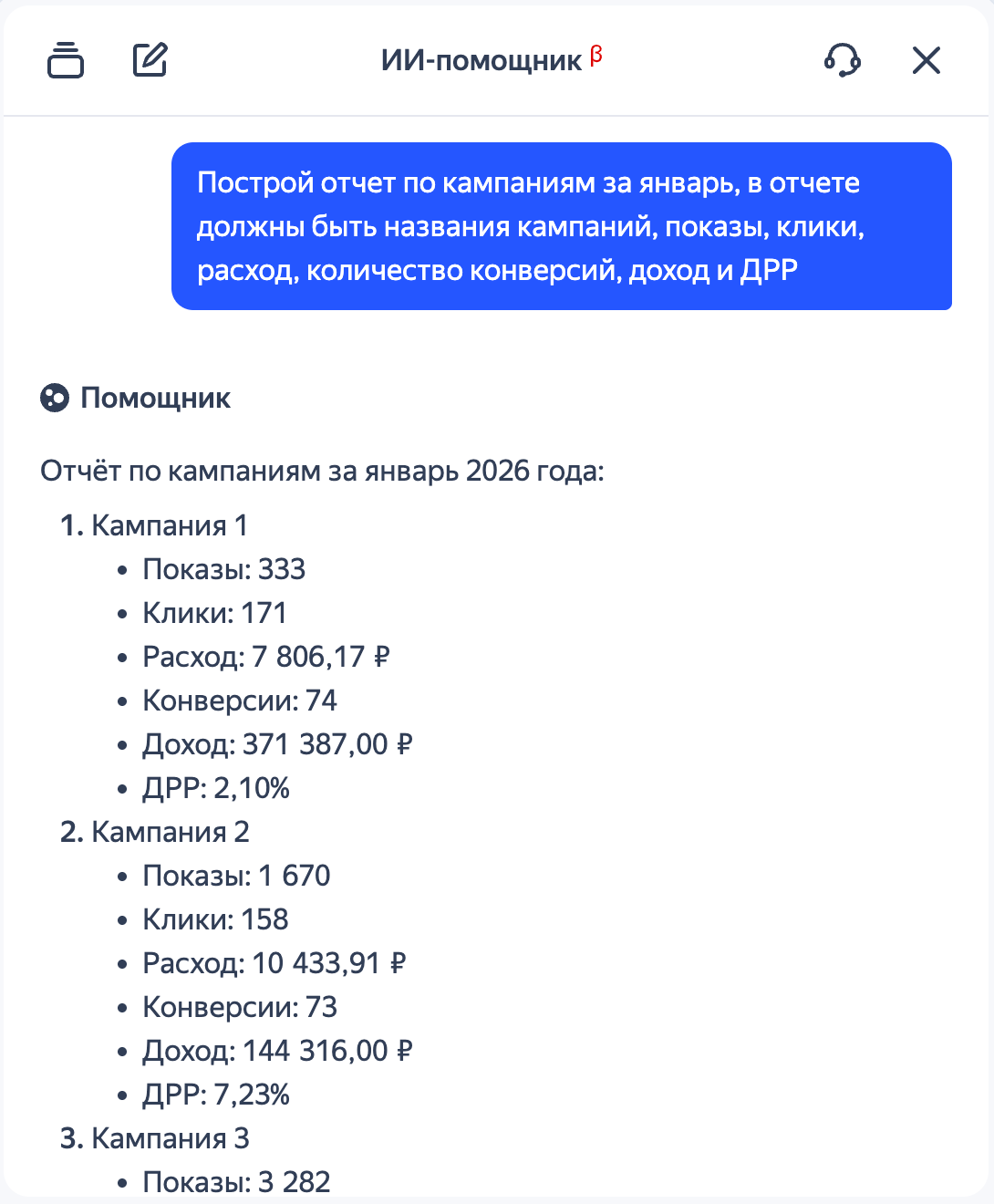
In the assistant chat, you can both see the final numbers for your request and jump straight to the full report to save it. To do this, open the report from the chat and change the settings as needed.

Save the report by clicking
→ Save to "My reports" in the upper-right corner.
All saved reports will appear in the My reports section.
Have questions?
Alert
Our customer support can only assist you with campaigns linked to the username you are contacting us from. You can check your username by opening ya.ru in another browser tab. Our team can access your data only when processing your request.
Scan the QR code or tap it to follow the link.

If you select Telegram or WhatsApp, keep in mind that Yandex does not control and is not liable for how third-party messengers store your data and chat history.