Bulk actions mode
Bulk actions mode is available for the "Platform name" and "Search query" dimensions. This mode helps you manage impressions on the Yandex Advertising Network platforms or expand your negative keyword list.
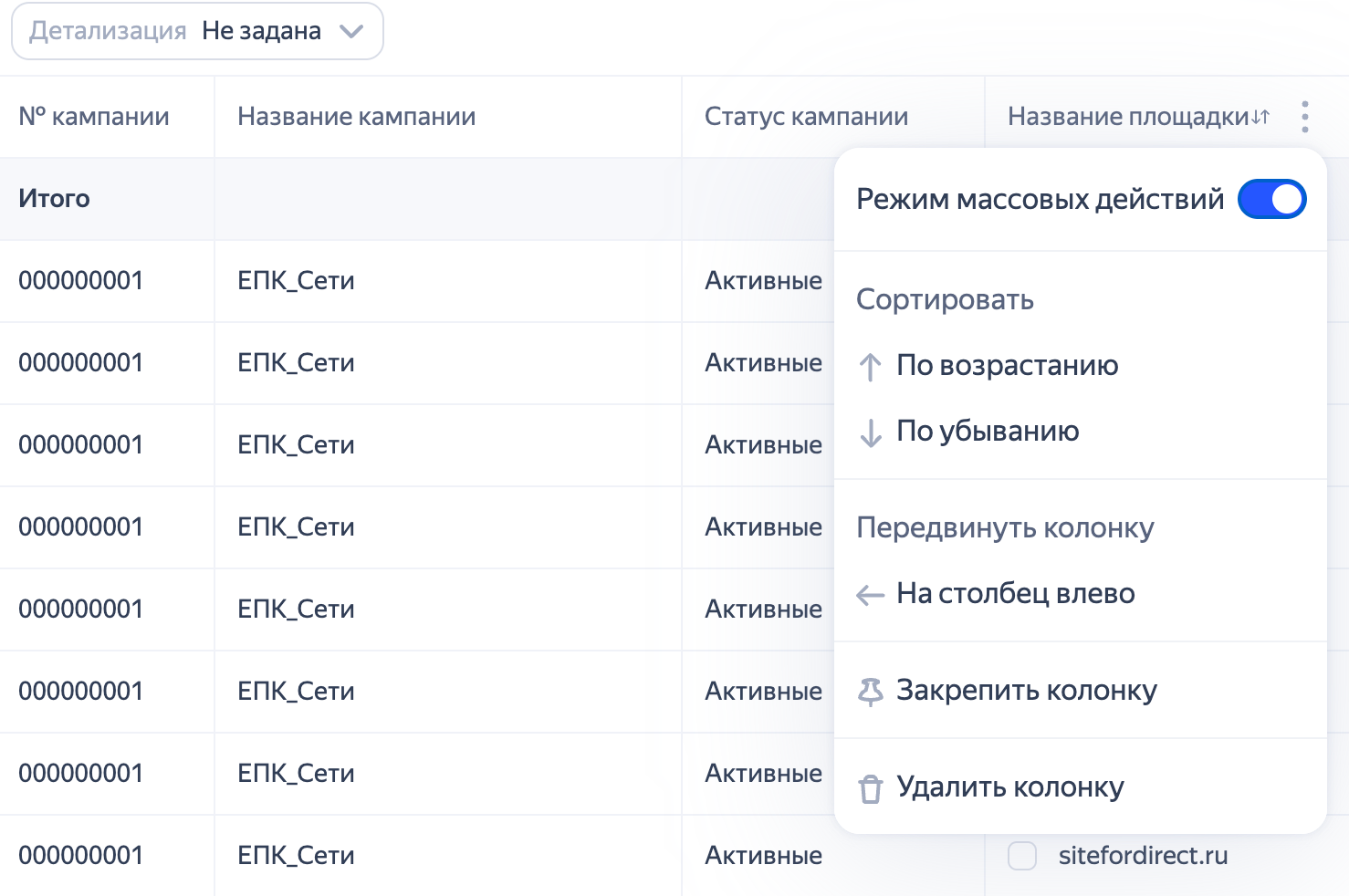
Enabling this setting adds checkboxes to the column, allowing you to select specific platforms or keywords.
How to add negative keywords from a report
-
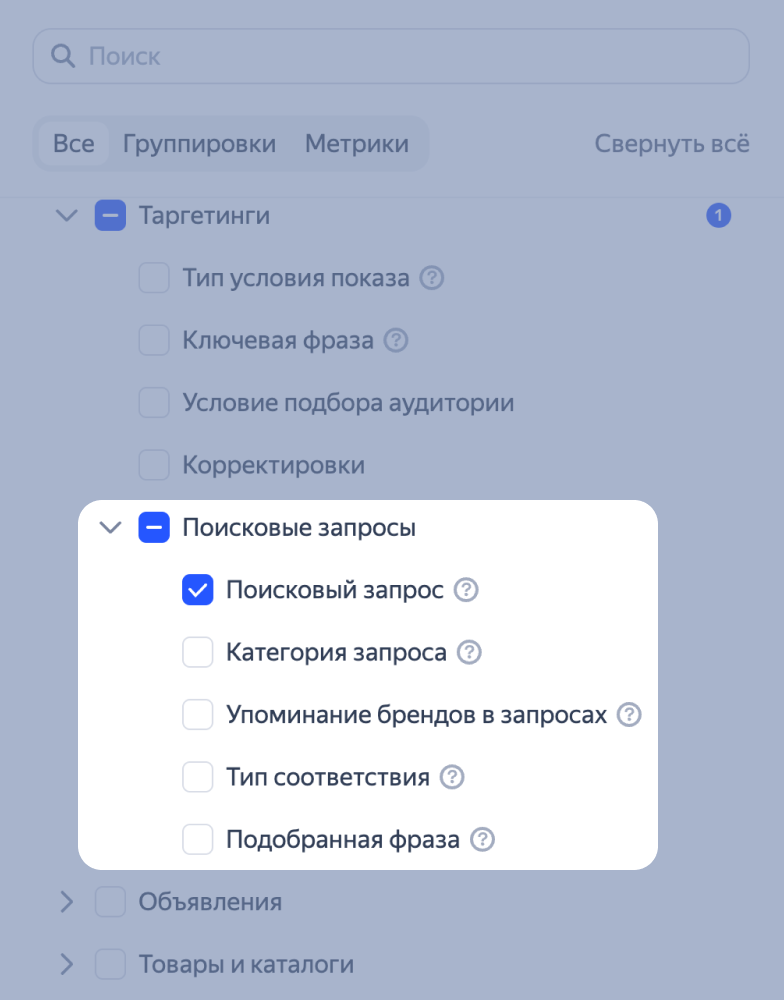
Add the Targeting options → Search queries → Search query dimension to the report. The report must also include a dimension for campaigns or groups.
-
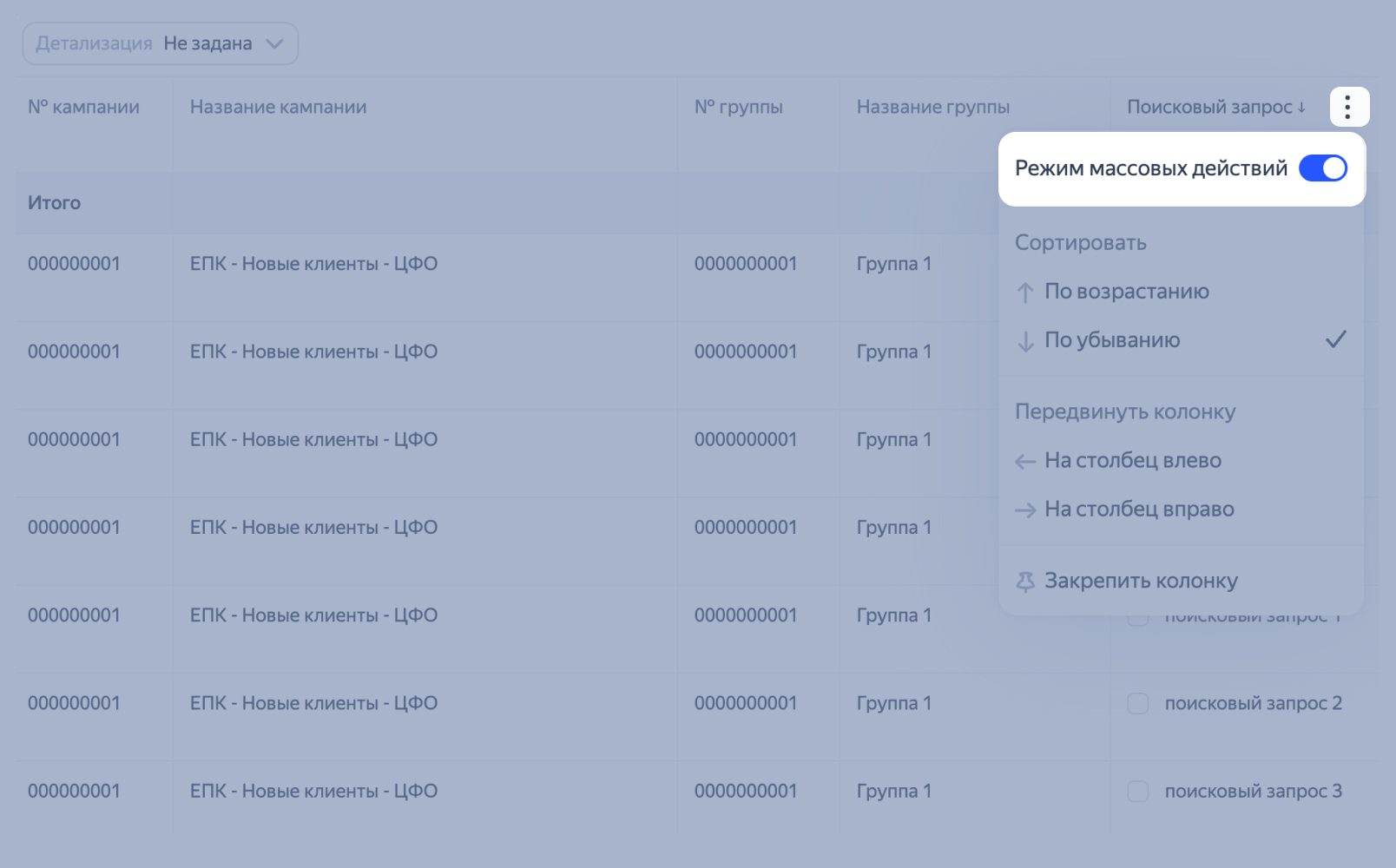
Enable Bulk actions mode in the column settings to flag irrelevant queries.
-
Select the keywords using the checkboxes next to the queries and click Add to negative keywords.
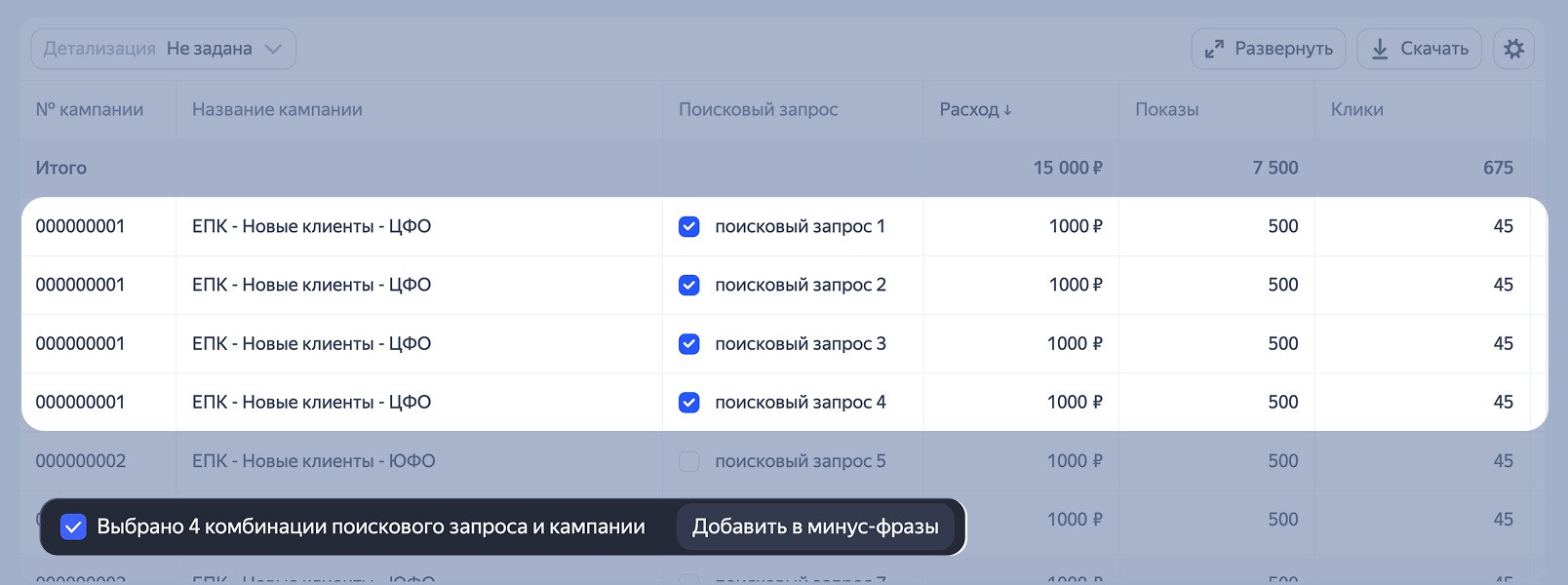
This will open a window where you'll see the selected keywords. You can edit the entire list or specific keywords, removing any items or adding operators.
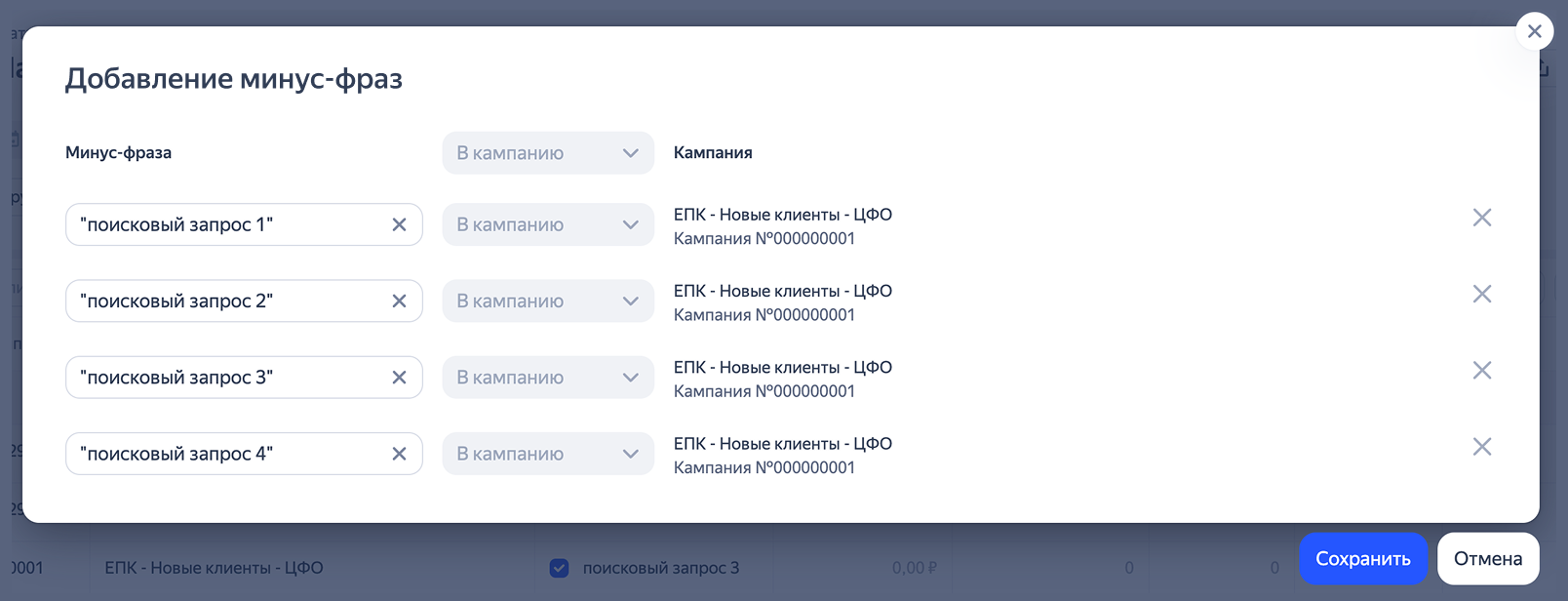
-
Add dimensions for both campaigns and groups to the report. This lets you choose the level at which the negative keywords will be added.
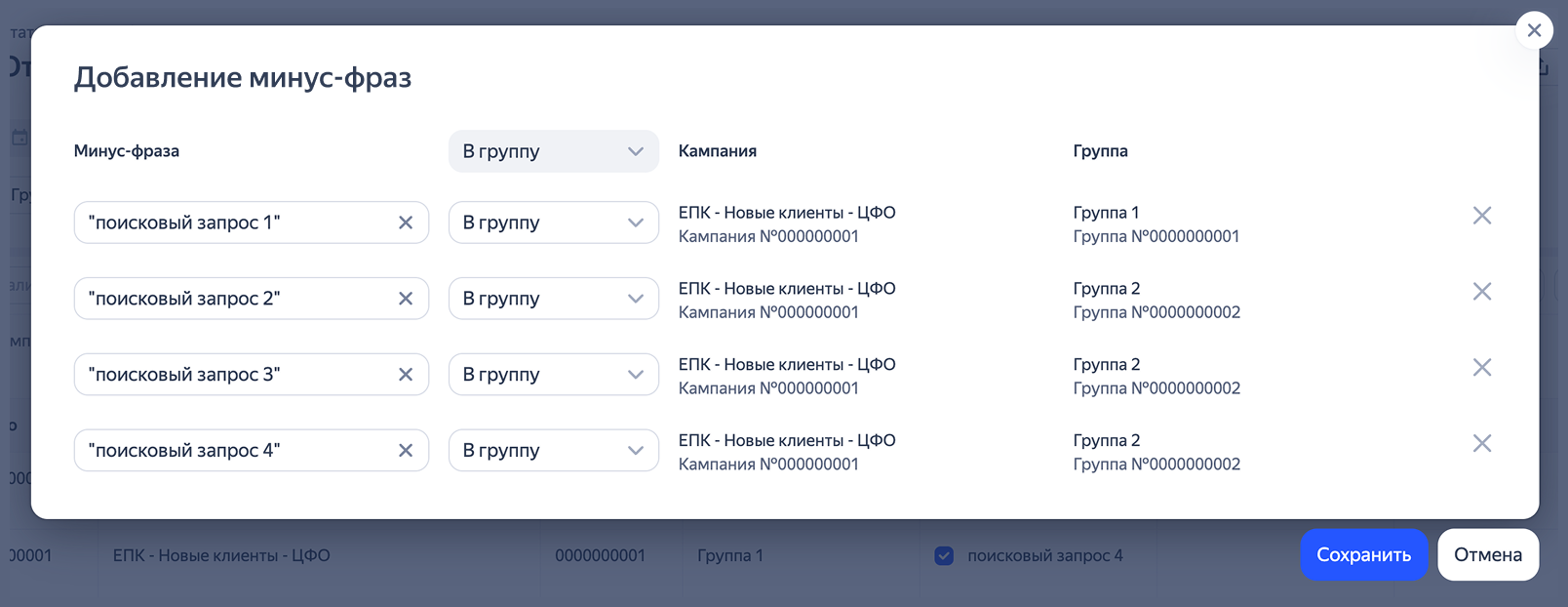
-
Click Save.
In addition, you can manage search queries using the Search queries report.
How to add keywords from a report
-
Add the Search query dimension to the report.
-
Next to the Search query column, click and enable Bulk actions mode.
-
Select the queries you want to add to the keyword list, then click Add to keywords.
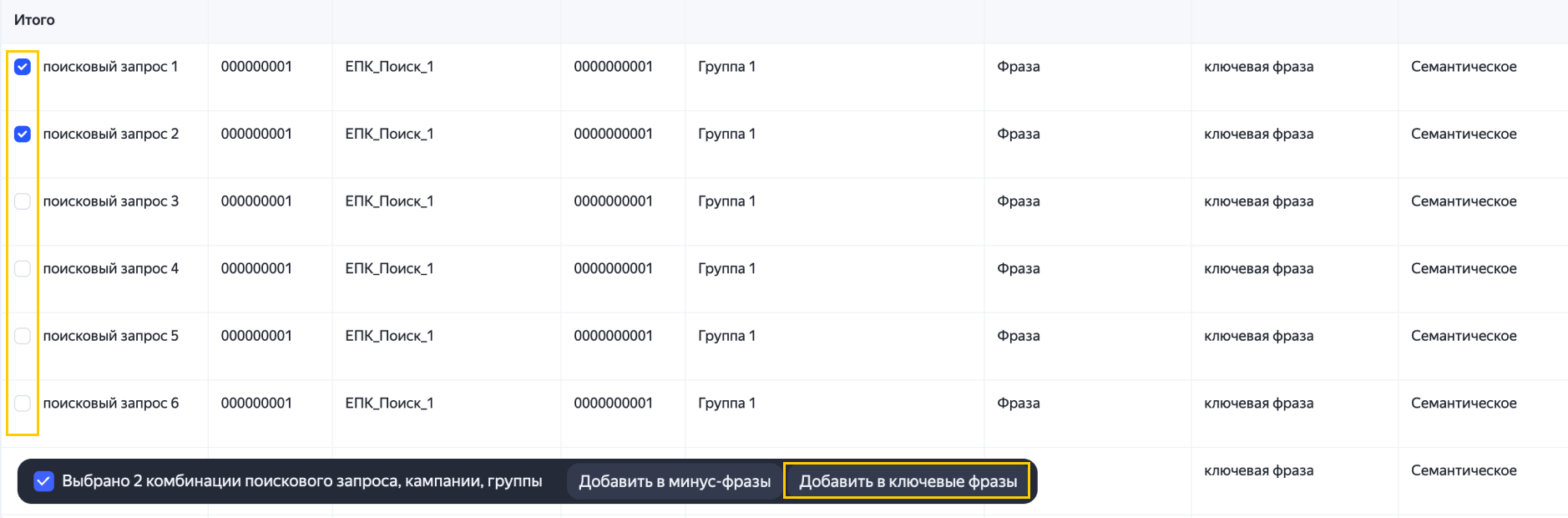
-
In the window that opens, you can edit the keyword, add operators, or set the bid amount if your campaign strategy is Maximize clicks with manual bids.
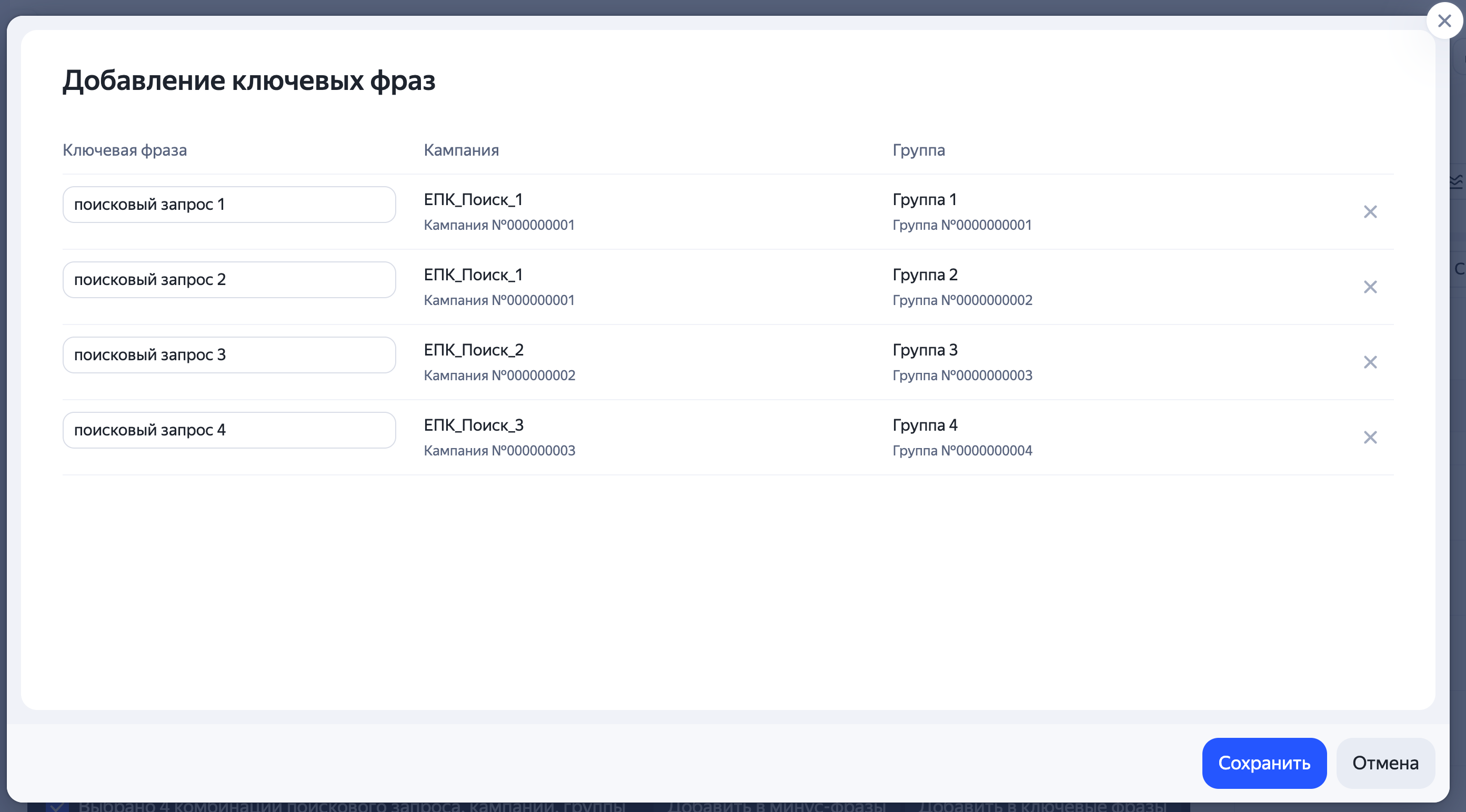
-
Click Save. The keywords will be added to the corresponding groups.
In addition, you can manage search queries using the Search queries report.
How to disable or enable ads on the Yandex Advertising Network platforms from a report
-
Add the Platforms → Platform name dimension to the report or open the ad platforms report from the Report Library.
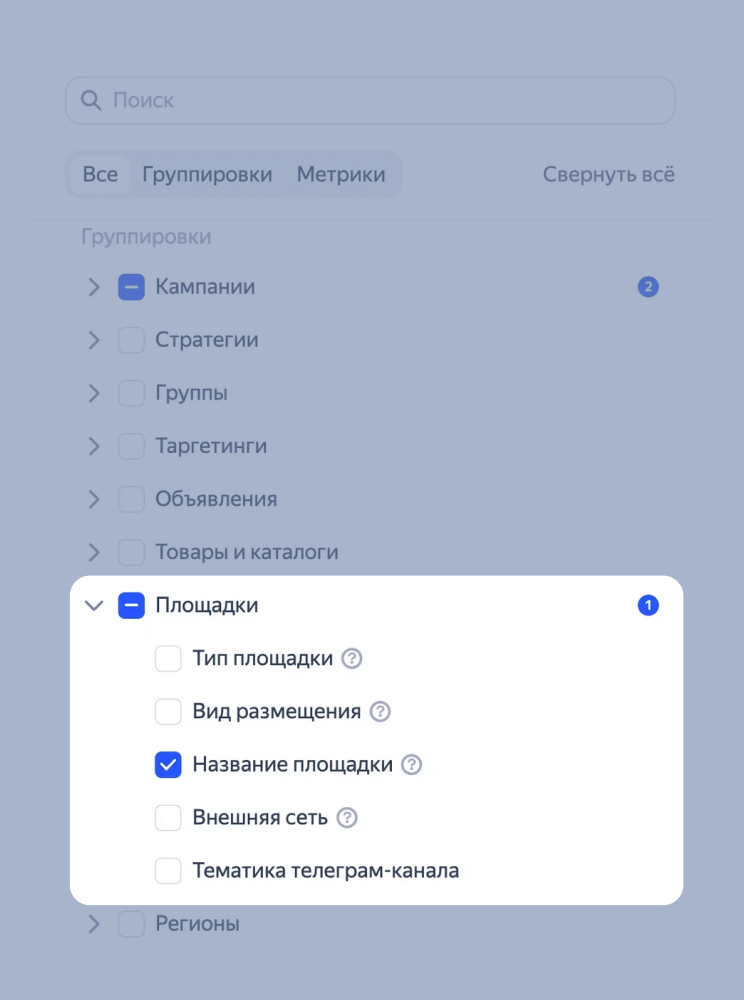
-
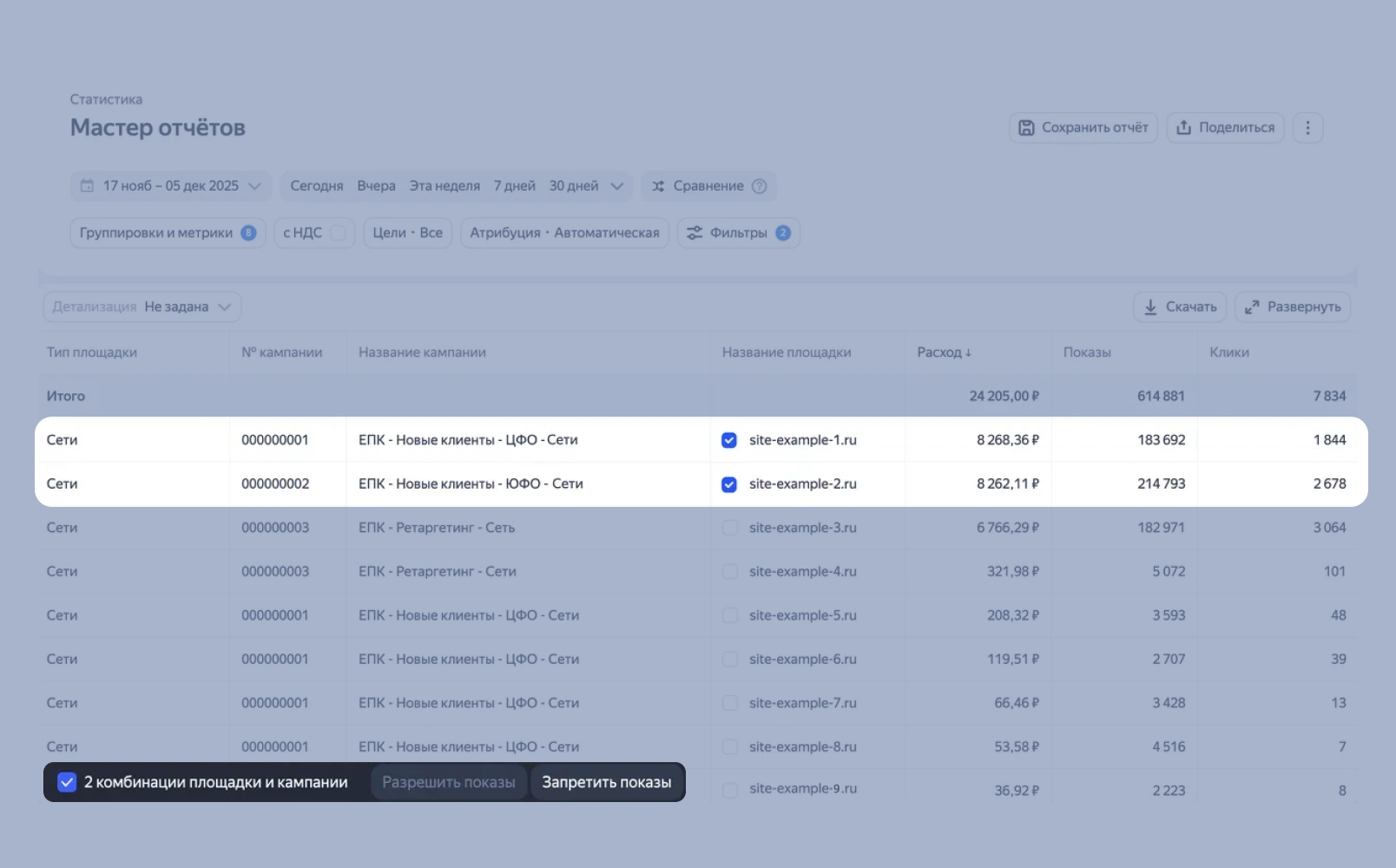
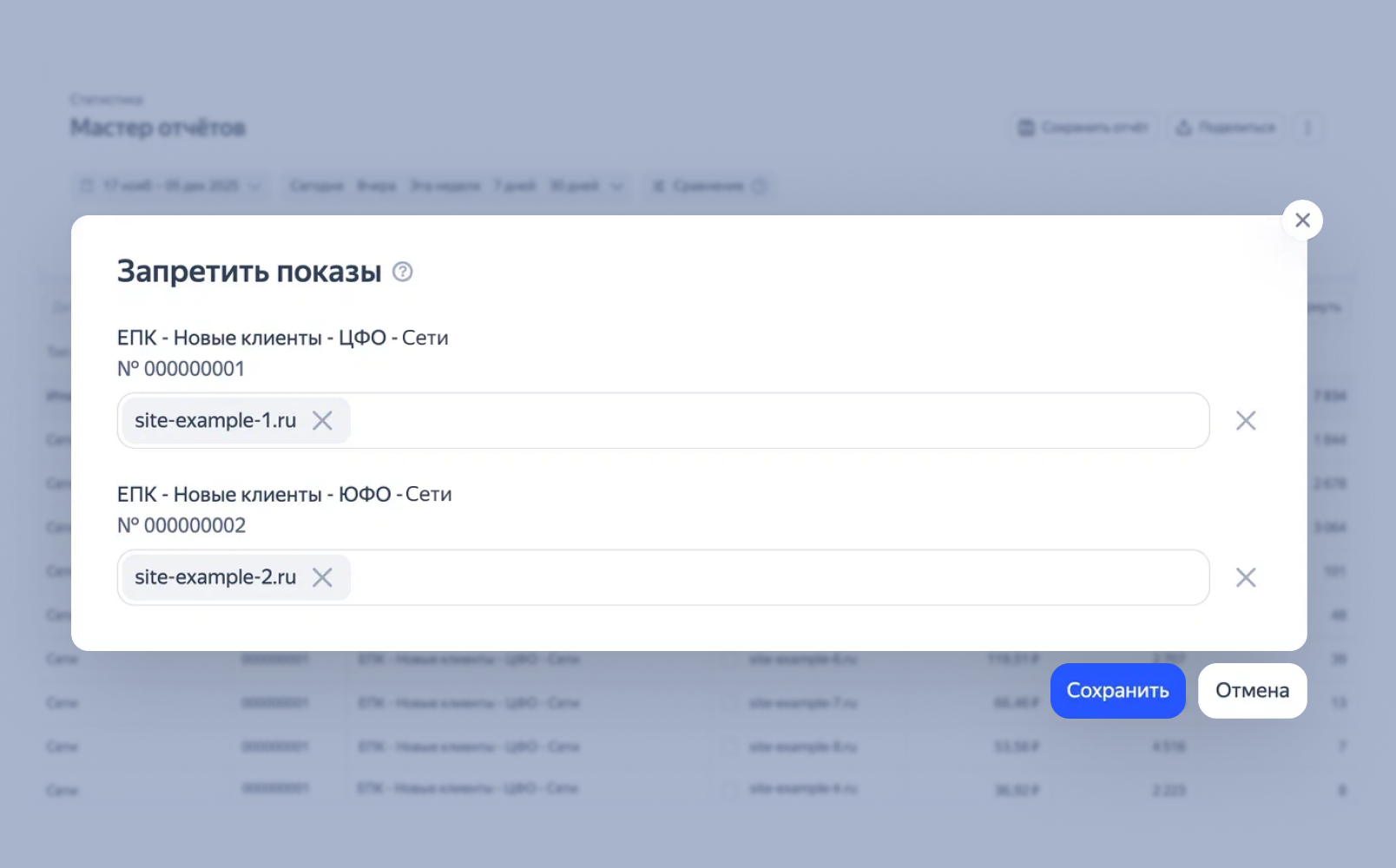
Use the checkboxes to select platforms, then click Disable or Enable in the menu. To select a checkbox, add the "Campaign ID" or "Campaign name" dimension to the report and enable Bulk actions mode.
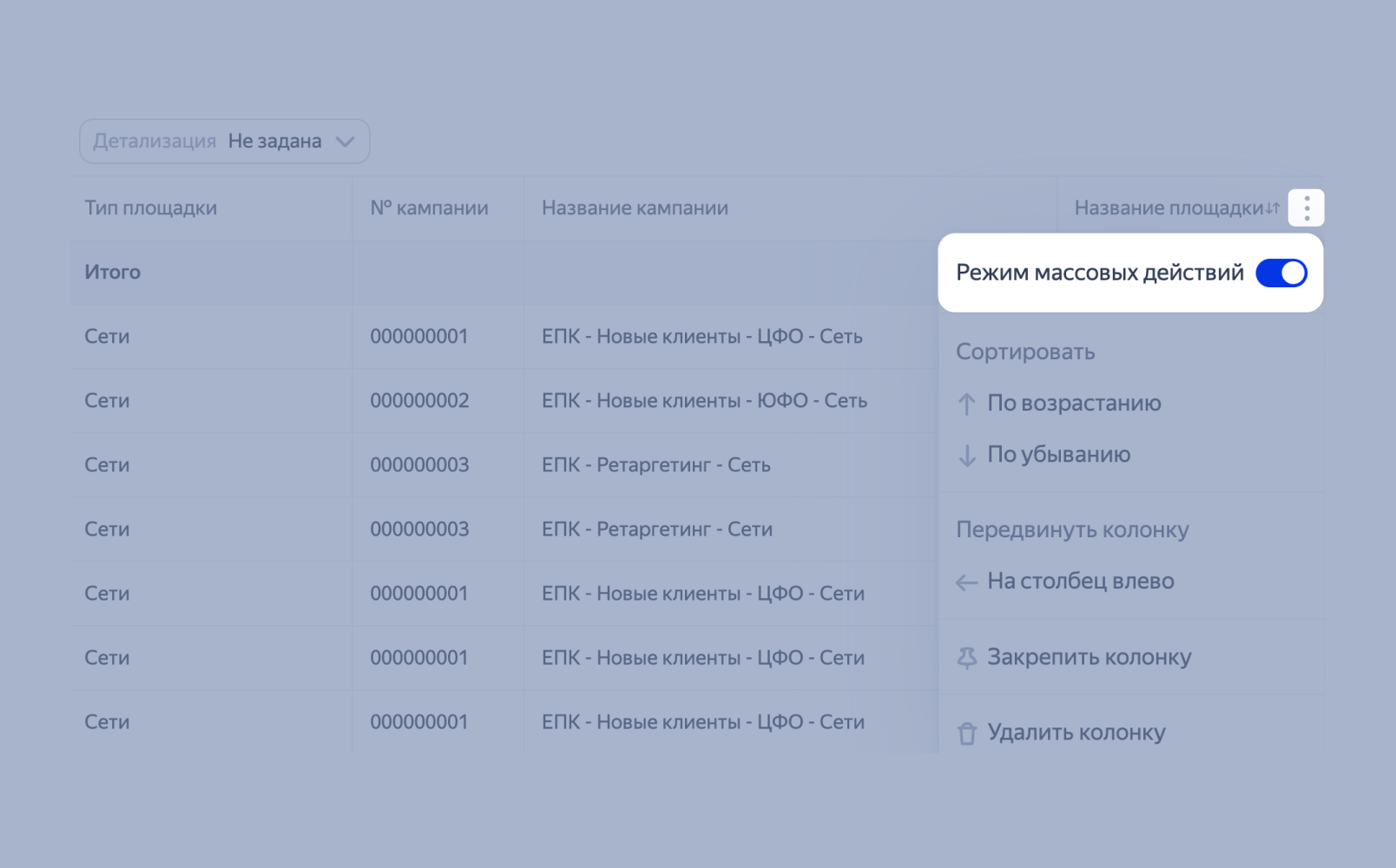
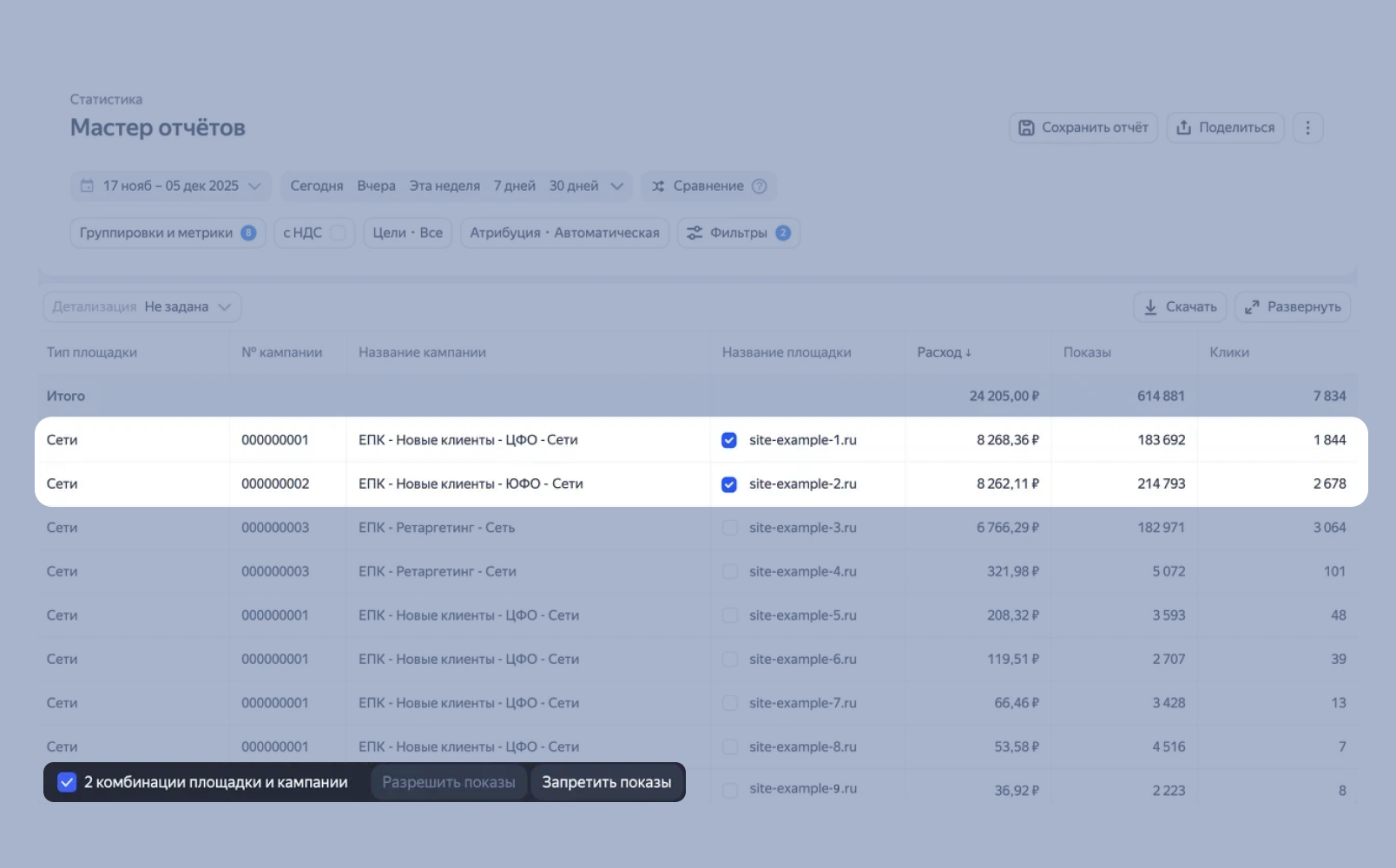
The Report Wizard lets you manage ads across multiple campaigns within a single report.
Tip
Make decisions about disabling ads on specific platforms based on statistically significant data. We recommend enabling ads on previously disabled platforms to test them and drive more traffic and conversions.
Platforms where ads are disabled are grayed out in the Report Wizard. This makes them easier to find in the main list.
Have questions?
Alert
Our customer support can only assist you with campaigns linked to the username you are contacting us from. You can check your username by opening ya.ru in another browser tab. Our team can access your data only when processing your request.
Scan the QR code or tap it to follow the link.

If you select Telegram or WhatsApp, keep in mind that Yandex does not control and is not liable for how third-party messengers store your data and chat history.