"Search queries" report
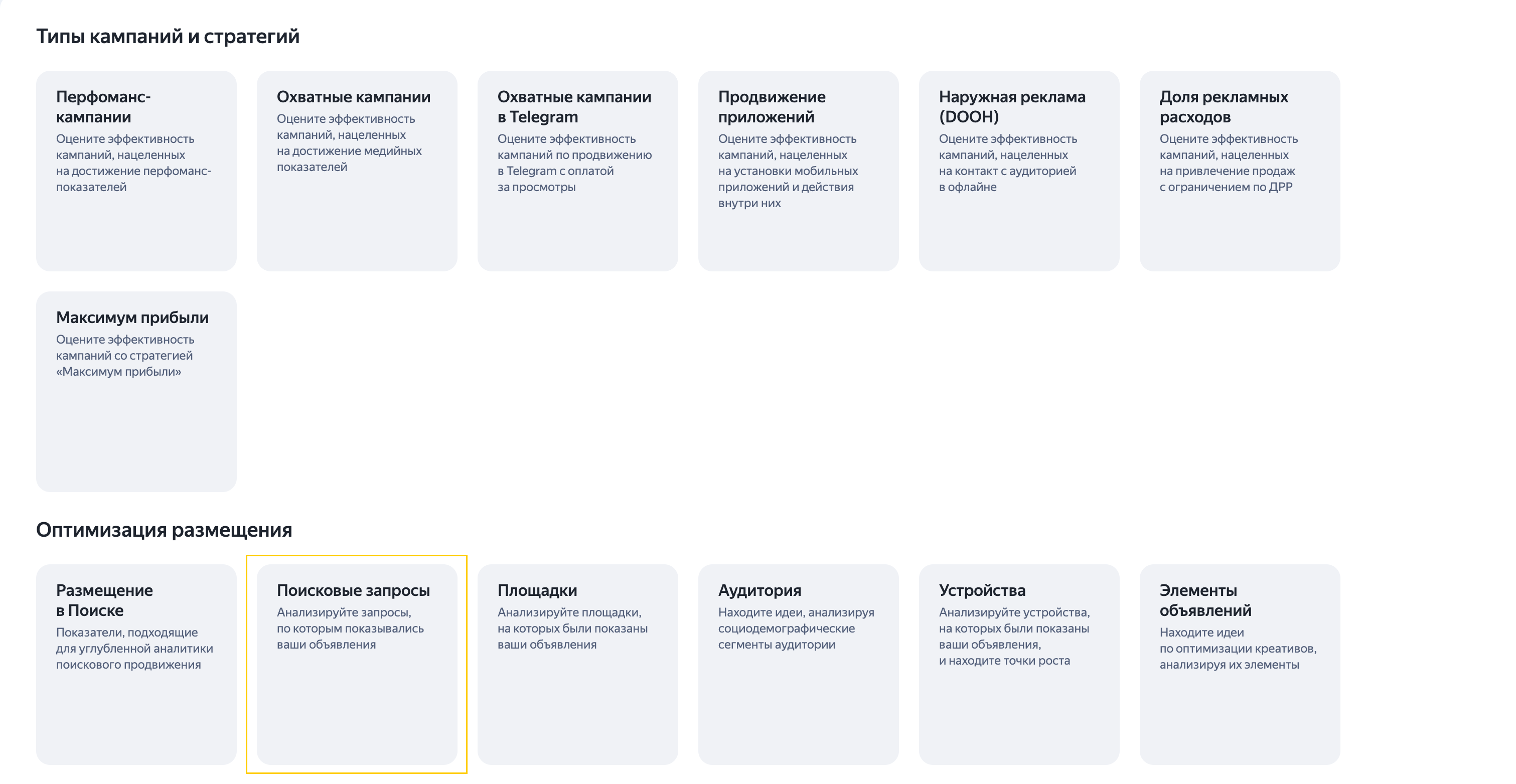
This report helps you analyze queries that triggered your ads. You can find it in the Report Library, under Placement optimization.
Navigating from the library will open a report on all your campaigns served in Yandex Search.
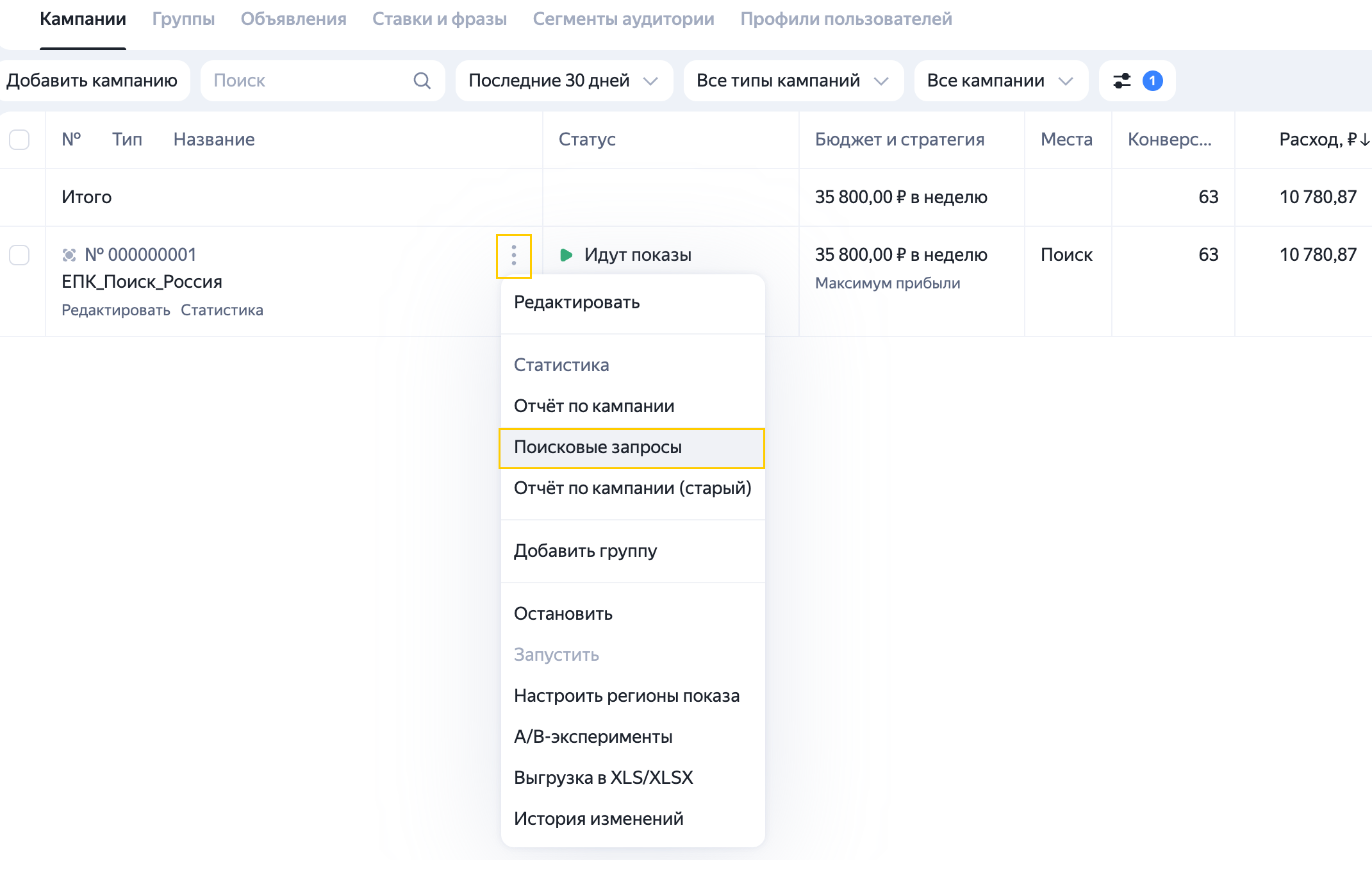
To get a report on a specific campaign, open it from the list of campaigns. To do this, click next to the campaign name and select Search queries. This option is available only for campaigns served in Yandex Search.
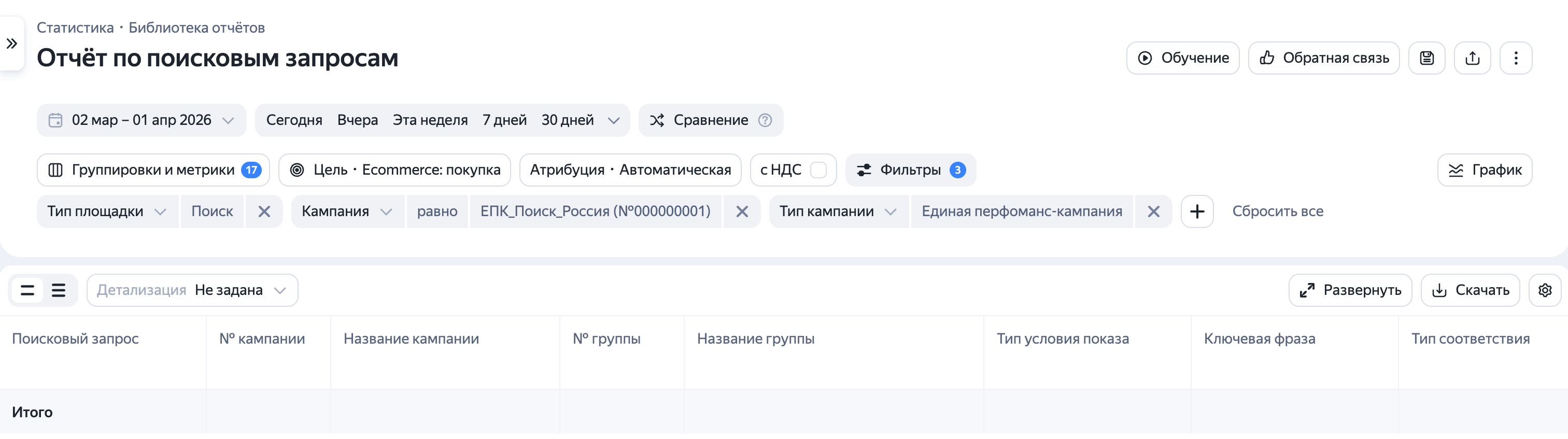
You'll be taken to the report page that shows data only for the selected campaign.
You can also open it from any other report using the navigation panel.
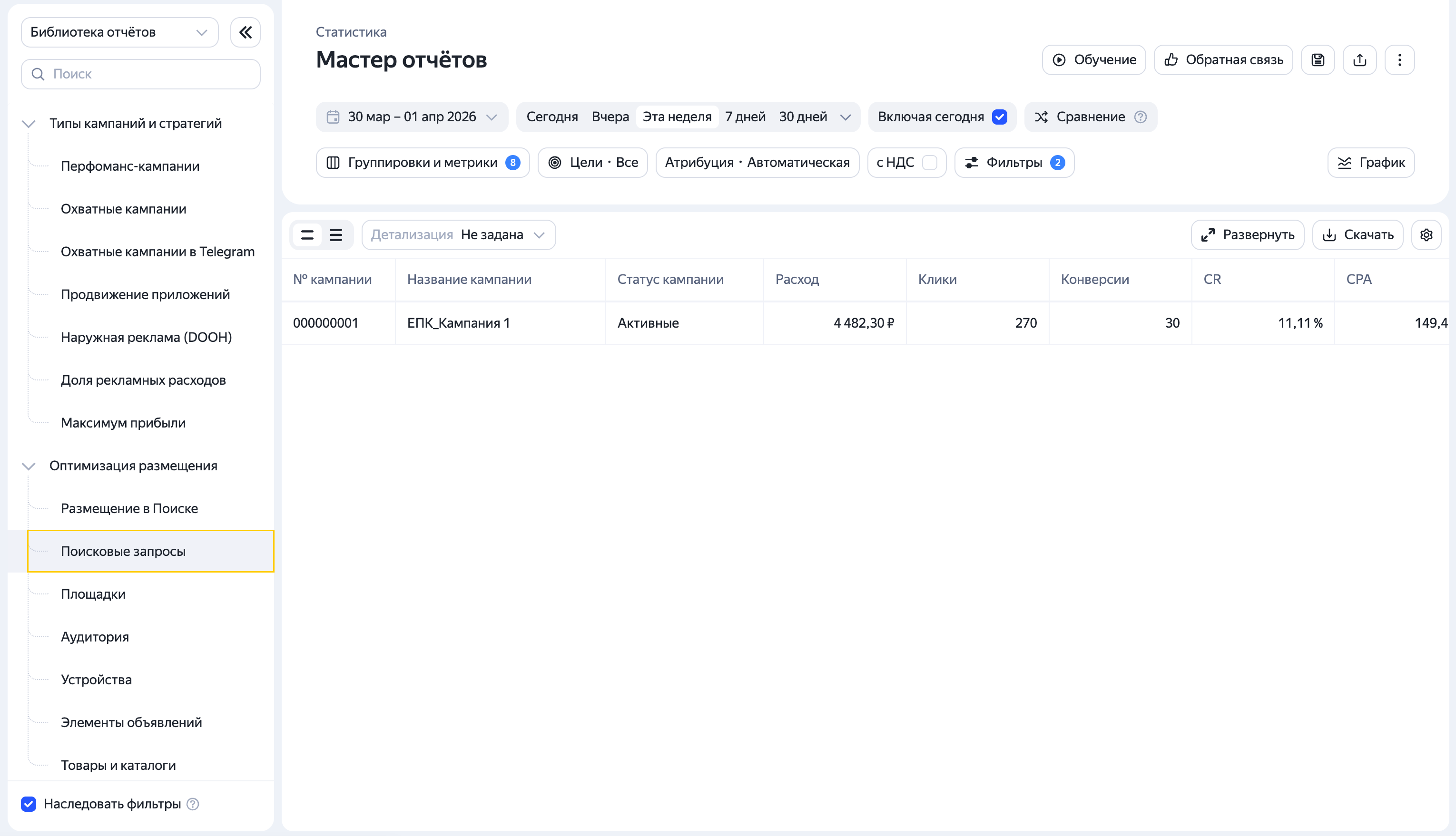
If the Inherit filters option is enabled, all currently active filters will carry over when you navigate to a new report.
Report settings
By default, the report includes basic dimensions, metrics, and filters, using the goals and attribution settings specified in the campaign.
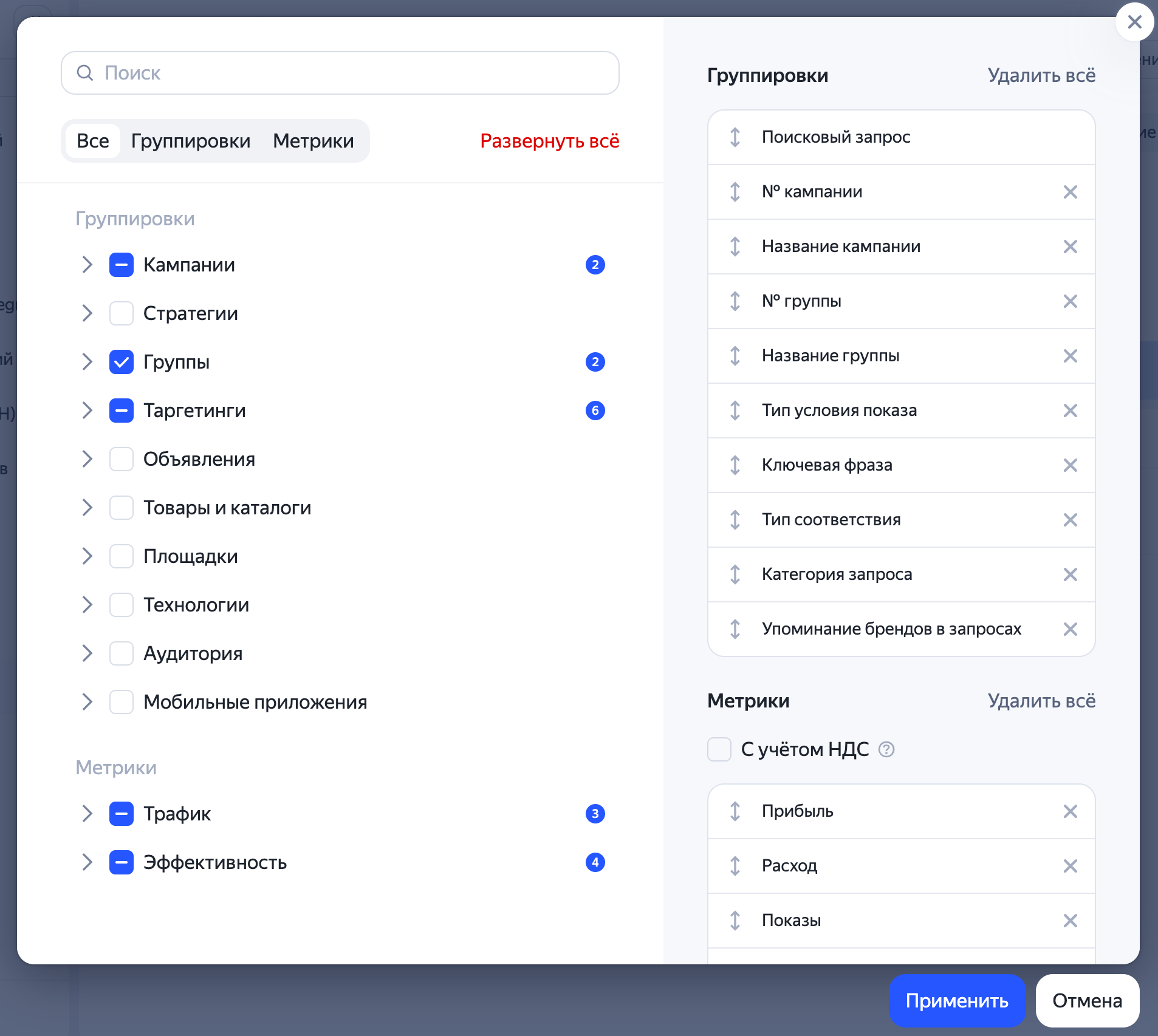
If needed, you can adjust these settings and add your preferred dimensions and metrics. For online stores, for example, it's critical to analyze ad performance beyond conversions and CPA, so they look at revenue, CRR, ROI, and profit. You can add these metrics to your report.
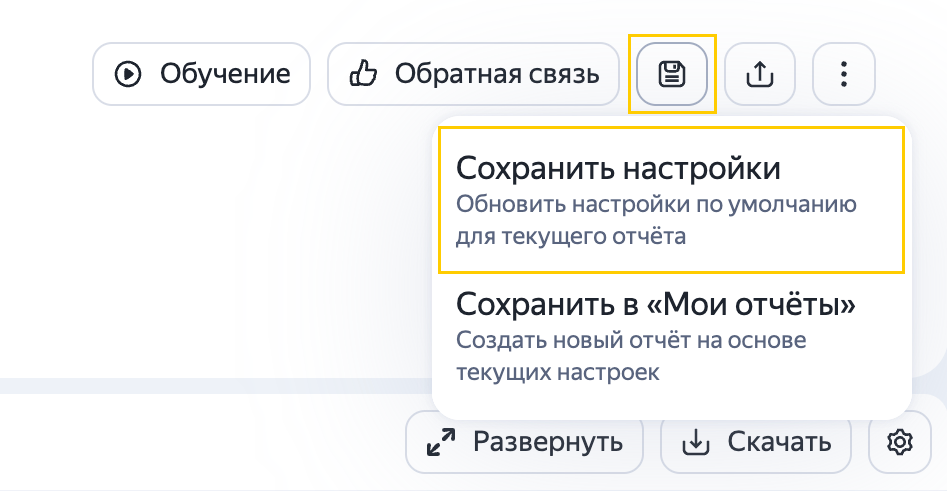
If you want to apply your settings every time you open the search queries report, save them. To do this, in the upper-right corner, click → Save settings.
Dimensions
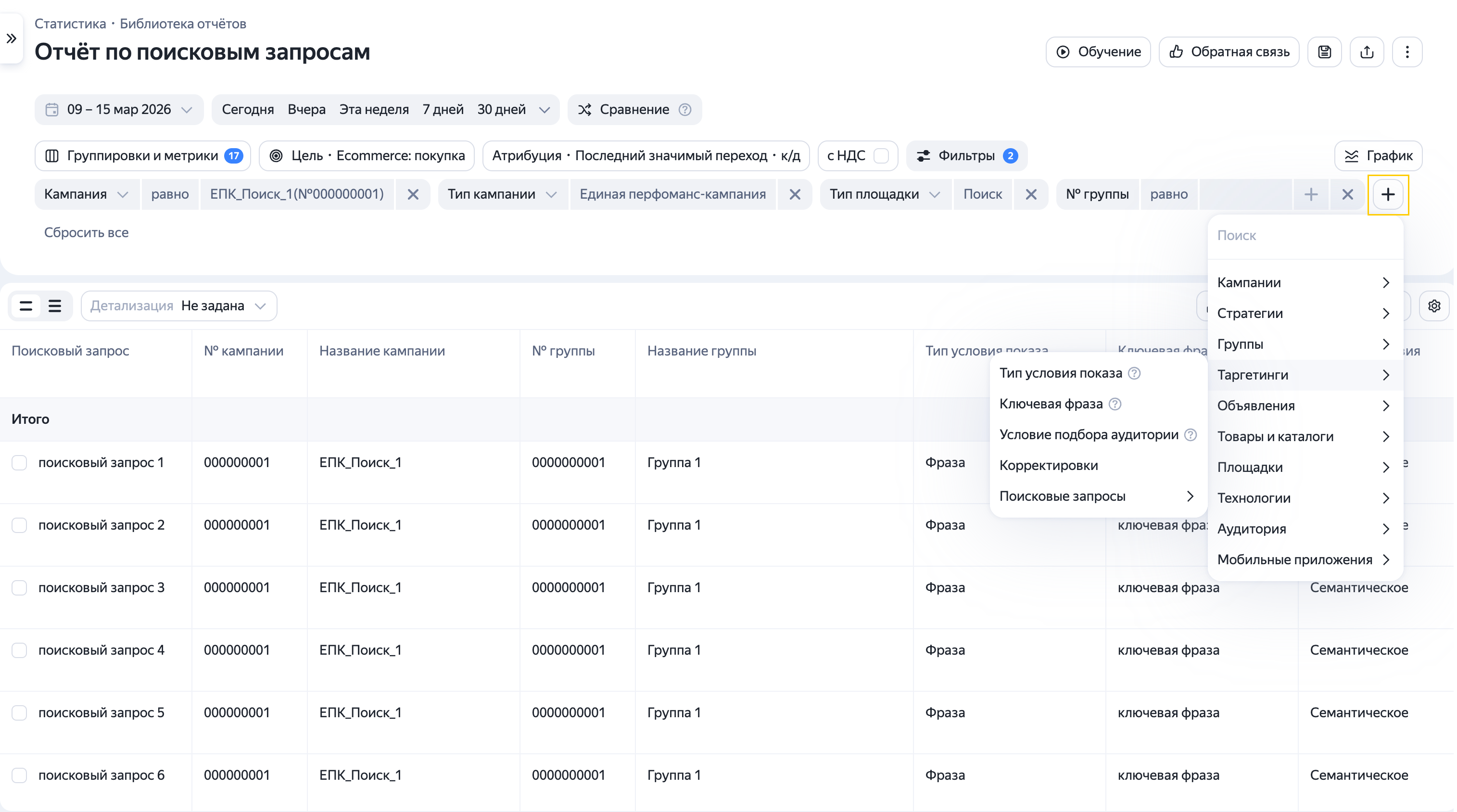
By default, the report includes dimensions that make search query analytics easier:
- Search query: The query entered by the user.
- Type of impression criteria: The campaign parameter that triggered the ad. This can be a keyword, an autotargeting, a retargeting list, or an offer retargeting.
- Keyword: The keyword that triggered the ad.
- Match type: The association between the original keyword and the keyword that triggered the ad.
- Query category: The category of the search query that triggered the ad.
- Brand mentions in queries: Brands mentioned in search queries that triggered the ad.
Data is available for the past 180 days.
The Other search queries row contains the following data:
-
Unprocessed queries: Queries made less than an hour ago, including those that resulted in clicks.
-
Queries that had no clicks and a negligible number of impressions (except for queries for which there were already clicks before or as part of other campaigns: these will appear in separate rows).
Type of impression criteria
| Type of impression criteria | Meaning | Example |
|---|---|---|
| Keyword | The ad is shown for queries that contain the entire keyword. Learn more about keywords. | An ad with the keyword birthday quest is triggered by the query doing a birthday quest |
| Autotargeting | The ad is shown to everyone who searches for your products or services based on the ad content, without using keywords. The system matches the ad title, text, and landing page with users' search queries in real time. Yandex can only check the correctness of autotargeting-based impressions for the past 60 days. Learn more about autotargeting | An ad with a text about space travel that leads to in-space.ru is served when someone searches for tours to Mars. |
| Retargeting list | Combines goals and segments from Yandex Metrica with Yandex Audience segments. The ad is served only to your desired audience. Learn more about retargeting lists | For the keyword buy sofa and the retargeting criterion visited site, the ad is served to users who typed "buy sofa" in the search bar and have already visited the site. |
| Interests and demographics | The ad is served to users whose online behavior places them in a specific group. Short‑term interests and habits are determined based on visited sites and apps, search categories, and travel routes from Yandex Maps. Learn more about impressions based on interests and habits | An ad for airline tickets or a summer clothing sale is served to people planning a vacation. |
| Offer retargeting | Ads are served to users who already interacted with product ads or catalogs on your site. | A user viewed a product or catalog on your site. They'll see this information again in a Yandex Advertising Network ad. |
Query category
| Query category | Meaning | Example |
|---|---|---|
| Targeted queries | The ad perfectly meets the user query. | For the user "World of backpacks" that places a "Laptop backpack" ad, a target query is buy a laptop backpack |
| Alternative queries | The user is looking for a product that can be replaced by the product you're promoting. The ad might also meet the query in this case. | The “Laptop backpack” ad is shown for the query buy a laptop bag |
| Related queries | Queries for products that might interest the user in relation to the advertised product or service. | The "Laptop backpack" ad is shown for the buy a laptop query |
| Queries mentioning competitors | Searching for the promoted product at the competitors. | The "Laptop backpack" ad is shown for the buy a laptop backpack Planet of backpacks query |
| Broad queries | The query is broader than the offer. | The "Laptop backpack" ad is shown for the buy a backpack query |
| Undefined | The query doesn't fit into any category. |
Match type
| Match type | Meaning | Example |
|---|---|---|
| Word-by-word | The ad is shown for the queries that wholly include the specified keywords. | An ad with the birthday quest keyword is triggered by the order a birthday quest query. |
| Semantic | The ad is triggered by queries that refine the keyword semantically (contain typos, synonyms, more specific words, or use alternative word order). Yandex can only check the correctness of impressions based on semantic matching for the past 60 days. | An ad with the keyword purchase quest for children is triggered by the query quest for children buy and an ad with the keyword where to eat is triggered by the fast food restaurants query. |
Managing reports
Select the report period in the settings. Add any required dimensions and metrics missing from the report. Next, specify the goals to use when analyzing the placement and change the attribution model if necessary.
You can filter report data by dimensions and metrics.
Dimension filters are available in the report settings. Learn more about filters
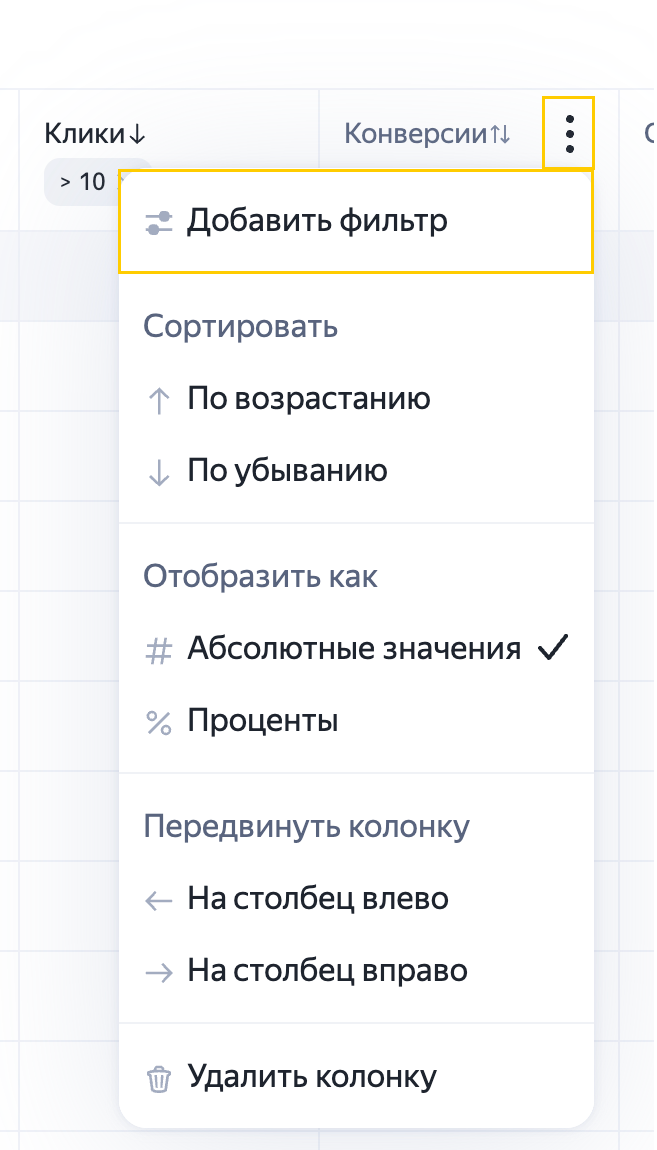
To filter your data by specific metrics, such as to view only search queries with more than 10 conversions, use the column filter. In the column name, click the , select Add filter, and specify your criteria.
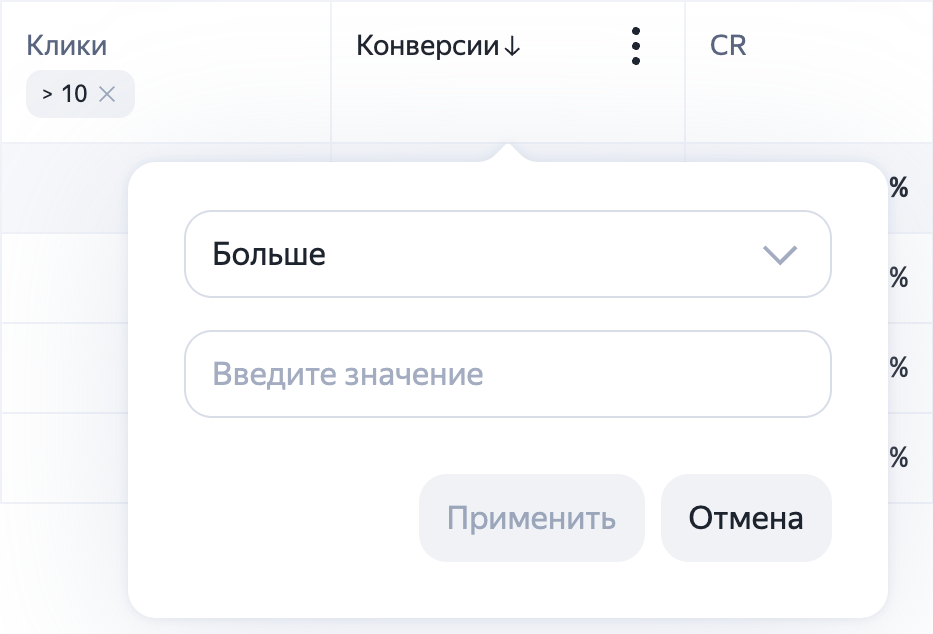
You can also analyze the effectiveness of search queries and keywords based on your specific marketing objectives. For example, you can evaluate how well a particular keyword or query delivers on your business goals and KPIs.
Adding negative keywords from the report
In addition to viewing search query analytics, you can add non-relevant queries to negative keywords for your campaign or ad group directly from the report.
Select keywords, then click Add to negative keywords.
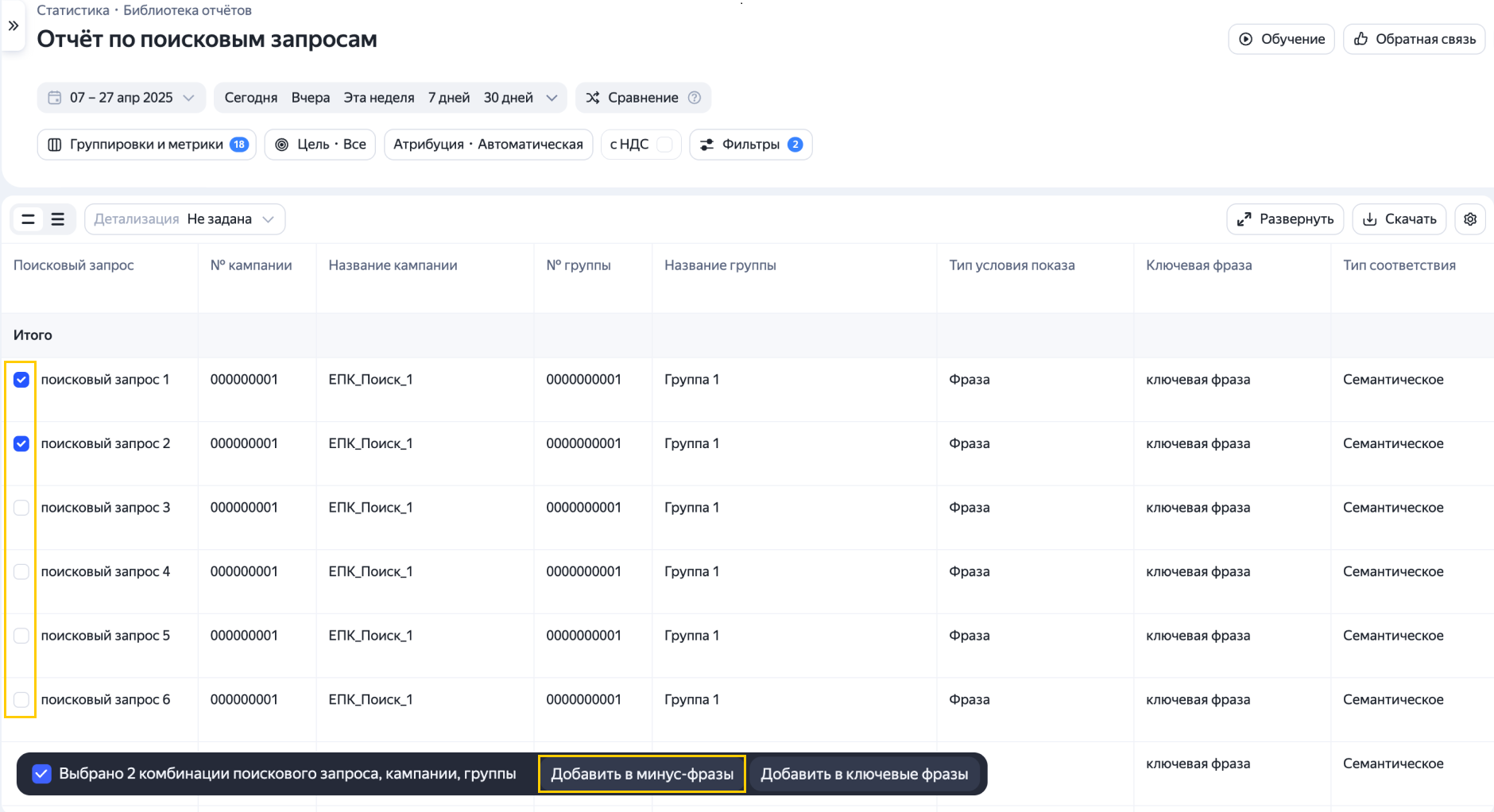
This will open a window where you'll see the selected keywords.
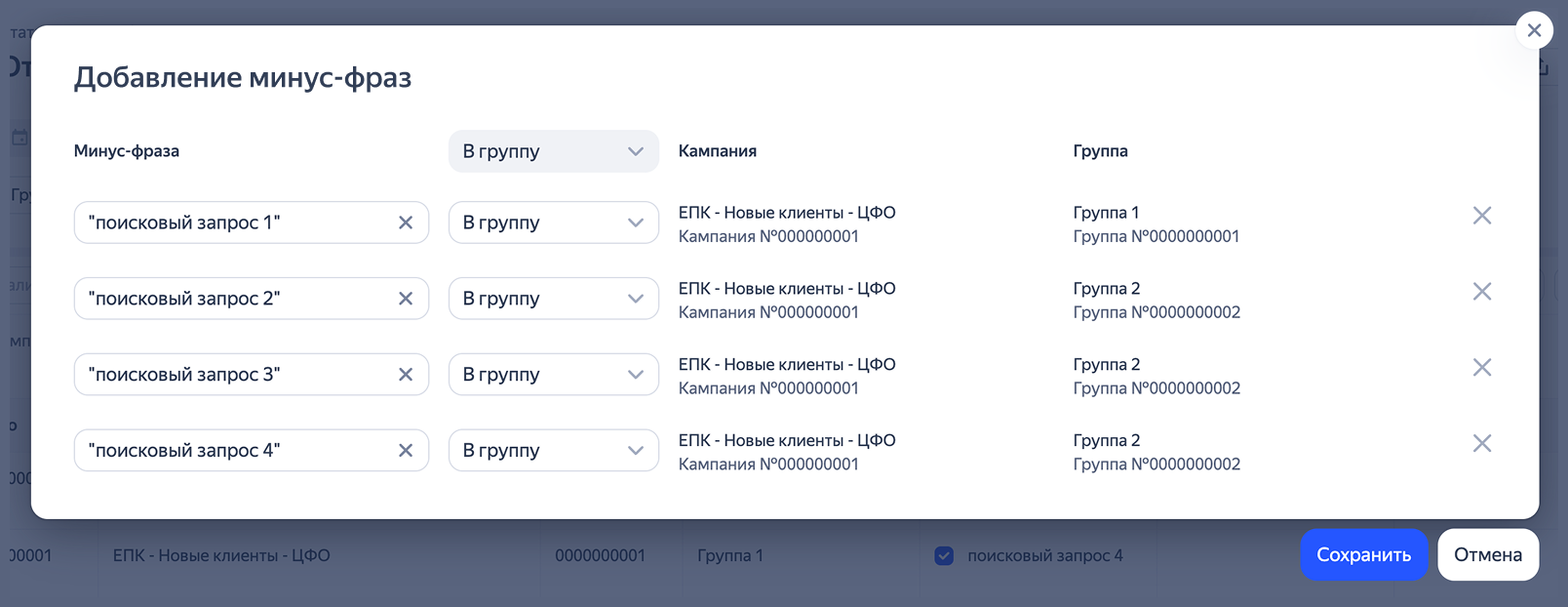
You can edit the selected keyword by using the operators +, !, []. By default the added keyword will be specified in inverted commas "". You can select the level for applying the negative keyword, such as at the ad group or campaign level. Click Save.
You will get a warning if you exceed the character count limit for an ad group or campaign while adding the selected search queries to negative keywords.
If a new negative keyword matches an existing keyword, you will also receive a warning.
You can add more negative keywords in the Report Wizard using the Search query dimension.
How to add negative keywords from the report
Adding keywords from the report
Select the queries you want to add to the keyword list, then click Add to keywords.
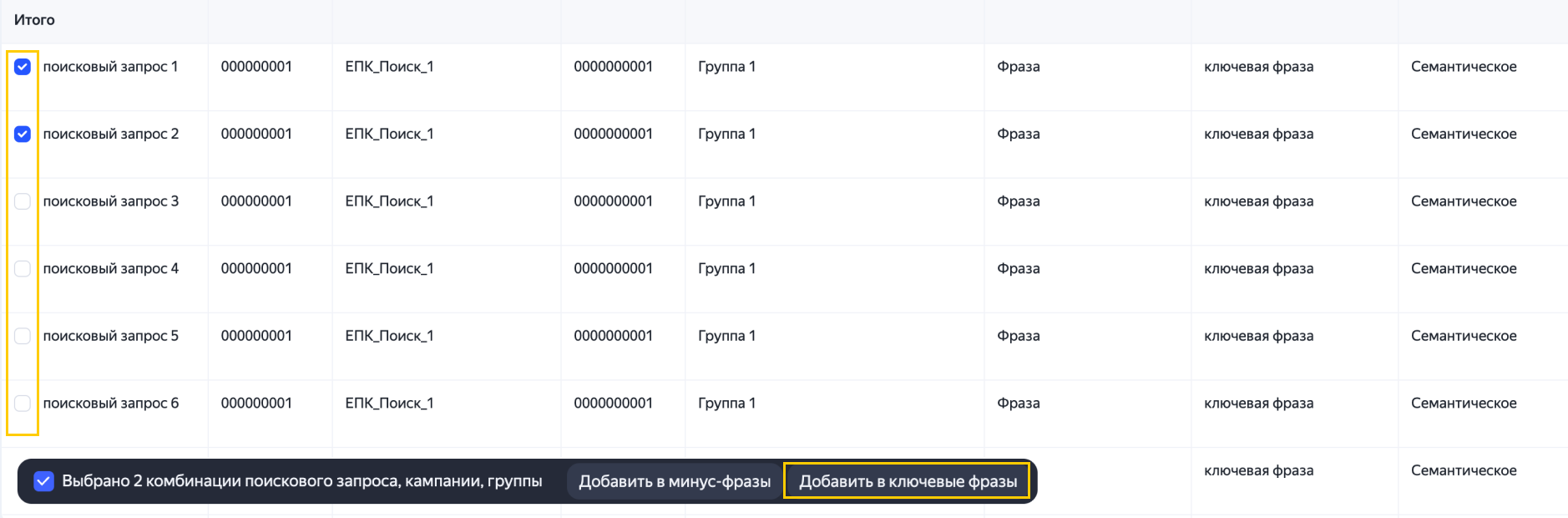
In the window that opens, you can edit the keyword, add operators, or set the bid amount if your campaign strategy is Maximize clicks with manual bids.
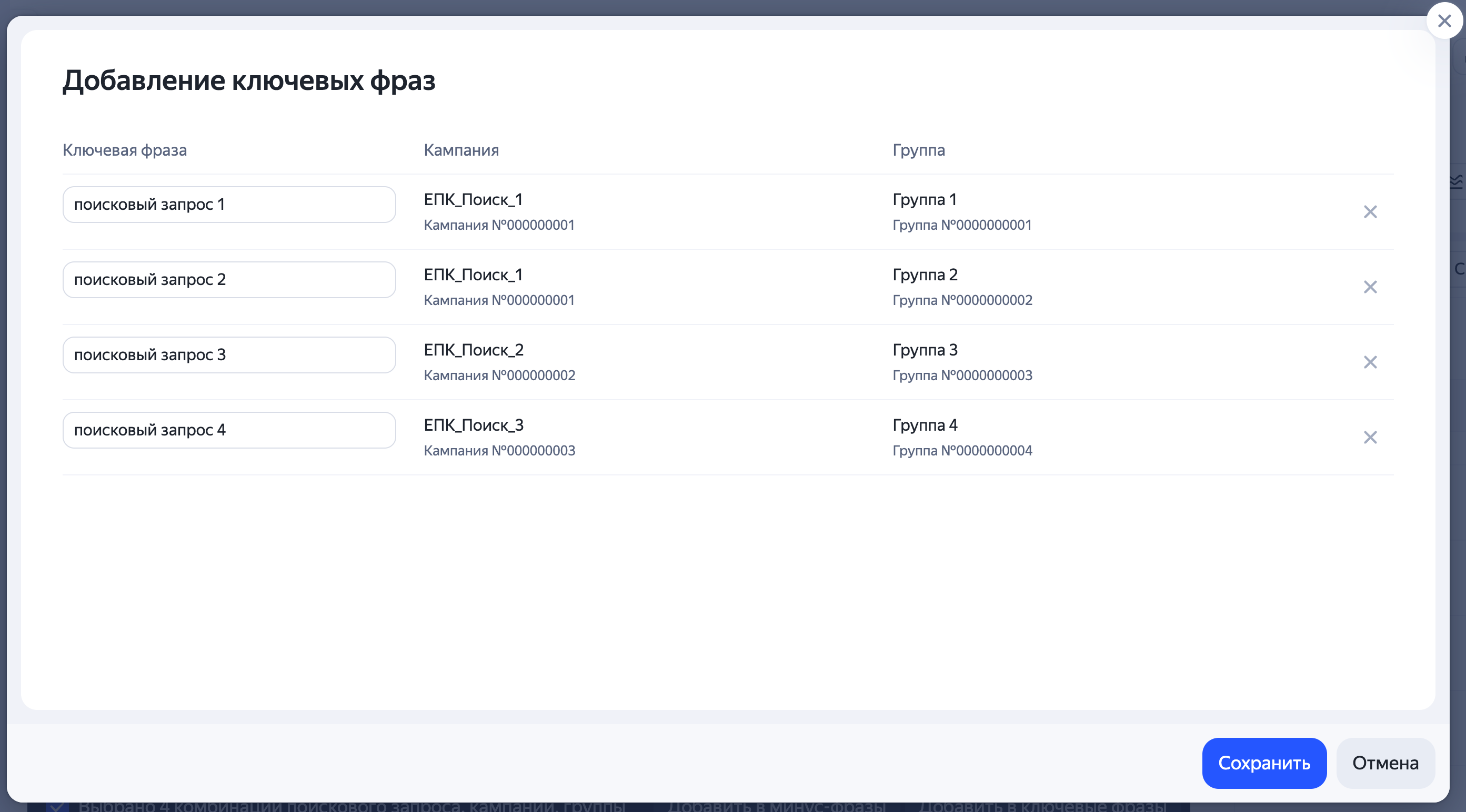
Click Save.
Unique keywords from selected search queries will be added to keywords for a specified ad group. If the new keywords don't fit into the group, Yandex Direct automatically creates a copy of the group and adds the remaining keywords there.
If adding search queries to keywords doesn't work out due to exceeding the ad group limit for a campaign, you can try reducing the number of added keywords, reducing the number of keywords in original ad groups or reducing the number of ad groups in the campaign.
You can also add queries in the Report Wizard using the Search query dimension.
How to add queries from the report
Have questions?
Alert
Our customer support can only assist you with campaigns linked to the username you are contacting us from. You can check your username by opening ya.ru in another browser tab. Our team can access your data only when processing your request.
Scan the QR code or tap it to follow the link.


If you select Telegram or WhatsApp, keep in mind that Yandex does not control and is not liable for how third-party messengers store your data and chat history.