Manage landing pages
Preview
To preview a landing page on a mobile device, tablet, or desktop, click Preview at the top of the landing page content editor.
Save
Set up your landing page and click Save. After saving, you can create a promotion campaign or go to your newly created landing page.
Customize a landing page
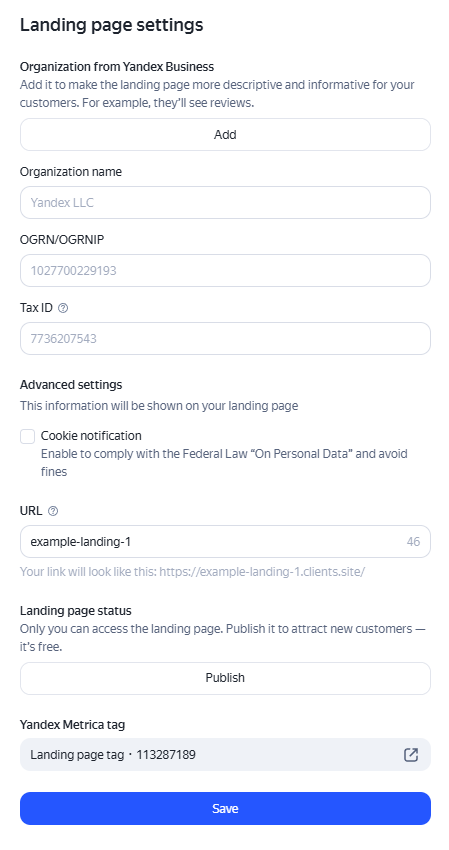
In the landing page settings, you can:
- Add an organization from Yandex Business.
- Specify the organization's details.
- Add a cookie notification.
- Edit the landing page URL.
- Publish or unpublish the landing page.
- Go to the Yandex Metrica tag.
At the top of the content editor, click  , specify your desired settings, then click Save.
Edit a landing page
In the left panel, select Landing pages. Click the landing page name and make your changes.
You can edit a landing page in one of the following ways:
-
In the left panel, select Library → Landing pages. Click the landing page name and make your changes.
-
In a unified performance campaign, go to the settings of your combinatorial ad. In the Link in ad field, select Direct to landing page and click Add. Select a landing page and click
 → Edit.
Promote, publish, and delete
You can view all your created landing pages:
- In the Yandex Direct interface: in the left panel, select Landing pages.
- In the Yandex Direct Pro interface: in the left panel, select Library → Landing pages.
To launch, publish, unpublish, or delete a landing page, click next to its name and select the desired action.
Have questions?
Alert
Our customer support can only assist you with campaigns linked to the username you are contacting us from. You can check your username by opening ya.ru in another browser tab. Our team can access your data only when processing your request.
Scan the QR code or tap it to follow the link.

If you select Telegram or WhatsApp, keep in mind that Yandex does not control and is not liable for how third-party messengers store your data and chat history.