Screenglide HTML5
Description
Screenglide HTML5 is an interactive HTML5 banner that expands depending on the user's actions (click, hover, and so on) or automatically, with shifting or moving content on top of it. In the banner, you can implement buttons that lead to different pages of the advertiser's site.
The creative in the banner can be implemented in one of the following forms:
- Images.
- HTML creative prepared in Adobe Animate CC or Google Web Designer using the instructions below.
Parameters for adding a banner to Adfox:
- The duration of banner impression in the expanded state.
- Content shift during expand.
Sample ready-made project in Adobe Animate CC, source file.
Sample ready-made project in Google Web Designer, source file.
Develop an HTML creative
Warning
Please read the requirements for the HTML code.
-
The maximum allowed size of an HTML file is 65,000 bytes.
-
It's best to place JavaScript and CSS inside the HTML code of the banner. If the final HTML code exceeds the maximum acceptable size, reduce it by splitting JavaScript and CSS code into separate files:
-
Save the JS and CSS code in separate files with the .js or .css extension.
-
File size can't exceed 10 MB.
-
Upload the files to the ad campaign's Files tab and add the resulting file links to the HTML code:
-
If the project includes absolute links (
src="js/script.js",src="css/style.css"), Adfox will recognize the paths to the files and automatically add them to the Files tab, replacing all links to these files in the project during the upload. -
If the project includes relative links (
src="../js/script.js"), use one of the following methods:- Replace
.jsand.cssfile links with absolute paths: Adfox parsing will trigger, and all links will be replaced automatically. - Manually upload
.jsand.cssfiles to the Files tab and replace relative links in your HTML code with the ones you'll get from Adfox.
- Replace
Example of connecting JS and CSS files:
<script type="text/javascript" src="LINK_TO_FILE"></script><link rel="stylesheet" type="text/css" href="LINK_TO_FILE" /> -
-
-
The project can contain only one file with the .html extension.
-
The maximum allowed number of files in a project is 50.
-
File types allowed in the project: CSS, JS, HTML, GIF, PNG, JPG, JPEG, SVG, JSON, MP4, OGV, OGG, WEBM, AVI, and SWF.
-
The maximum size of each file (this applies to archived files as well):
- 10 MB.
- 1 MB for video files.
-
File names must only contain numbers or Latin letters and an underscore character. You can't use spaces, quotation marks, and special characters in the file name.
-
The completed project is a ZIP archive.
When you change the canvas size, its contents are cleared in webkit browsers. For this reason, if you've written the creative code manually without using an editor like Adobe Animate, be sure to re-render the canvas after changing its size.
Image requirements
- Use high-resolution images. This substantially improves banner quality on mobile devices, though it reduces banner ad response speed.
- We recommend reducing the size of image files using services like TinyPng. This service works with both PNG and JPEG.
- You can use SVG images. These are vector images, which means they will look better on both mobile and desktop devices. They also have a small file size and can be animated.
- Allowed image formats: PNG, GIF, JPG, and SVG.
- Maximum file size: 10 MB.
Select the editor in which you will develop the HTML creative and click on the corresponding link. Prepare an archive with an HTML creative following the instructions:
Adobe Animate CC
-
Place two symbols on different layers that will correspond to the banner in the expanded and collapsed states.
If you need the Close button, add it to the Movie clip of the collapsed state.
Specify instance names.
We recommend using instance names expanded, collapsed, and closed for the expanded, collapsed states, and the Close button accordingly. You can then transfer the code samples from this manual to Animate without changes.
See also:
Instructions for adding a button and assigning an instance name
Button on the main scene
-
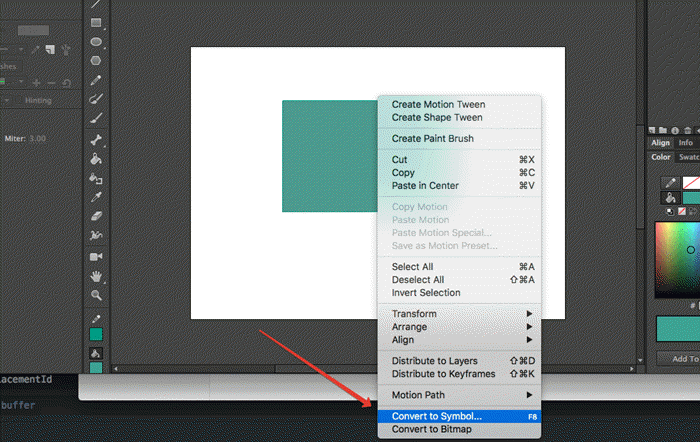
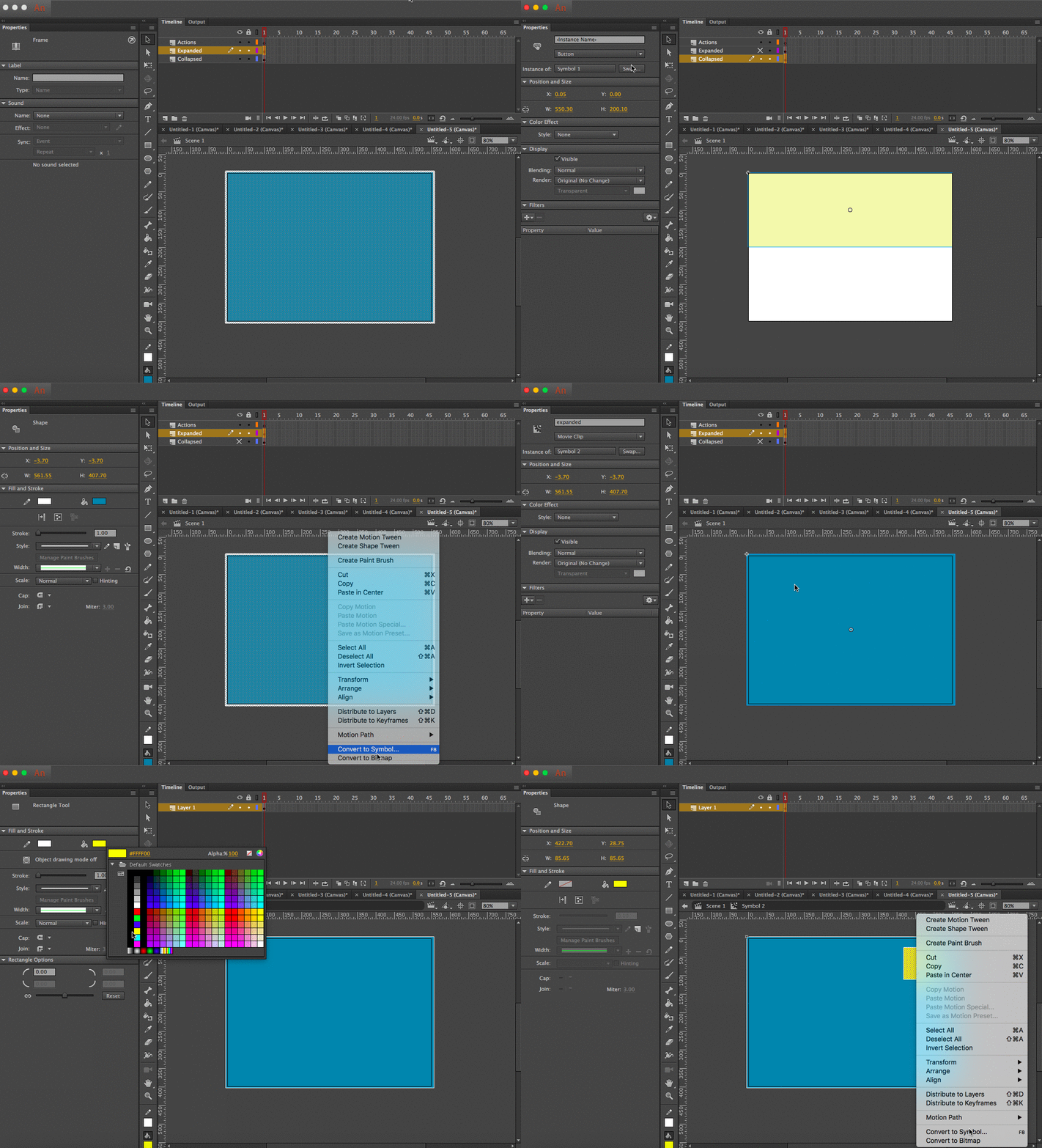
Create an object on the scene, for example, using Rectangle Tool. Then select the object and select Convert to Symbol... in the context menu.
-
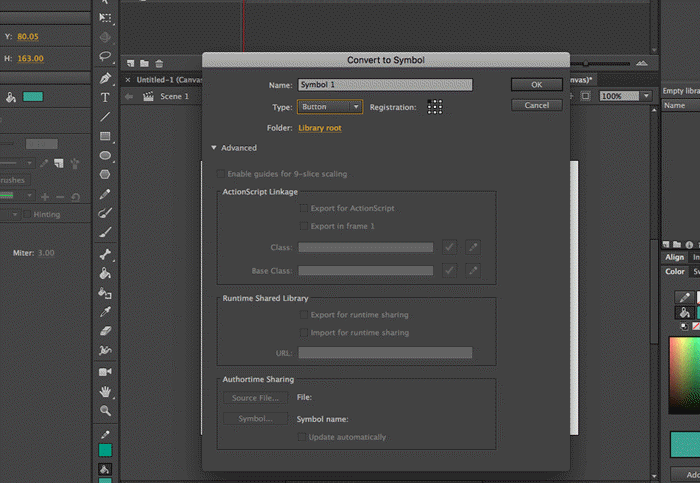
In the window that appears, select Type: Button. You can leave Name unchanged. Then click Ok.
-
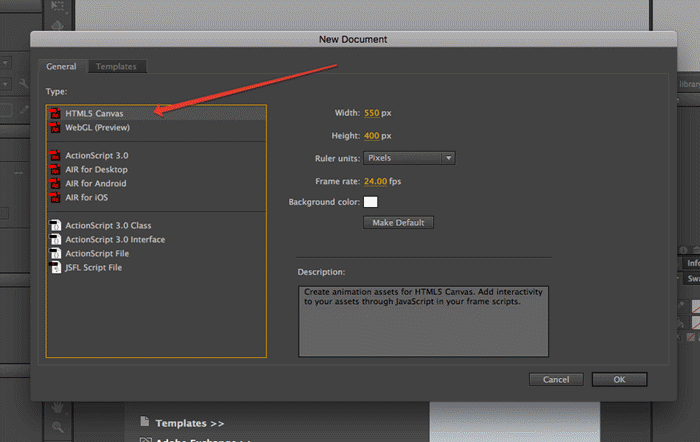
For the click to work, assign an Instance Name to this button.
-
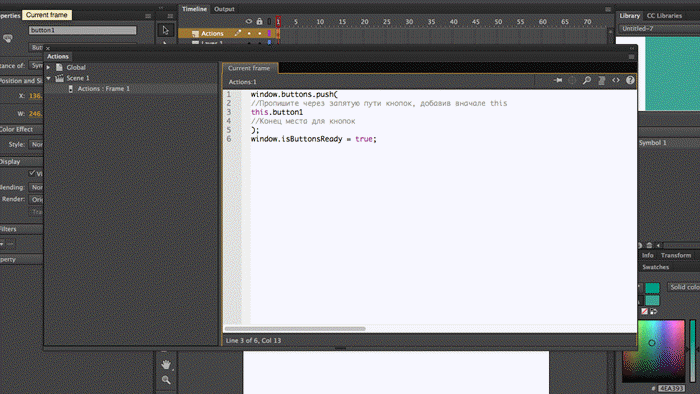
Write the code for this button in Actions:
window.buttons.push(
//List button paths separated by commas and add “this” at the beginning
this.button1
//End of button space
);
Nested button
-
Let's say that the button is inside another symbol, for example, Movie Clip. In this example, this Movie Clip has the Instance Name “name”.
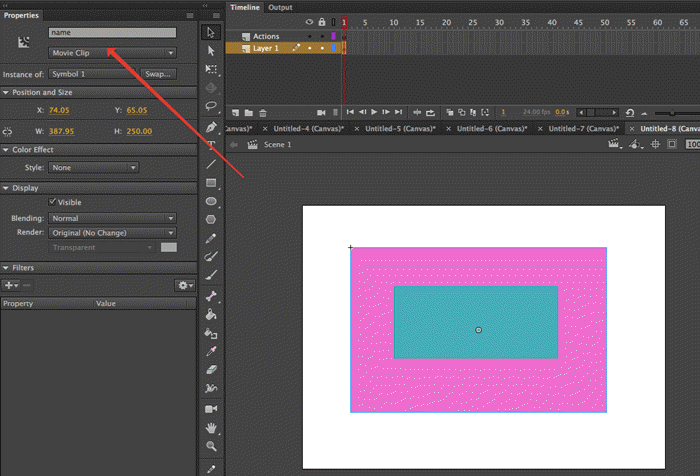
-
Double-click to go inside name. The nested button is there.
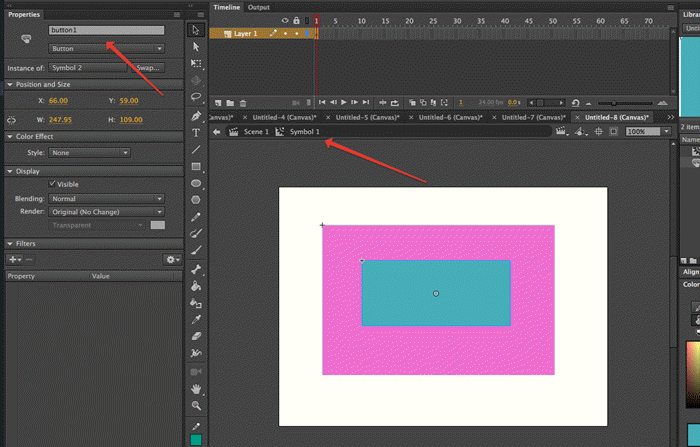
-
When you specify the path to this button in Actions, you need to add the object's Instance Name after this where it's nested:
window.buttons.push(
//List button paths separated by commas and add “this” at the beginning
**this**.name.button1
//End of button space
);
-
-
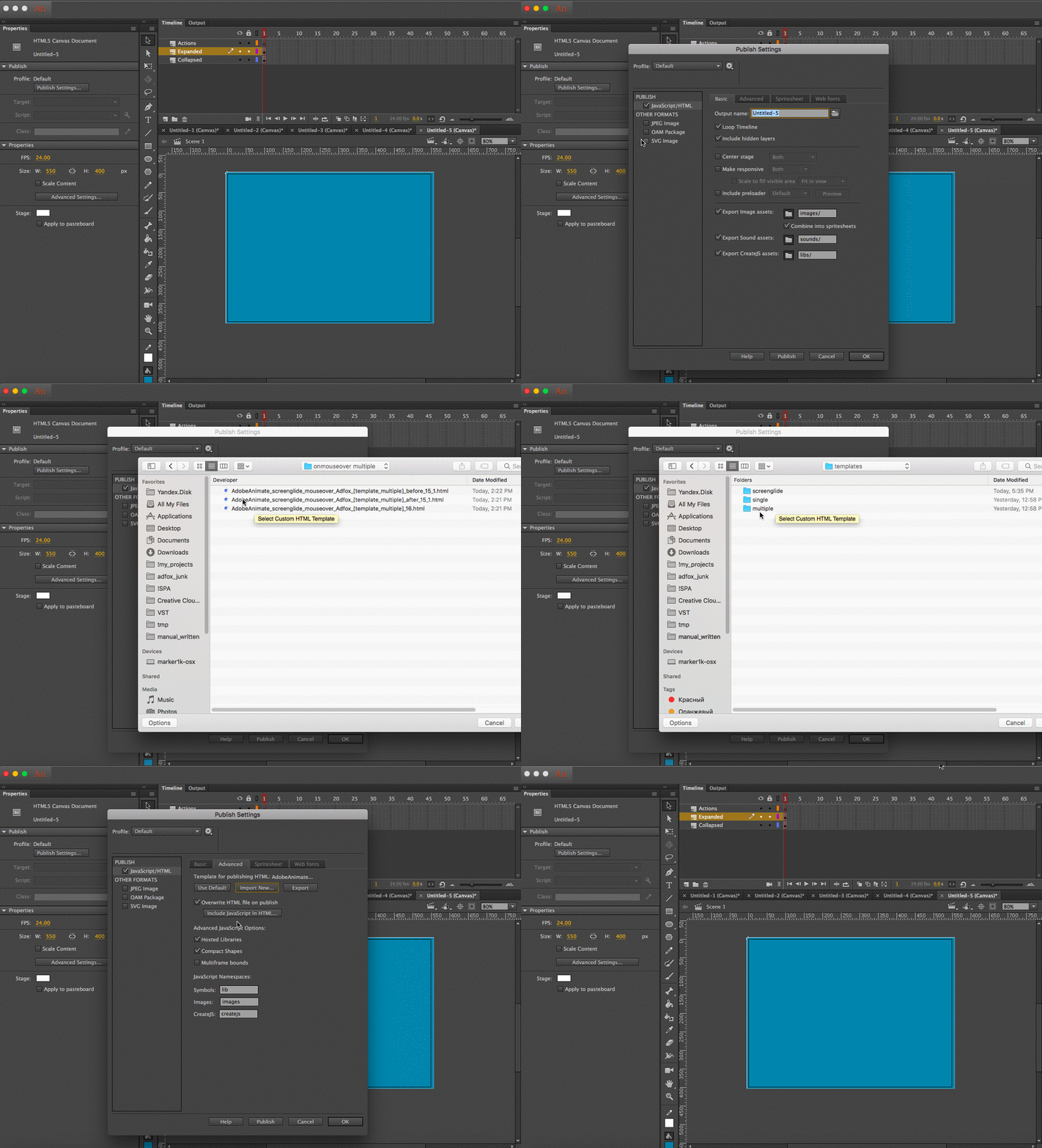
Select one of the templates depending on the scenario in the banner.
Download the template and connect it to the project:
- One clickable area and expand on hover.
- Multiple clickable areas and expand on hover.
- One clickable area and expand/collapse on click.
- Multiple clickable areas and expand/collapse on click.
Templates for Animate version 15 and below:
-
Depending on the scenario of the banner, add one of the code samples to the Actions layer:
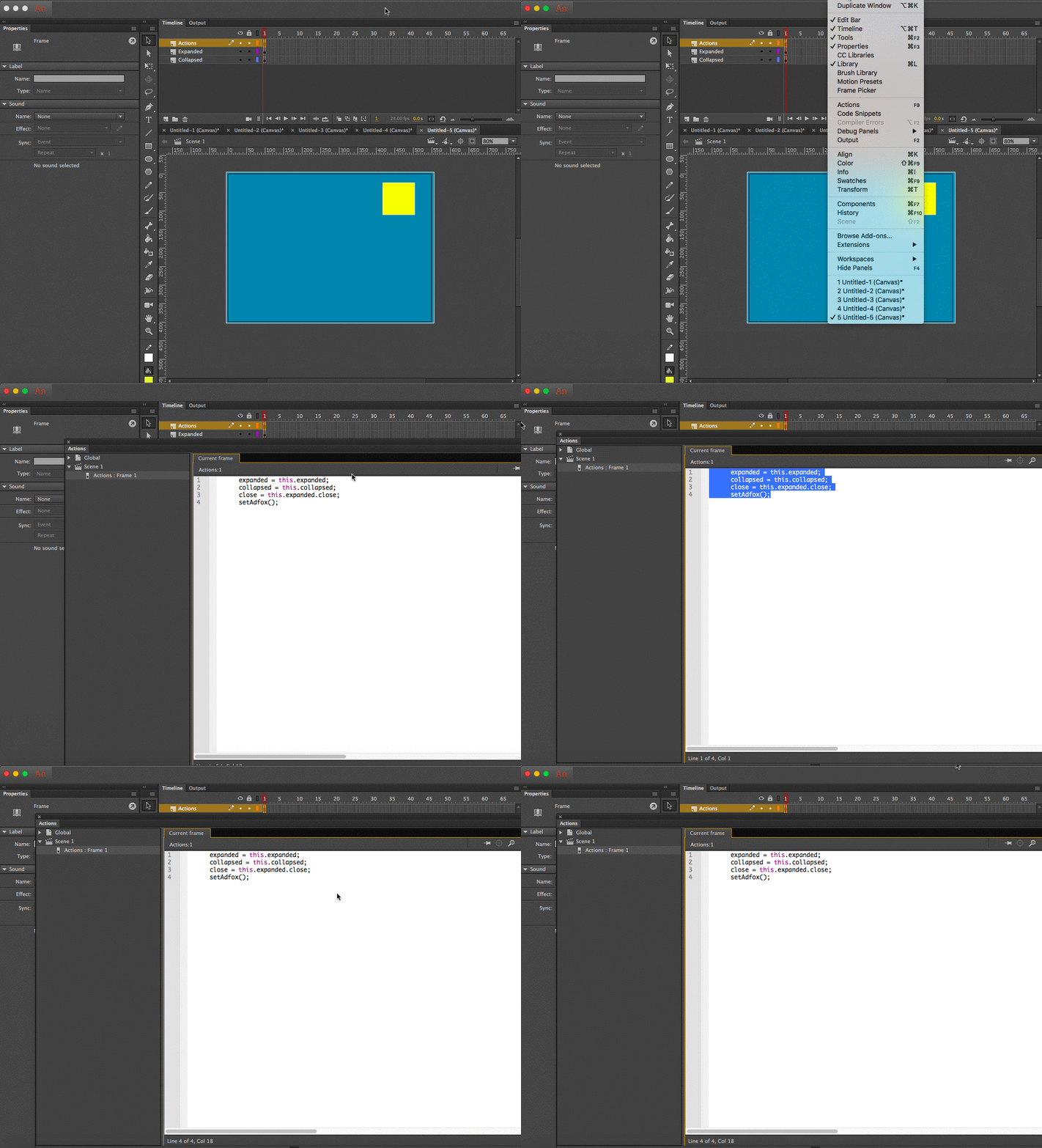
One clickable area and expand on hover
//Change the instance name if required
expanded = this.expanded;
collapsed = this.collapsed;
setAdfox();
Multiple buttons and expand on hover
//Change the instance name if required
expanded = this.expanded;
collapsed = this.collapsed;
window.buttons.push(
//List button paths separated by commas and add “this” at the beginning
this.expanded.button1, this.expanded.button2, this.expanded.button3, this.expanded.button4
//End of button space
);
setAdfox();
One clickable area and expand/collapse on click
//Change the instance name if required
expanded = this.expanded;
collapsed = this.collapsed;
close = this.expanded.close;
setAdfox();
Multiple buttons and expand or collapse on click
//Change the instance name if required collapsed = this.collapsed; expanded = this.expanded; close = this.expanded.close; window.buttons.push( //List button paths separated by commas and add “this” at the beginning this.expanded.button1, this.expanded.button2 //End of button space ); setAdfox(); -
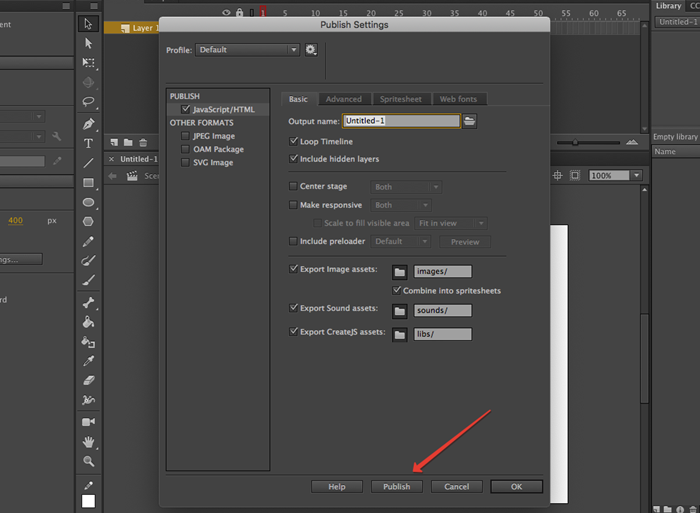
Publish the project and package it in a ZIP archive.
-
If you use the option with multiple buttons, make sure to keep track of instance names of the buttons and their corresponding purpose. You'll need this information when adding an HTML creative to the Adfox interface.
For example:
this.expanded.button1: A link to the product page.this.expanded.button2: A link to contacts.After adding the banner in the Adfox interface, specify the links on the Events tab.
The first instance in the line of code will correspond to the Event 1 parameter of the banner. You can use any name for the event.
Google Web Designer editor
-
Download a banner template for Google Web Designer.
You can use this banner code as a basis for making creatives in the editor. Place the archive contents into the folder with the program templates, for example:
/Users/[USER_NAME]/Documents/Google Web Designer/templates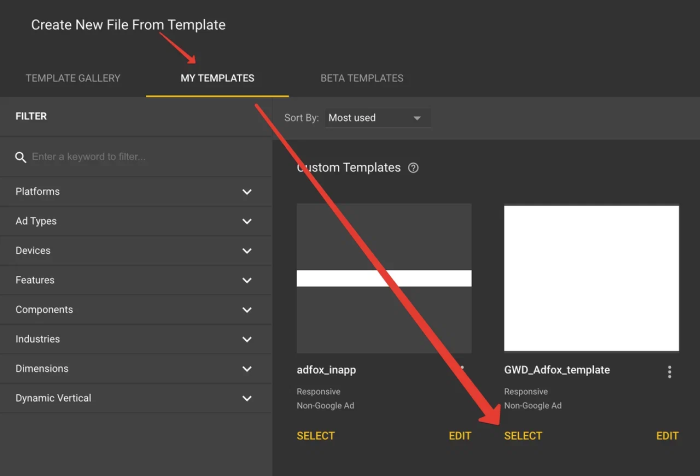
The template contains an
adfox_HTML5.jsscript and a set of parameters for clicks and event counters to work correctly:%request.reference_mrc%, %user1%, %eventN%, whereNis the event number from 1 to 30. -
Click processing.
All events are assigned to animation elements on the Events tab.
Actions are called using the Tap area component.
Add it and select the Tap Area → Touch/Click event.
On the Custom code tab, select the click call function.
-
If a single button is used:
callClick(); -
If multiple buttons are used:
callClick(n);where
nis the number of the event to be called. -
If you need to call an event from an animation without a click-through, use the following code:
callEvent(n);where
nis the number of the event to be called.
How to use a stretching banner.
To make the banner stretch across the width of the container on the site, specify percentages instead of pixels for the banner location and dimensions on the Properties panel.
Use the Align by container and Adaptive layout options on the top toolbar.
If you enable Adaptive layout before using any alignment tools, when you change the parent container size, all elements are aligned relative to each other and relative to the container size.
You can simultaneously use both the relative sizes of elements in percentages and absolute sizes in pixels.
Sample ready-made project in Google Web Designer, source file.
-
-
Publish the project.
The project has to be published with the following settings:
- Collect files enabled.
- Create ZIP archive enabled.
- Groups unpacking enabled.
- CSS prefix enabled for WebKit and Mozilla.
Note
When adding a banner to Adfox, the manager needs to know the correspondence between the button and event number. For each event, the manager adds its own click-through URL, which is then passed to the banner code using a variable.
After publishing the project, archive it with the .zip extension. Your creative is ready to be uploaded to the Adfox banner.
Add a banner to Adfox
To add a banner to Adfox, select the desired banner type and the Screenglide HTML5 [context] template.
Fill in the banner parameters:
|
Parameter |
Description |
|
Archive with HTML5 creative |
Upload a ZIP archive with the project. Leave the HTML5 code of the creative field empty: it's filled with the contents of your project's HTML file after you add the banner. |
|
HTML5 code of the creative |
The content of the HTML code from the archived project (loaded from the archive automatically). |
|
Transition URL |
Link to the advertiser's site. For the click-through to work correctly, make sure that the link includes the protocol (
|
|
Link TARGET |
Determines the window where the link opens:
|
|
Tracking pixel link |
Tracking pixel link for counting impressions in a third-party ad management system. |
|
Image No. 1 (before the expand) |
If the banner consists of two images, upload the smaller image (before expanding). The banner can also consist of a single image 1. In this case, there will be no expanding. |
|
Image No. 2 (after the expand) |
Optional. If the banner consists of two images, upload a larger image (after expanding). |
|
Expand time (seconds) |
The time in seconds after which the banner will be automatically collapsed after an automatic or user-triggered expanding. |
|
Shift the content when expanding |
Specify whether the banner should shift the content:
|
|
Name of the banner container class attribute |
If necessary, enter a name (or multiple names separated by a space) for the |
|
Width before the expand (in px or 100%) |
Width of the creative before expanding. |
|
Height before the expand (in px or 100%) |
Height of the creative before expanding. |
|
Width after the expand (in px or 100%) |
Width of the creative after expanding. |
|
Height after the expand (in px or 100%) |
Height of the creative after expanding. |
|
Expand direction |
Specify the direction in which the banner should expand:
|
|
Styles for banner block |
Custom styles for the banner container in a single string. Except for the display style. For example, |
|
Advertising label settings:
|
In the Ad label list, select Note Adding the “Social ad” label doesn't automatically define the creative as social advertising. To label a creative as a social ad (PSA) in the state register, select Social advertising contract with payment or Social advertising contract by quota for the corresponding contract with the end advertiser. In the Domain field, specify the advertiser domain, and it will be added to the label: “Ad | example.com” or “Social ad | example.com” (only if the |
|
Show banner menu |
To add a token to a non-clickable banner, enable the Show banner menu option in the banner settings. When the banner is served, the The banner menu contains a link to the rules for using recommendation technologies. It's required for compliance with Clause 3 of Section 1 of Article 10.2-2 of the Federal Law No. 149-FZ “On information, information technologies, and information protection”, dated July 27, 2006. Note If the banner is non-clickable (the Transition URL field is empty) and has not been added to the ad register, you can enable the banner menu to make the token available when serving the banner. |
|
Advertising labeling |
Advertising labeling: This section is only available if you've selected Submit data to state register as a labeling procedure in the campaign settings. Fill in the fields in this section to register the creative in the Yandex advertising data operator. The creative is assigned a token automatically. Note If the banner isn't to be added to the ad register, select Do not submit data to state register. |
 menu icon will be displayed in its upper-right corner. When a user clicks the icon, the advertiser's details and the copy token button appear (if ad register is enabled for the banner or a third-party token is specified).