InPage video
Description
InPage video is an ad format that allows you to show video ads in the site content.
The video player is deployed inside the main content of the site when 50% of the height of the player falls into the user's viewable area. The video starts with the sound turned off.
After the playback is completed, the player collapses and disappears from the page.
The format is fully compatible with the VAST and VPAID video ad specifications. It supports standard tracking events requested at certain times when they occur in the player.
InPage enables placements to manage traffic through their own direct sales and also monetize it through the Yandex Advertising Network.
This cross-platform video format is shown on desktops, tablets, and mobile phones.
Note
On iPhones running iOS 9 or earlier, the video display on full scroll starts only after a tap on the Play button in the device's native player. The tap-through is possible when you tap on the video outside the Play button area.
Parameters for adding a banner to Adfox:
- Setting the video player animation on the page.
- Setting the video player visibility.
- Setting the positioning of the video player in the page content.
Preparation (for developers)
Prepare a video file that meets the requirements.
File requirements
|
Format |
MP4, WebM, MOV, QT, AVI |
|
Recommended format |
MP4 |
|
Frame rate |
no more than 60 frames per second |
|
Number of video tracks |
1 |
|
Audio codecs |
AAC, MP3, Vorbis |
|
Number of audio tracks |
no more than 1 |
|
Minimum resolution (optional) specified in pixels or as a percentage |
1280 × 720 pixels |
|
The maximum size of the video clip, to be uploaded to the Adfox interface |
100 MB |
Alert
By default, the maximum video size for InPage banners is 100 MB.
Video files that you upload directly to the Adfox interface are automatically converted to different formats and sizes and saved to the Yandex video hosting.
To upload files to the banner that don't meet the restrictions, there's a special box labeled (URL) that specifies the full path to the file on a third-party server.
File names must only contain numbers or Latin letters and an underscore character. You can't use Cyrillic letters, spaces, quotation marks, dashes, and special characters in the file name.
For XML: Information about the VAST standard for video ads.
Event count
The banners count events automatically:
- The start of viewing (start).
- The video is selected (creativeView).
- The video is loaded (impression).
- The first quarter of viewing (firstQuartile).
- The middle of viewing (midpoint).
- The third quarter of viewing (thirdQuartile).
- Full view (complete).
- Turn the sound off (mute).
- Turn the sound on (unmute).
- Pause (pause).
- View from the beginning (rewind).
- Continue viewing (resume).
- Go to full screen (fullscreen).
- Expand (expand).
- Collapse (collapse).
- Go to the next video (acceptInvitation).
- Click on the Close button (close).
- Click on the Skip ads text bar (skipAd).
- Click on the Click to the advertiser's website text bar (addclick).
- Error (error).
- Viewable impression, Yandex is only available in the Linear-Ad (Pre / Mid / Post-roll) VAST 3.0 Viewability for InPage template.
- Progress (progress): Available starting with VAST 3.0.
Add to Adfox
On the Settings → Banner types → Custom → Nondimensional tab , add a new banner type.
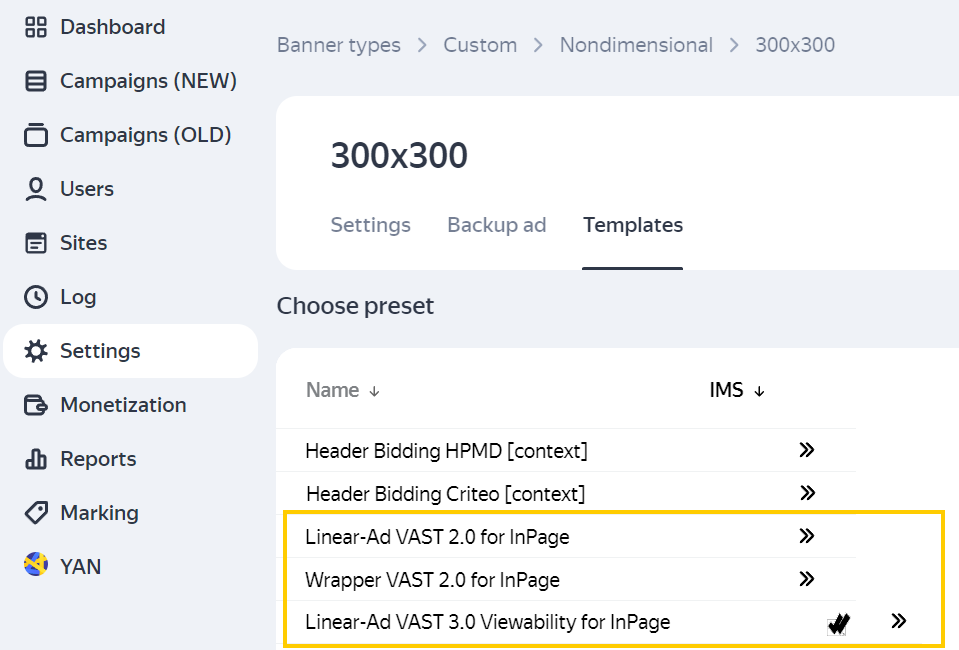
The banner type lists templates compatible with the player:
- Linear-Ad (Pre / Mid / Post-roll) VAST 3.0 Viewability for InPage: This template includes a viewability check. When at least 50% of the video area remains in the active browser window for at least two seconds, this counts as the event Viewable impression, Yandex.
- Linear-Ad (Pre / Mid / Post-roll) VAST 2.0 for InPage.
- Wrapper VAST 2.0 for InPage.
When adding a campaign, we recommend specifying Event 3 or Viewable impression, Yandex (for the Linear-Ad (Pre / Mid / Post-roll) VAST 3.0 Viewability for InPage template) in the The method of counting impressions parameter. This is due to the fact that in video ads, the banner impression is considered to be the actual start of the ad material impression in the player: that is, on the occurrence of Event No. 3 or Viewable impression, Yandex.
Option 1. Ad type with Linear-Ad content
To add a banner, select the Linear-Ad (Pre / Mid / Post-roll) VAST 3.0 Viewability for InPage template and specify the parameters:
|
Parameter |
Description |
||||||||
|
Video URL |
Upload the ad material or provide a link if the file is uploaded to a third-party server. The recommended video aspect ratio is 4:3 or 16:9. |
||||||||
|
Click link |
A link to the advertised site. If the placement uses links from third-party systems, add |
||||||||
|
width, height |
Size of the ad material. |
||||||||
|
Duration (hh:mm:ss) (default is 00:00:00) |
Video playback duration. |
||||||||
|
Content type |
Must match the uploaded video file. MIME types
|
||||||||
|
The video is loaded (impression) |
Link to a tag of a third-party system for tracking events. |
||||||||
|
Additional links to a tag of a third-party system for tracking events. |
||||||||
|
Advertising label settings:
|
In the Ad label list, select Note Adding the “Social ad” label doesn't automatically define the creative as social advertising. To label a creative as a social ad (PSA) in the state register, select Social advertising contract with payment or Social advertising contract by quota for the corresponding contract with the end advertiser. In the Domain field, specify the advertiser domain, and it will be added to the label: “Ad | example.com” or “Social ad | example.com” (only if the |
||||||||
|
Show banner menu |
To add a token to a non-clickable banner, enable the Show banner menu option in the banner settings. When the banner is served, the The banner menu contains a link to the rules for using recommendation technologies. It's required for compliance with Clause 3 of Section 1 of Article 10.2-2 of the Federal Law No. 149-FZ “On information, information technologies, and information protection”, dated July 27, 2006. Note If the banner is non-clickable (the Transition URL field is empty) and has not been added to the ad register, you can enable the banner menu to make the token available when serving the banner. |
||||||||
|
Advertising labeling |
Advertising labeling: This section is only available if you've selected Submit data to state register as a labeling procedure in the campaign settings. Fill in the fields in this section to register the creative in the Yandex advertising data operator. The creative is assigned a token automatically. |
 menu icon will be displayed in its upper-right corner. When a user clicks the icon, the advertiser's details and the copy token button appear (if ad register is enabled for the banner or a third-party token is specified).
Note
Video files that you upload directly to the Adfox interface are automatically converted to different formats and sizes and saved to the Yandex video hosting. After the video is uploaded, the banner stays in the <paused> status until the conversion is complete. After conversion, the video status changes to <converted>, and the banner status reverts to that prior to the video upload: <active>, <paused>, or <stopped>.
Option 2. Ad type with Wrapper content
If you specify a link to an XML file with wrapper code, use the template Wrapper VAST 2.0 for InPage. It contains a link requesting access to a third-party system to get XML with an ad.
- VASTAdTagURI: Specify a link to the XML or add an XML file.
- Impression.
- Impression 2: An additional link to a tag of a third-party system for tracking events.
- Impression 3: An additional link to a tag of a third-party system for tracking events.
You don't need to label banners with wrapper content. Labeling is applied to the creative that is uploaded to the banner via a link.
Get the ad tag
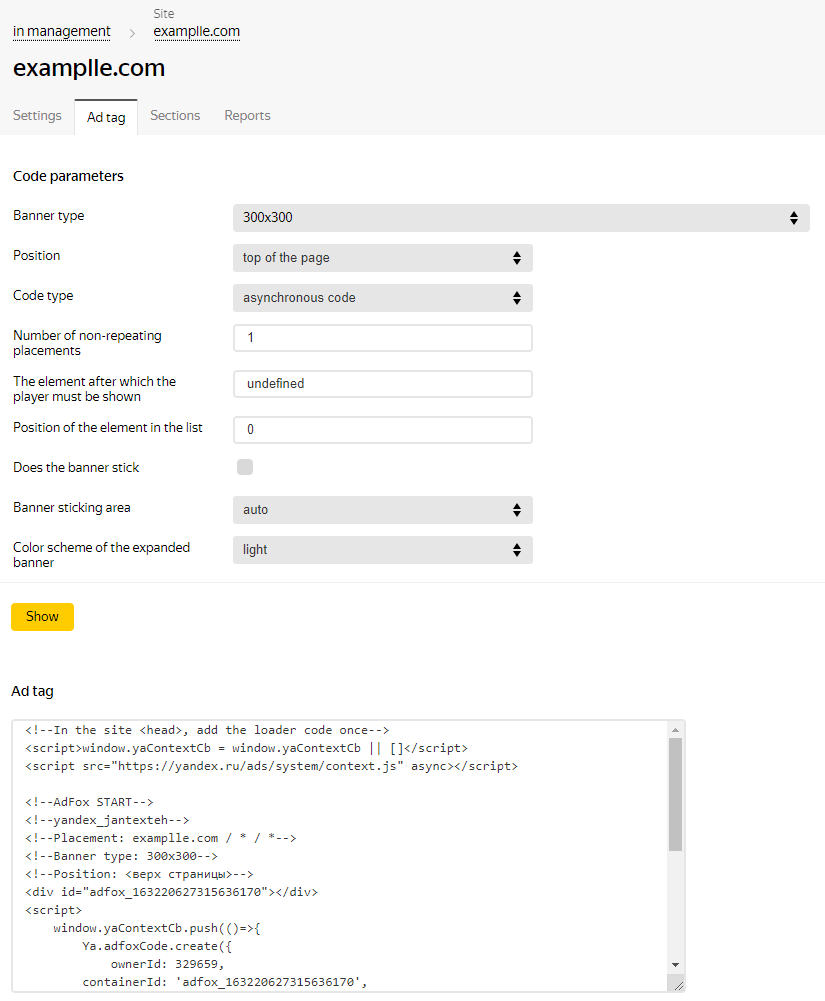
Sample ad tag:
Displaying your ad after the player is minimized
To display your ad after the player is minimized, add the onVideoEnd callback function to the InPage banner ad tag. This function is triggered when the ad finishes playing. After the player is minimized, the alternative code specified in the function runs.
Example of using an onVideoEnd callback function in the ad tag
<script>
    window.Ya.adfoxCode.create({
        ownerId: 123456,
        containerId: 'banner-inpage',
        params: {
            p1: 'clxao',
            p2: 'gwfm',
            insertAfter: 'undefined',
            insertPosition: '0',
            stick: true,
            stickTo: 'auto',
            stickyColorScheme: 'light'
        },
        // Callback function with the tag of the RTB unit rendered in the same container
        onVideoEnd: () => {
            Ya.Context.AdvManager.render({
                renderTo: "banner-inpage",
                blockId: "R-A-123456-1"
                }
            )
        }
    });
</script>