Fullscreen HTML5
Fullscreen HTML5 displays any HTML content or image in the format of a fullscreen banner. The banner is displayed for a certain time on a timer or until the user closes the banner by clicking on the Close button.
When adding a banner in Adfox, you can upload an HTML creative and/or images.
Banner size and position
Banners consist of two elements: a banner wrapper and a container with ad content. The wrapper always occupies 100% of the width and height of the window dimensions. The ad content is always located in the center of the screen.
For HTML content, the dimensions are specified in the Banner width and Banner height parameters. You can use percentages and pixels. The size of the browser window is taken as 100%.
If the content dimensions are larger than the window size, the horizontal or vertical scroll bars won't appear, and the content block — as well as the container with the creative — will be smaller. If the creative isn't adaptive, the banner will appear partially cropped for users with smaller screens. In that case, the banner will be positioned:
- On the left if the banner width is greater than the screen width.
- On the top if the banner height is greater than the screen height.
As an alternative to HTML creatives, you can use images. Placeholder images change their size inside the content block based on the algorithm specified in the Image position (contain, cover) parameter.
Elements of the banner control panel
-
Countdown timer to close the banner: You can adjust the visibility and color of the timer.
-
Text next to the timer: You can use custom or default text (Advertisement).
-
Close button: You can adjust the button's visibility, configure a delayed display, or specify a custom button image.

-
More button: Located at the bottom center of the screen. You can adjust the button's visibility and text or add custom styles.
Format features
A Fullscreen HTML5 banner will pass the viewability check only if at least one of its pixels remain in the active browser window for at least two seconds.
Tip
International media industry standards recommend showing the Close button without a delay (“Close” button display delay is set to 0).
HTML code requirements (for code developers)
To prepare a project with an HTML5 creative, we recommend using the ready-made manual for editors:
Adobe Animate CC
-
Place two symbols on different layers that will correspond to the banner in the expanded and collapsed states.
If you need the Close button, add it to the Movie clip of the collapsed state.
Specify instance names.
We recommend using instance names expanded, collapsed, and closed for the expanded, collapsed states, and the Close button accordingly. You can then transfer the code samples from this manual to Animate without changes.
See also:
Instructions for adding a button and assigning an instance name
Button on the main scene
-
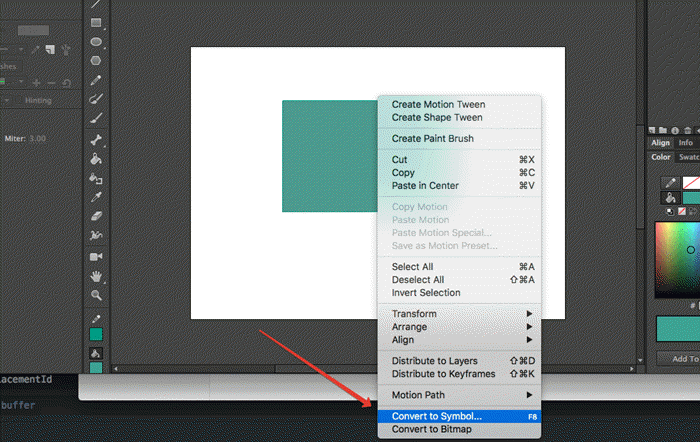
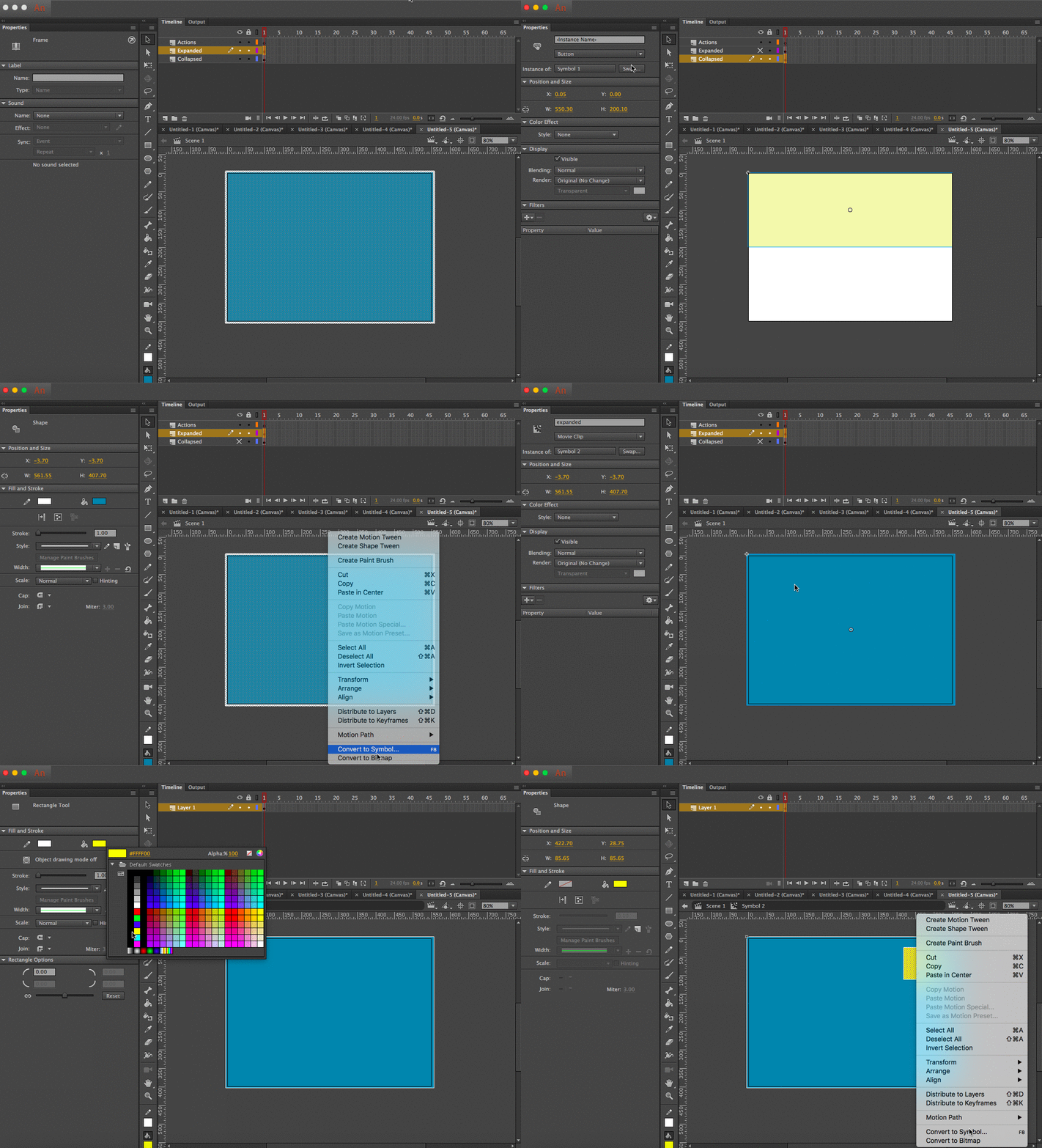
Create an object on the scene, for example, using Rectangle Tool. Then select the object and select Convert to Symbol... in the context menu.
-
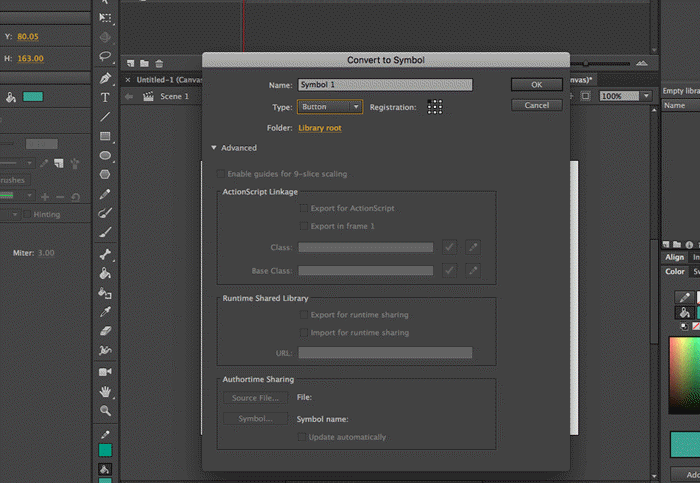
In the window that appears, select Type: Button. You can leave Name unchanged. Then click Ok.
-
For the click to work, assign an Instance Name to this button.
-
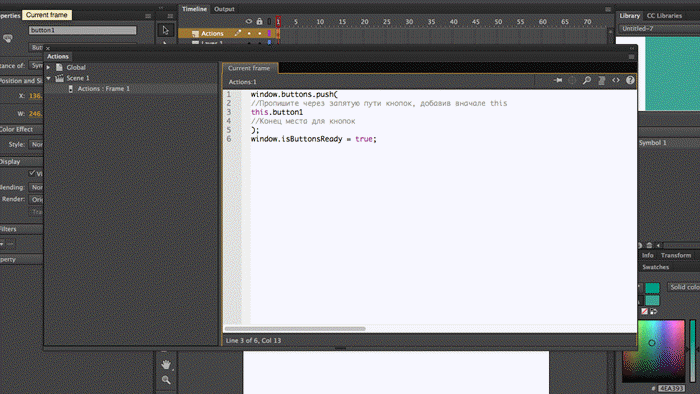
Write the code for this button in Actions:
Nested button
-
Let's say that the button is inside another symbol, for example, Movie Clip. In this example, this Movie Clip has the Instance Name “name”.
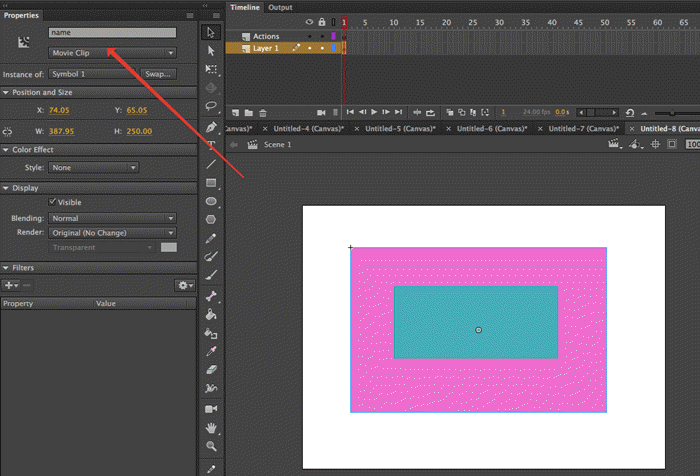
-
Double-click to go inside name. The nested button is there.
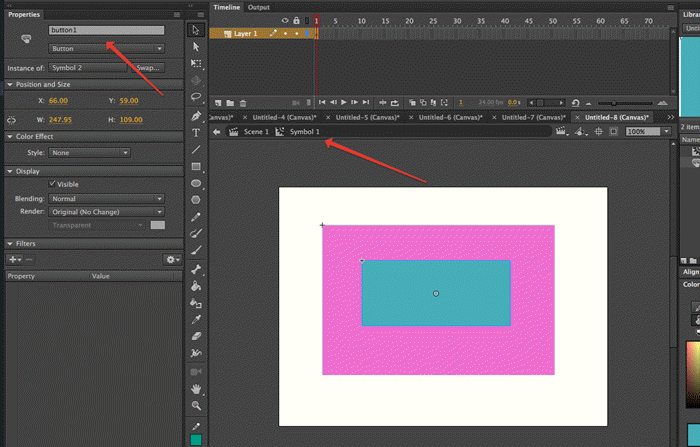
-
When you specify the path to this button in Actions, you need to add the object's Instance Name after this where it's nested:
window.buttons.push(
//List button paths separated by commas and add “this” at the beginning
this.name.button1
//End of button space
);
Instructions for creating transparent buttons
-
Select the necessary element and convert it to a symbol.
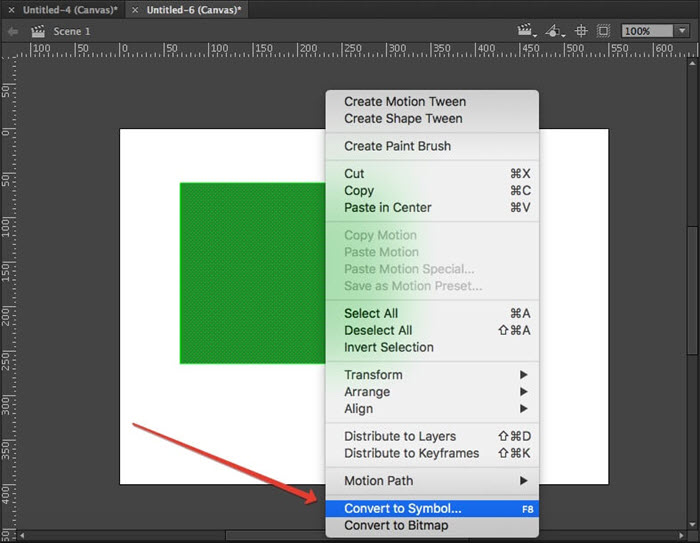
-
Enter a name and select Type: Button.
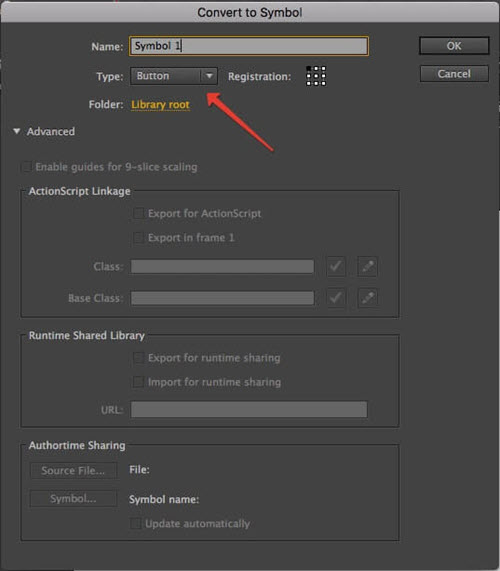
-
Double-click the symbol to open it:
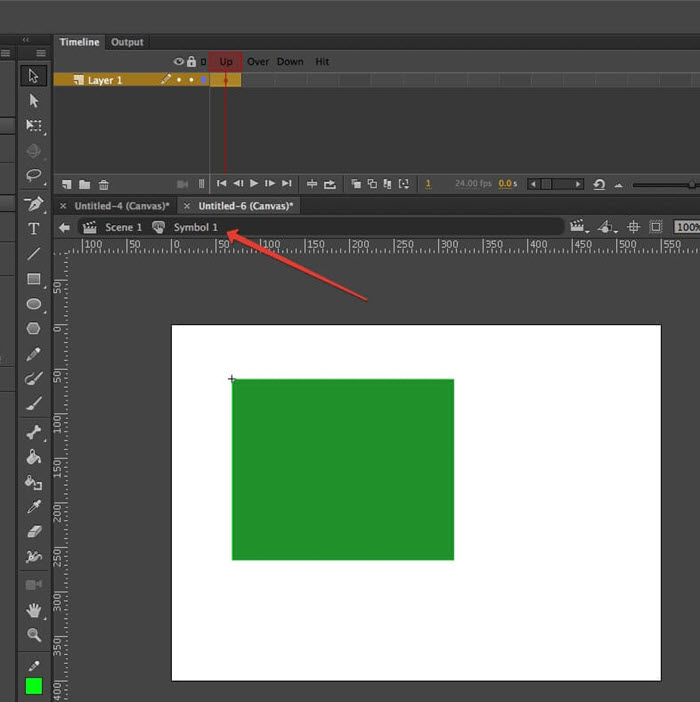
-
Insert keyframe in the hit frame.
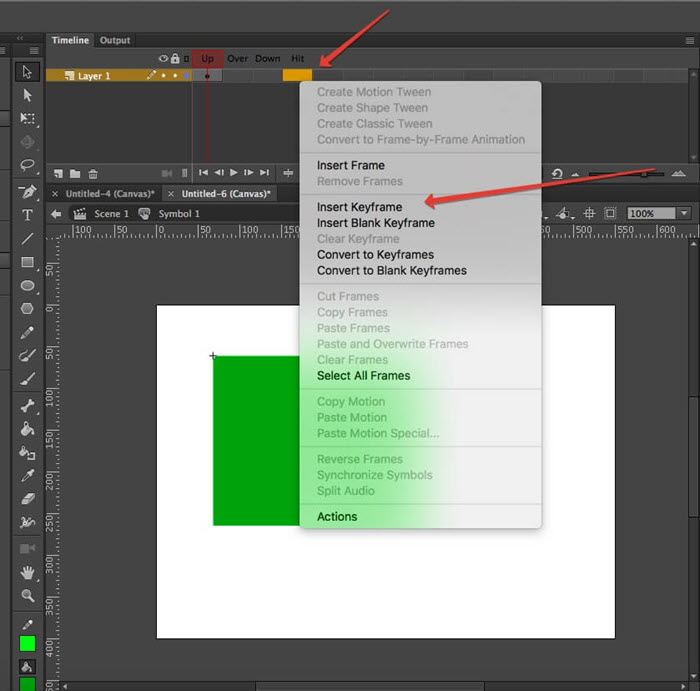
-
Delete the contents of the up, over, and down frames:
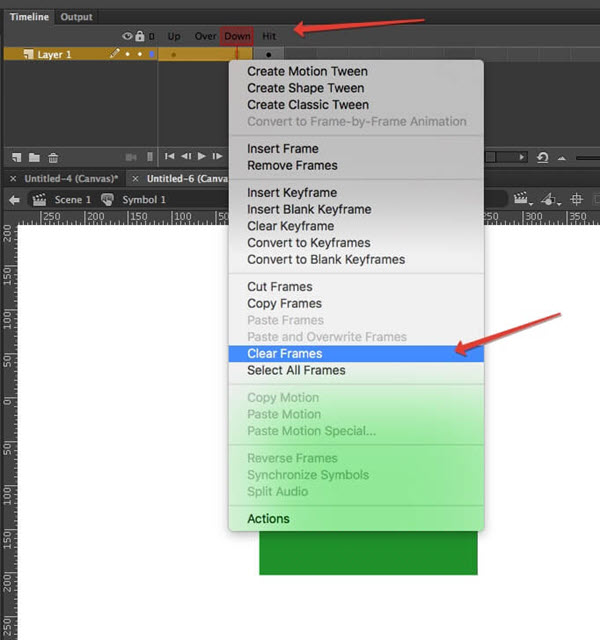
-
The transparent button is ready:
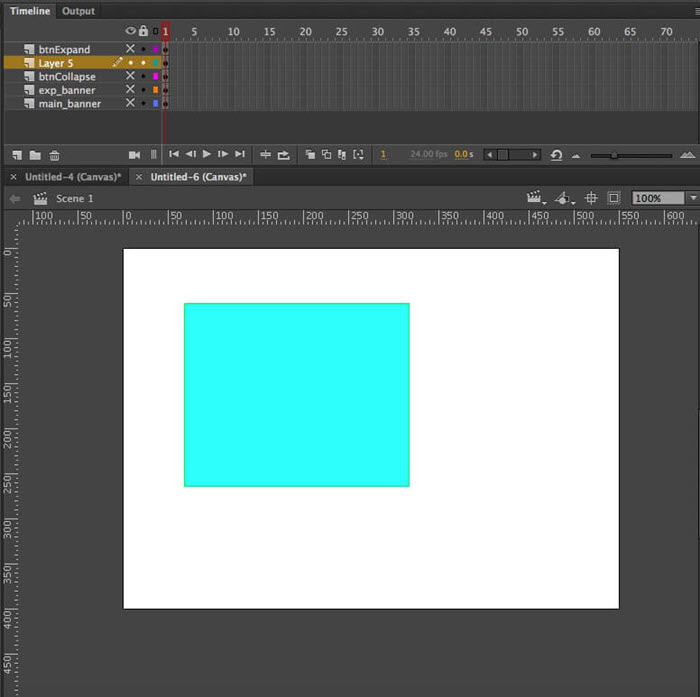
-
-
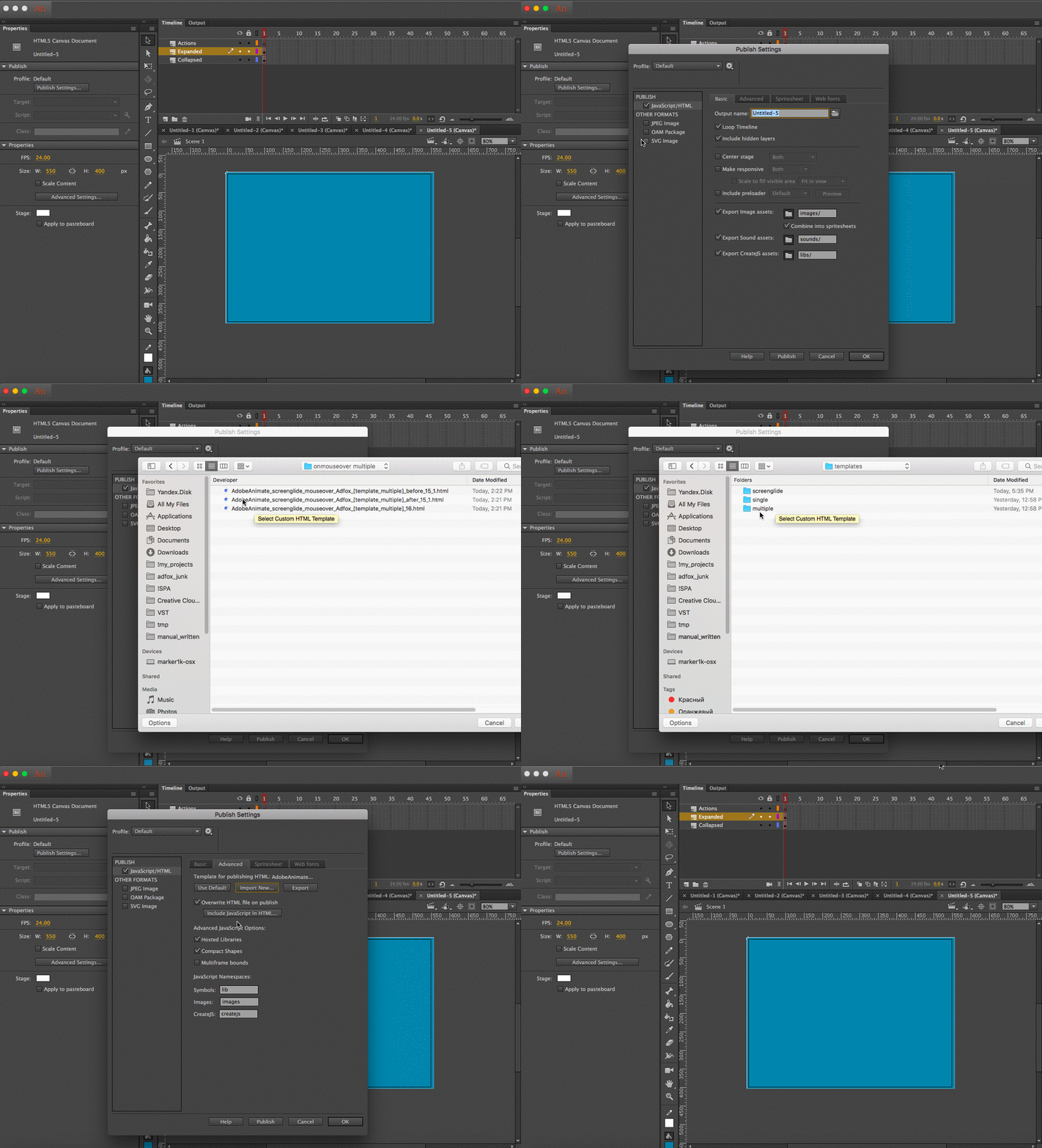
Select one of the templates depending on the scenario in the banner.
Download the template and connect it to the project:
- One clickable area and expand on hover.
- Multiple clickable areas and expand on hover.
- One clickable area and expand/collapse on click.
- Multiple clickable areas and expand/collapse on click.
Templates for Animate version 15 and below:
-
Depending on the scenario of the banner, add one of the code samples to the Actions layer:
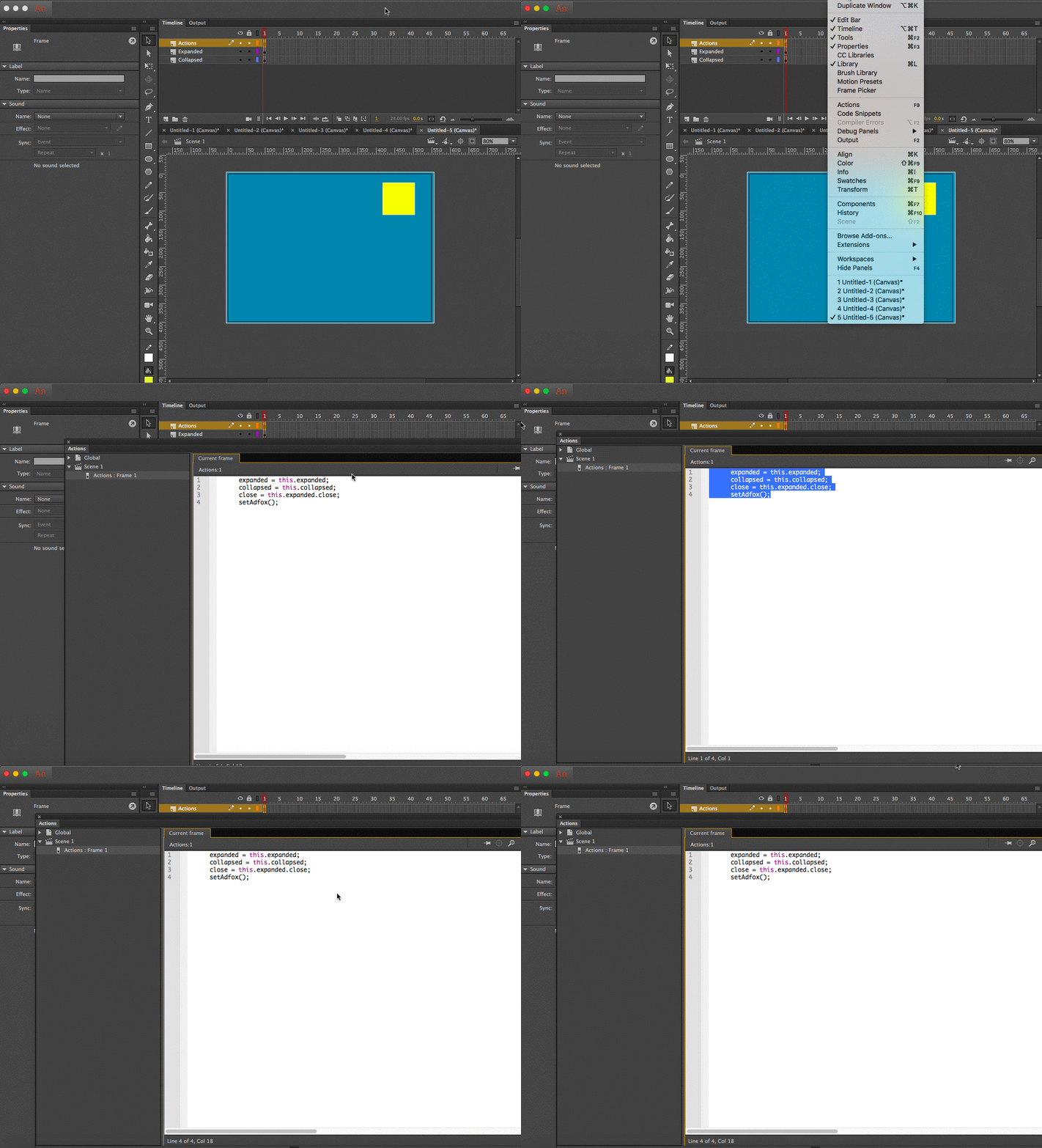
One clickable area and expand on hover
//Change the instance name if required
expanded = this.expanded;
collapsed = this.collapsed;
setAdfox();
Multiple buttons and expand on hover
//Change the instance name if required
expanded = this.expanded;
collapsed = this.collapsed;
window.buttons.push(
//List button paths separated by commas and add “this” at the beginning
this.expanded.button1, this.expanded.button2, this.expanded.button3, this.expanded.button4
//End of button space
);
setAdfox();
One clickable area and expand/collapse on click
//Change the instance name if required
expanded = this.expanded;
collapsed = this.collapsed;
close = this.expanded.close;
setAdfox();
Multiple buttons and expand/collapse on click
//Change the instance name if required collapsed = this.collapsed; expanded = this.expanded; close = this.expanded.close; window.buttons.push( //List button paths separated by commas and add “this” at the beginning this.expanded.button1, this.expanded.button2 //End of button space ); setAdfox(); -
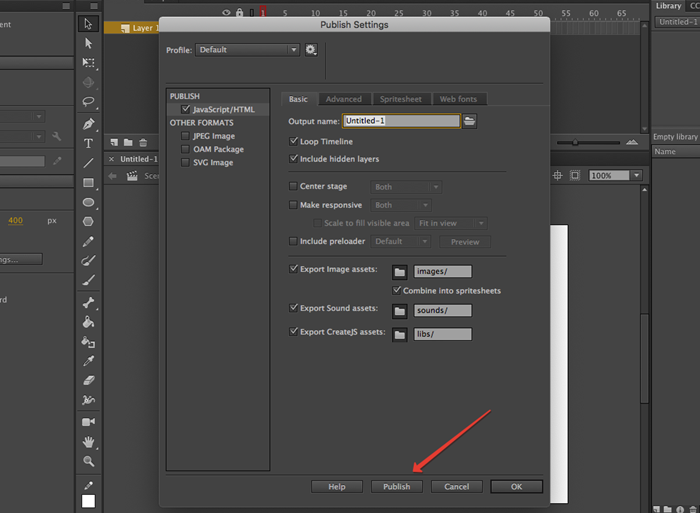
Publish the project and package it in a ZIP archive.
-
If you use the option with multiple buttons, make sure to keep track of instance names of the buttons and their corresponding purpose. You'll need this information when adding an HTML creative to the Adfox interface.
For example:
this.expanded.button1: A link to the product page.this.expanded.button2: A link to contacts.After adding the banner in the Adfox interface, specify the links on the Events tab.
The first instance in the line of code will correspond to the Event 1 parameter of the banner. You can use any name for the event.
Google Web Designer
-
Download a banner template for Google Web Designer.
You can use this banner code as a basis for making creatives in the editor. Place the archive contents into the folder with the program templates, for example:
/Users/[USER_NAME]/Documents/Google Web Designer/templates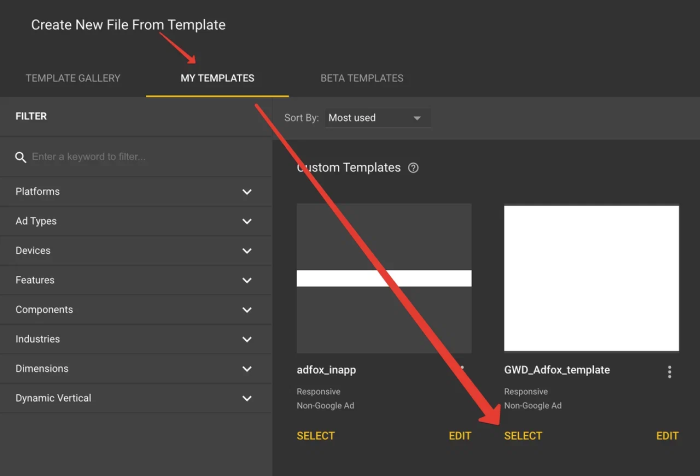
The template contains an
adfox_HTML5.jsscript and a set of parameters for clicks and event counters to work correctly:%request.reference_mrc%, %user1%, %eventN%, whereNis the event number from 1 to 30. -
Click processing.
All events are assigned to animation elements on the Events tab.
Actions are called using the Tap area component.
Add it and select the Tap Area → Touch/Click event.
On the Custom code tab, select the click call function.
-
If a single button is used:
callClick(); -
If multiple buttons are used:
callClick(n);where
nis the number of the event to be called. -
If you need to call an event from an animation without a click-through, use the following code:
callEvent(n);where
nis the number of the event to be called.
How to use a stretching banner.
To make the banner stretch across the width of the container on the site, specify percentages instead of pixels for the banner location and dimensions on the Properties panel.
Use the Align by container and Fluid layout options on the top toolbar.
If you enable Fluid layout before using any alignment tools, when you change the parent container size, all elements are aligned relative to each other and relative to the container size.
You can simultaneously use both the relative sizes of elements in percentages and absolute sizes in pixels.
Sample ready-made project in Google Web Designer, source file.
-
-
Publish the project.
The project has to be published with the following settings:
Note
When adding a banner to Adfox, the manager needs to know the correspondence between the button and event number. For each event, the manager adds its own click-through URL, which is then passed to the banner code using a variable.
Tips for preparing your creative
The window.destroyBanner() method is available in the HTML frame. This method completely destroys (closes) fullscreen.
Sample code for the Close button:
this.close.addEventListener("click", function(e) {
        var t = e.nativeEvent;
        if(t.which == 1 || t.button == 0) {
                window.destroyBanner();
        };
});
Placeholder image requirements
Allowable image formats: JPG, PNG, GIF. Maximum file size: 10 MB.
Requirements for custom (close) buttons
Allowable image formats: JPG, PNG, GIF. Maximum image size: 50 × 50 px.
Add a banner to Adfox
To add a banner to Adfox, select the desired banner type and the Fullscreen HTML5 [context] template.
Set the banner parameters:
|
Parameter |
Description |
|
Archive with HTML5 creative |
Upload a ZIP archive with the project. |
|
Link TARGET |
Specify the window for opening the link:
|
|
Tracking pixel link |
Adfox pixel is used by default |
|
Transition URL |
Link to the advertiser's site. For the click-through to work correctly, make sure that the link includes the protocol ( |
|
HTML5 (CSS, HTML, JS) |
The content of the HTML code from the archived project (loaded from the archive automatically). If no HTML5 code is specified, upload a placeholder image for the banner. For a creative, only the area inside the creative is clickable. |
|
Banner width (in px or 100%) |
The width of the main HTML content of the banner (px or %). If the width is specified as a percentage, the width of the parent of the banner container is taken as 100%. |
|
Banner height (in px or 100%) |
The height of the main HTML content of the banner (px or %). |
|
Name of the banner container class attribute |
The class for the banner container. All relevant child elements also receive classes generated following the BEM methodology principle based on the specified class. All elements:
For example, if you specify the |
|
Text on the control panel |
The text on the control panel next to the timer. By default: “Advertisement”. |
|
Show the “More” button (yes|no) |
Specify whether to show the More button on the banner:
|
|
Text on the “More” |
The text on the More button. If no text is specified, but the button should be shown, the default text will be “More”. |
|
Visible control panel (yes|no) |
Visibility of the control panel:
|
|
The image displayed in vertical or horizontal orientation. If you specify only one of these parameters, the same image will be displayed in both vertical and horizontal orientations. |
|
Image position (contain, cover) |
Specify where the image is located in the banner and how it's scaled. Acceptable values:
|
|
Banner impression time (seconds) |
The time in seconds for which the banner should be displayed. The countdown starts from the moment the banner appears. |
|
“Close” button display delay (-1: don't show), in seconds |
The time between the banner appearance and the Close button display in seconds. Example values:
|
|
Style for the “More” |
The CSS style for the More button. For example: |
|
Custom “Close” button image |
Upload an image or provide a link to the image for the Close button. You can use any JPG, PNG, and GIF images with a maximum size of 50 × 50 pixels. |
|
Closing timer color |
The color for the closing timer in any format available in CSS. For example: |
|
Advertising label settings:
|
In the Ad label list, select Note Adding the “Social ad” label doesn't automatically define the creative as social advertising. To label a creative as a social ad (PSA) in the state register, select Social advertising contract with payment or Social advertising contract by quota for the corresponding contract with the end advertiser. In the Domain field, specify the advertiser domain, and it will be added to the label: “Ad | example.com” or “Social ad | example.com” (only if the |
|
Show banner menu |
To add a token to a non-clickable banner, enable the Show banner menu option in the banner settings. When the banner is served, the The banner menu contains a link to the rules for using recommendation technologies. It's required for compliance with Clause 3 of Section 1 of Article 10.2-2 of the Federal Law No. 149-FZ “On information, information technologies, and information protection”, dated July 27, 2006. Note If the banner is non-clickable (the Transition URL field is empty) and has not been added to the ad register, you can enable the banner menu to make the token available when serving the banner. |
|
Advertising labeling |
Advertising labeling: This section is only available if you've selected Submit data to state register as a labeling procedure in the campaign settings. Fill in the fields in this section to register the creative in the Yandex advertising data operator. The creative is assigned a token automatically. Note If the banner isn't to be added to the ad register, select Do not submit data to state register. |
 menu icon will be displayed in its upper-right corner. When a user clicks the icon, the advertiser's details and the copy token button appear (if ad register is enabled for the banner or a third-party token is specified).