Ad unit code features
- Statistical cross-sections
- Limiting banner height
- Setting up a theme
- Placing a Floor Ad or Top Ad simultaneously with a Feed
- Callback functions in the ad tag
- Running your own ads in an ad unit
- Ad impressions in infinite scroll feeds
- Experiments on ads with Varioqub
- Collecting page context for ad targeting
- Contact support
You can enable additional functions and change certain settings by directly editing the code of the ad unit.
The Ya.Context.AdvManager.render function is responsible for invoking the ad in the code.
Alert
-
If you do not have sufficient experience working with ad tags, we don't recommend making changes to the ad unit tag. Changing variables or functions other than the ones covered on this page can disrupt the performance of Yandex Advertising ad units and reduce your revenue.
-
You can't use the unit code as an alternative code in other advertising systems.
Statistical cross-sections
You can also specify sample IDs in the unit code and collect separate statistics for each sample. The cross section ID is stored in a separate variable:
| Variable name | Description | Data type |
|---|---|---|
statId |
Cross section ID | A number between 1 and 1,000,000,000 |
Enter the sample ID in the ad tag to be placed on the site. For example:
Ya.Context.AdvManager.render({
    blockId: "R-A-123456-1",
    renderTo: "yandex_rtb_R-A-123456-1",
    statId: 34567, // CROSS SECTION ID
});
For the unit R-A-123456-1 from the example, the sample ID is 34567. It can also be specified in other units. This will allow you to view group statistics for these units. By placing the R-A-123456-1 unit on other pages, you can specify a different sample ID to view statistics separately for each placement.
Limiting banner height
By default, Adaptive combinatorial ads automatically occupy 100% of the parent container. You can adjust the unit height using the height and max-height parameters.
Recommended values for the maximum unit height:
-
Minimum of 70 and maximum of 90 vh for the mobile version.
-
Minimum of 40 and maximum of 60 vh for the desktop version when placed on side panels.
Example of a code for an ad unit with a maximum height:
<div id="yandex_rtb_R-I-677833-1" style="max-height: 80vh;">
  <div style="height: 72vh;"></div>
</div>
<script>
  window.yaContextCb.push(()=>{
    Ya.Context.AdvManager.render({
      renderTo: 'yandex_rtb_R-I-677833-1',
      blockId: 'R-I-677833-1'
    })
  })
</script>
Setting up a theme
You can set a theme (light or dark) in the Yandex Advertising Network interface when creating or editing a unit. You can also manage the unit theme via the ad tag using the darkTheme parameter:
-
darkTheme: false: Light theme is used. -
darkTheme: true: Dark theme is used. Dark theme units have a different background and color scheme for their text, border, buttons, and other elements.
When adding the darkTheme parameter, the theme settings specified in the interface are ignored.
Managing the unit theme through the code is convenient for dynamic theme sites. For example, you can use JavaScript to set different darkTheme parameter values: depending on the time of day or the site or browser theme chosen by the user.
Example of a code for an ad unit with a dark theme:
Ya.Context.AdvManager.render({
    blockId: "R-A-123456-1",
    renderTo: "yandex_rtb_R-A-123456-1",
    darkTheme: true
});
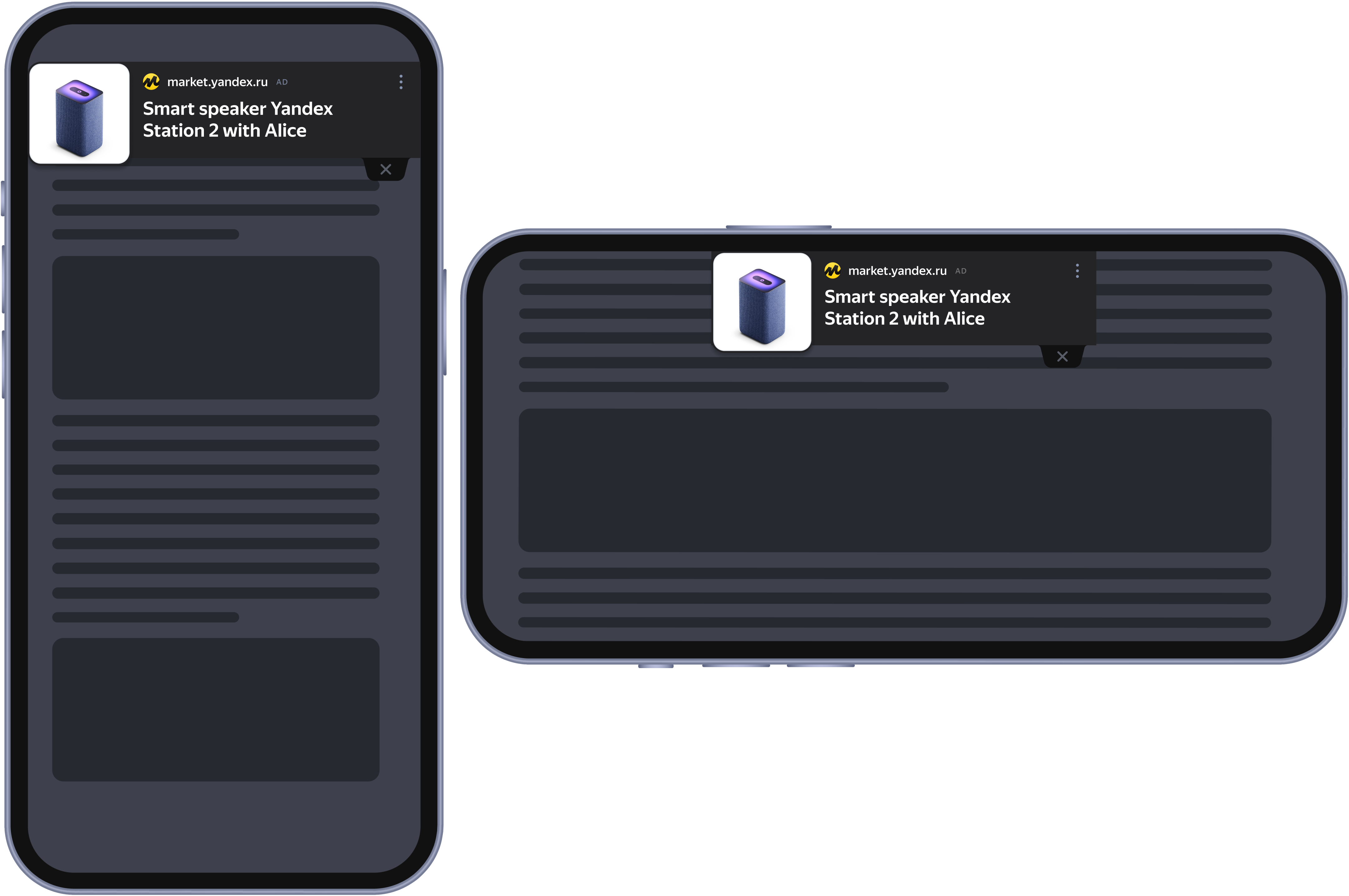
Example of a Top Ad unit with a dark theme
Placing a Floor Ad or Top Ad simultaneously with a Feed
You can't display a Feed, a Floor Ad, and a Top Ad on the same screen. Configure the observer callback function to delete your Floor Ad or Top Ad unit when the Feed becomes visible.
Example of an ad code with the “observer” function
    <div id="yandex_rtb_R-A-588461-101"></div>
    <script>
    window.yaContextCb.push(() => {
            Ya.Context.AdvManager.renderFeed({
                    blockId: 'R-A-588461-101',
                    renderTo: 'yandex_rtb_R-A-588461-101'
            })
    })
    window.yaContextCb.push(() => {
            Ya.Context.AdvManager.render({
                    "blockId": 'R-A-588461-98',
                    "type": "ad unit type", // topAd or floorAd
                    "platform": "touch"
            })
    })
    window.yaContextCb.push(() => {
            Ya.Context.AdvManager.render({
                    "blockId": "R-A-588461-109",
                    "type": "ad unit type", // topAd or floorAd
                    "platform": "desktop"
            })
    })
    const feed = document.getElementById('yandex_rtb_R-A-588461-101'); // ID from the renderTo field
    const callback = (entries) => {
            entries.forEach((entry) => {
                    if (entry.isIntersecting) {
                            Ya.Context.AdvManager.destroy({
                                            blockId: 'R-A-588461-98'
                                    }), // blockId for mobile
                                    Ya.Context.AdvManager.destroy({
                                            blockId: 'R-A-588461-109'
                                    }); // blockId for desktop
                    }
            });
    };
    const observer = new IntersectionObserver(callback, {
            threshold: 0,
    });
    observer.observe(feed);
    </script>
Callback functions in the ad tag
You can add onClose, onError, and onRender callback functions to the ad tag.
onClose
The onClose callback function lets you detect when an ad is closed. This function is supported for Fullscreen, Overlay, Top Ad, and Floor Ad units.
The callback function triggers when a user closes the ad or when the auto-close timer expires (if enabled in your settings).
You can use onClose to trigger actions based on your business logic. For example, to display another ad unit right after the first one closes, place the call for the next ad unit inside onClose.
Sample ad tag with an onClose function
<!-- Yandex.RTB R-A-123456-78 -->
<script>
  window.yaContextCb.push(() => {
    Ya.Context.AdvManager.render({
      type: 'ad unit type', // fullscreen, overlay, topAd or floorAd
      blockId: 'R-A-123456-78',
      onClose: () => {
        // action the site performs after the banner closes
      },
    });
  });
</script>
Sample ad tag for an Overlay unit with an onClose function
<!-- Yandex.RTB R-A-123456-78 -->
<script>
  window.yaContextCb.push(() => {
    Ya.Context.AdvManager.render({
      blockId: 'R-A-123456-78',
      type: 'overlay',
      platform: 'touch',
      onClose: () => {
        // action the site performs after the ad unit closes
      },
    });
  });
</script>
onError
The onError callback function triggers when an error occurs while processing an ad request. This function is supported for all ad unit types.
When called, it sends the following parameters:
-
type: Error type. It may take the following values:error: The ad unit failed to load.warning: The ad unit loaded with an error.
-
code: Error code. -
text: Text description of the error.
Possible error codes and their values
|
Error type |
Error code |
Description |
Solution |
|
|
|
The ad tag parameters don't match the ad unit settings. For example, this may happen if a different ad unit type or platform is specified. |
Copy the latest ad tag from the Yandex Advertising Network interface and check the |
|
|
|
Couldn't find the container to load the ad to. |
Failed to find the container when loading the code or after receiving ad data from the server. This error usually occurs on pages with dynamic content. |
|
|
|
The ad was called, but the ad unit with the specified ID wasn't found. |
Check the ad code obtained in the Yandex Advertising Network interface. Make sure that the unit ID is correct. |
|
|
|
The ad request was made, but the page with the specified ID wasn't found. |
Check the ad code obtained in the Yandex Advertising Network interface. Make sure that the unit ID is correct. |
|
|
|
The domain on which the ad was called isn't specified in the site settings. |
Make sure that the domain you placed the ad unit on is specified in the site settings. If the domain isn't specified, add a new site with this domain and create an ad unit for this site. You can add mirrors to existing sites. |
|
|
|
The ad was called, but the specified page is down. |
Check the site status in the Yandex Advertising Network interface. The site can be stopped, archived, or blocked for violating the Rules of Participation in Yandex Advertising Network. |
|
|
|
An attempt was made to load an unknown ad unit type. |
Check the ad code in the Yandex Advertising Network interface. Unit ID must start with the letters R, D, or Y. |
|
|
|
None of the formats supported by the ad unit fit the ad container. |
Check the size of the container for loading ads. The minimum container size is 160 × 50 pixels. |
|
|
|
An error occurred when loading a video ad. |
Check the size of the container for loading ads. The minimum size is 320 x 180 pixels. |
|
|
|
An ad tried to load inside a container sized 0 × 0 pixels (for example, with the |
Hidden container slows down ad loading. We recommend inserting ad units into visible containers. |
Sample ad tag with an onError function
Ya.Context.AdvManager.render({
  blockId: 'R-I-123456-7',
  renderTo: 'block_container',
  onError: (data) => {
    console.log('type', data.type);
    console.log('code', data.code);
    console.log('text', data.text);
    // Handling the error on your site
  },
});
Sample ad tag for an Overlay unit with an onError function
<script>
  window.yaContextCb.push(() => {
    Ya.Context.AdvManager.render({
      blockId: 'R-A-123456-78',
      type: 'overlay',
      platform: 'touch',
      onError: (data) => {
        console.log('type', data.type); // Error type: error or warning
        console.log('code', data.code); // Error code (see the table above)
        console.log('text', data.text); // Text description of the error

        // Handling the error on your site
      },
    });
  });
</script>
onRender
The onRender callback function lets you check whether an ad was rendered on the client and which specific ad was served. This function is supported for all ad unit types.
It accepts the data.product parameter with one of two values:
-
direct: The unit was showing a Yandex Direct ad. -
rtb: The unit was showing a media ad.
Pass the onRender callback as the last parameter in the Ya.Context.AdvManager.render function.
Sample ad tag with an onRender function
Ya.Context.AdvManager.render({
  blockId: 'R-A-123456-1',
  renderTo: 'yandex_rtb_R-A-123456-1',
  onRender: (data) => {
    console.log(data.product);
  },
});
Sample ad tag for an Overlay unit with an onRender function
<script>
  window.yaContextCb.push(() => {
    Ya.Context.AdvManager.render({
      blockId: 'R-A-123456-78',
      type: 'overlay',
      platform: 'touch',
      onRender: (data) => {
        console.log(data.product);
      },
    });
  });
</script>
Running your own ads in an ad unit
If the auction doesn't produce a suitable offer for your ad unit, you can use it to run your own ads. To do this, add your ad code to the ad unit code.
-
Get the ad unit code in the Yandex Advertising Network interface (in the unit settings, click Get code → Copy to clipboard).
-
Place the ad code on your site or in your app.
-
Include your ad tag in the last parameter of the
Ya.Context.AdvManager.renderfunction in the unit code.
Example of code that inserts your own ad
Ya.Context.AdvManager.render({
    blockId: 'R-A-123456-1',
    renderTo: 'yandex_rtb_R-A-123456-1',
}, () => {
    // INSERT YOUR AD CODE HERE
})
If the auction doesn't produce a suitable offer, the alternative code is executed, and your own ad is displayed instead of the ad unit (not via iframe). Impressions for house ads are excluded from the Yandex Advertising Network statistics.
Note
Yandex Advertising Network units that are created with Adfox can't have an ad tag. If no Yandex Advertising Network ad can be found for a unit, the request is returned to Adfox, and the right to run an ad goes to other monetizers or the partner's own promo campaigns. Learn more about serving ads with Adfox.
Ad impressions in infinite scroll feeds
You can display ads in infinite scroll feeds using the same ad unit by changing the name of the renderTo container. The unique blockId from the code designer remains unchanged.
Example of an ad code for the first ad unit
<div id="yandex_rtb_R-A-123456-1-1"></div>
<script>window.yaContextCb.push(()=>{
    Ya.Context.AdvManager.render({
        blockId: "R-A-123456-1",
        renderTo: "yandex_rtb_R-A-123456-1-1", // add 1 at the end of the name
    })
})</script>
Example of an ad code for the second ad unit
<div id="yandex_rtb_R-A-123456-1-2"></div>
<script>window.yaContextCb.push(()=>{
    Ya.Context.AdvManager.render({
        blockId: "R-A-123456-1",
        renderTo: "yandex_rtb_R-A-123456-1-2", // add 2 at the end of the name
    })
})</script>
Experiments on ads with Varioqub
You can conduct experiments on ads placed on your site using Varioqub. This tool allows you to create an experiment with multiple options, changing the elements and layout of the site and comparing different ad units and their settings. As a result of your experiment, you get statistics for indicators that help determine the most effective option in terms of monetization and user metrics. For more information, see Varioqub experiments in the Help section.
Collecting page context for ad targeting
Only text content visible to the user is analyzed for context. This feature can't be used to collect users' personal data. Ad tags don't analyze hidden fields, input forms, passwords, payment details, or information that isn't visible to the user on the page.
Collected context is used only for contextual ad targeting, such as to identify page categories, key topics, or the overall content subject.
Recommendation
We recommend turning off page context collection if your ad placements are located on pages that may display private or sensitive data that you prefer not to use for targeting purposes.
This includes pages such as personal accounts, private messages, orders, support tickets, and pages that display medical, financial, or other sensitive information.
Turn off context collection
You can turn off page context collection using the disableGrab parameter in your ad tag:
Ya.Context.AdvManager.render({
    blockId: "R-A-123456-1",
    renderTo: "yandex_rtb_R-A-123456-1",
    disableGrab: true
});
Even with this feature turned off, your ad unit will still work normally, but the page text will no longer be analyzed or used for contextual ad targeting.
Contact support
If you didn't find the information you were looking for, check the FAQs or contact us.
I inserted code but the ads are not being displayed
There are several reasons why problems displaying ads may occur:
-
The ad tag has recently been installed. The Yandex Advertising Network robot requires some time to index the page and link it to ads.
-
The ad code is installed incorrectly. Make sure that your JavaScript code for calling ad units has been installed correctly. Don't change the tag when copying it. When copying the tag, your text editor might truncate or wrap long strings, which might cause the JavaScript code to run incorrectly.
-
Tag invalid for the site. Make sure that the installed ad unit code was created for this site and not for one of your other sites.
-
Site is blocked from indexing. The site must be accessible for indexing by the Yandex Advertising Network robot,
YandexDirect. If indexing a site or its individual pages is banned (for example, in therobots.txtfile), the robot can't index the content of the pages or select relevant ads for them. -
Text is wrapped in the
<noindex>tag. Make sure that the page has text on it and that it has not been excluded using the<noindex>tag. You can't select theme-based ads for pages that have no text. -
The information in the browser cache is old. Refresh the page by pressing Ctrl + F5 (Windows) or Command + R (macOS).
Write to WhatsApp
|
Scan the QR code. WhatsApp is a third-party channel for communication with Yandex. We do not control and are not liable for how WhatsApp stores your data and chat history. Please keep this in mind when choosing WhatsApp to contact support. |
WhatsApp is a third-party channel for communication with Yandex. We do not control and are not liable for how WhatsApp stores your data and chat history. Please keep this in mind when choosing WhatsApp to contact support.
Go to WhatsAppWrite to Telegram

|
Scan the QR code. Telegram is a third-party channel for communication with Yandex. We do not control and are not liable for how Telegram stores your data and chat history. Please keep this in mind when choosing Telegram to contact support. |
Telegram is a third-party channel for communication with Yandex. We do not control and are not liable for how Telegram stores your data and chat history. Please keep this in mind when choosing Telegram to contact support.
Go to TelegramYou can also go to
