Configure the map
Change the map type
-
Open map type options in one of the following ways:
- In the upper-right corner of the map, tap .
- In the settings:
- Tap (profile picture). If you haven't signed in, tap .
- Tap Settings → Map and interface.
-
Select a map type:
- Map is a diagram of roads, buildings, and other objects.
- Satellite is photographs of an area taken from space. Map items or house numbers aren't displayed.
- Hybrid is a satellite image with more information added onto it (names of streets, rivers, and so on).
Change the map scale
In the Yandex Maps app, you can change the map scale using buttons on the map itself, gestures, or your device's volume buttons.
To display zoom buttons on the map:
-
Tap (profile picture). If you haven't signed in, tap .
-
Tap Settings → Map and interface.
-
Enable Zoom buttons.
You can change the map scale using gestures:
- Pinch to zoom in or out of the map with two fingers.
- Double-tap and hold the map, then drag it up or down.
Note
This option is only available on Android devices.
To change the map scale using the volume buttons:
-
Tap (profile picture). If you haven't signed in, tap .
-
Tap Settings → Map and interface.
-
Enable Change map scale with volume buttons.
Measure distance
To measure the distance between points on the map:
- Tap and hold the starting point.
- Select Measure distance.
- Tap to fix the starting point.
- Move the map to the destination point and tap .
The distance between the points will be displayed at the bottom of the screen. Add a few more points if necessary.
To cancel the last action, tap .
To reset all measurements, tap .
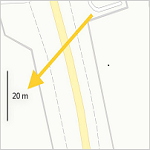
To estimate the distance between places, use the scale ruler:
-
Tap (profile picture). If you haven't signed in, tap .
-
Tap Settings → Map and interface.
-
Turn the Scale ruler option on or off.
How to show the scale ruler
If the 3D mode option is enabled, the scale ruler doesn't show on the route navigation screen.
Rotate the map with fingers
To rotate the map with two fingers:
-
Tap (profile picture). If you haven't signed in, tap .
-
Tap Settings → Map and interface.
-
Turn the Map rotation option on or off.
If you enable the map rotation option and rotate it, will appear on the map.. The red arrow on the compass points to the north.
Enable or disable 3D mode
3D mode displays a three-dimensional map. The 3D map display is activated automatically when you switch to Navigator mode or follow a car route.
To toggle 3D mode:
-
Tap (profile picture). If you haven't signed in, tap .
-
Tap Settings → Navigation.
-
Turn the 3D mode option on or off. If this mode is disabled, the map is displayed in 2D.
The North is always up option disables 3D mode.
On the home screen, the map is in 2D mode by default. To display in 3D mode:
Swipe up with two fingers on the map. To return to 2D mode, swipe from the top to the bottom. This setting is only available on the home screen and isn't saved when you switch to another mode or restart the app.
Zoom in on the map until the button appears.. Tap the button. To return to 2D mode, tap .
Enable or disable 3D models
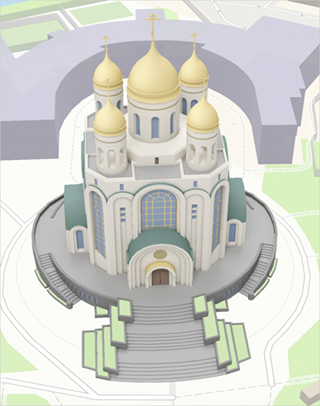
You can enable 3D models of trees and landmarks on the map and during route navigation. These models can assist you in navigating along the route and provide a detailed view of their associated locations from all angles.
Your app theme determines the color scheme of 3D models. When you move along a route, 3D models become transparent.
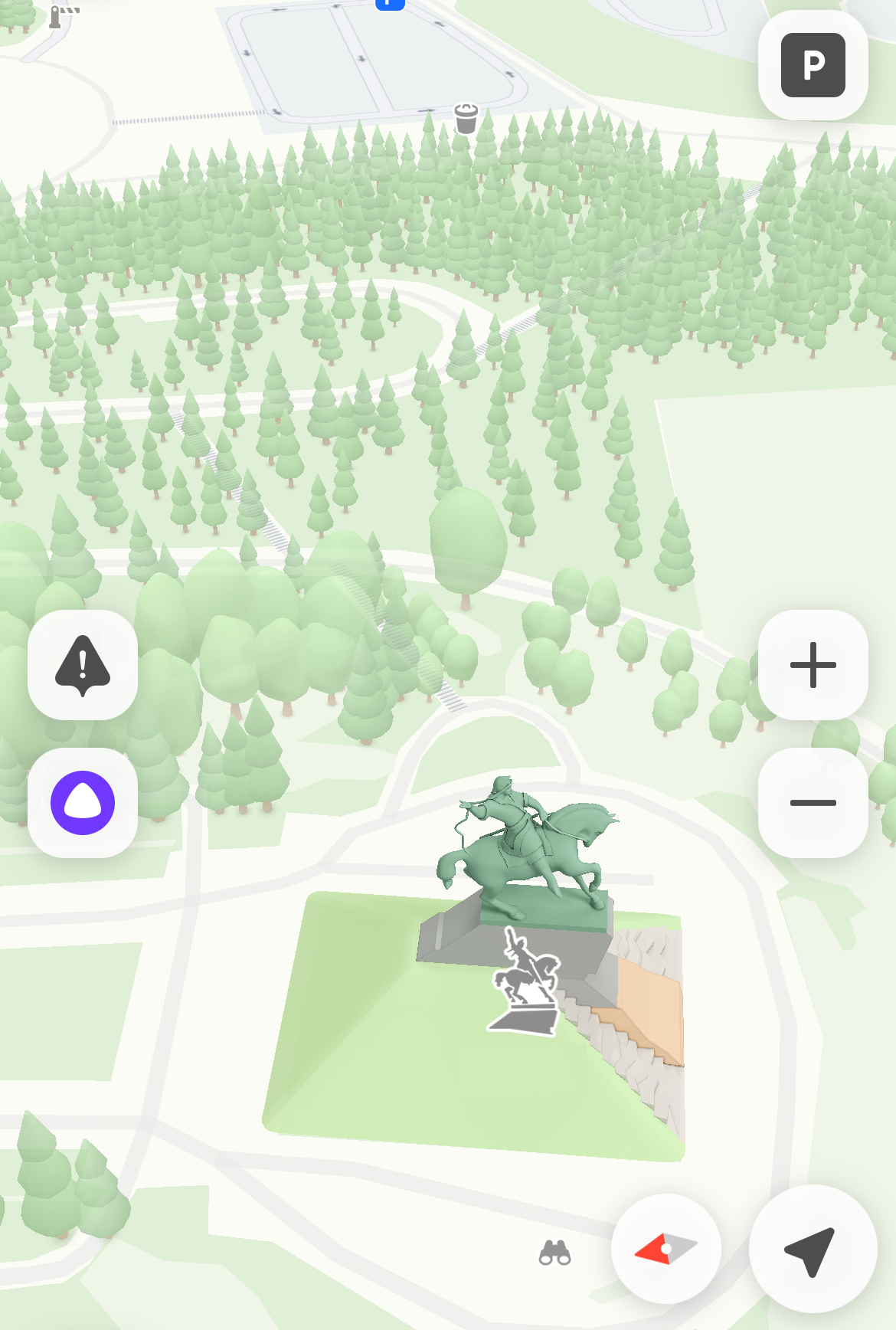
3D models of trees
-
They are displayed in Moscow, St. Petersburg, and some areas of Ufa and Dubai.
What 3D trees look like
To turn off 3D trees:
1\. Tap **<!-- diplodoc:svg  --><svg xmlns="http://www.w3.org/2000/svg" width="28" height="28" viewBox="0 0 28 28" fill="none"><g><mask id="svg-a4qbs2rg__mask0_302_2" style="mask-type:luminance" maskUnits="userSpaceOnUse" x="0" y="0" width="28" height="28"><path d="M28 0H0V28H28V0Z" fill="white"/></mask><g><path d="M14 28C21.732 28 28 21.732 28 14C28 6.26799 21.732 0 14 0C6.26799 0 0 6.26799 0 14C0 21.732 6.26799 28 14 28Z" fill="#F6F6F6"/><path d="M14 14.9074C11.6666 14.9074 9.91663 12.4191 9.91663 9.51961C9.91663 6.62013 11.4226 4.92586 14 4.92586C16.5773 4.92586 18.0833 6.62013 18.0833 9.51961C18.0833 12.4191 16.3333 14.9074 14 14.9074ZM14 23.074C10.0313 23.074 7.65668 22.5426 6.87614 21.48C6.7851 21.356 6.73878 21.2049 6.74462 21.0513C6.8542 18.1652 9.27267 16.7221 14 16.7221C18.7274 16.7221 21.1458 18.1652 21.2553 21.0514C21.2612 21.2051 21.2147 21.3562 21.1237 21.4801C20.343 22.5427 17.9684 23.074 14 23.074Z" fill="#CCCCCC"/></g></g><defs><clipPath id="svg-a4qbs2rg__clip0_302_2"><rect width="28" height="28" fill="white"/></clipPath></defs></svg> (profile picture)**. If you're not logged in, tap <!-- diplodoc:svg  --><svg width="24" height="24" viewBox="0 0 24 24" fill="none" xmlns="http://www.w3.org/2000/svg"><path fill-rule="evenodd" clip-rule="evenodd" d="M3 7C3 7.55228 3.45531 8 3.9918 8H20.0082C20.556 8 21 7.55614 21 7C21 6.44772 20.5447 6 20.0082 6H3.9918C3.44405 6 3 6.44386 3 7ZM3 12C3 12.5523 3.45531 13 3.9918 13H20.0082C20.556 13 21 12.5561 21 12C21 11.4477 20.5447 11 20.0082 11H3.9918C3.44405 11 3 11.4439 3 12ZM3 17C3 17.5523 3.45531 18 3.9918 18H20.0082C20.556 18 21 17.5561 21 17C21 16.4477 20.5447 16 20.0082 16H3.9918C3.44405 16 3 16.4439 3 17Z" fill="black"/></svg>. 2\. Tap **Settings** → **Map and interface**. 3\. Enable **3D trees**.
3D attractions
-
3D attractions are enabled by default and can't be disabled.
What 3D attractions look like
3D models aren't available in offline mode.
Select distance units
-
Tap (profile picture). If you haven't signed in, tap .
-
Tap Settings → Map and interface.
-
Tap Distance units.
-
Select distance units: kilometers or miles.