Raporları kaydet
Rapor Sihirbazı'nda sadece ayarları değil, aynı zamanda raporları da kaydedebilirsiniz. Kaydedilmiş raporları bulmak için Benim raporlarım sekmesine gidin İstatistikler bölümünde.
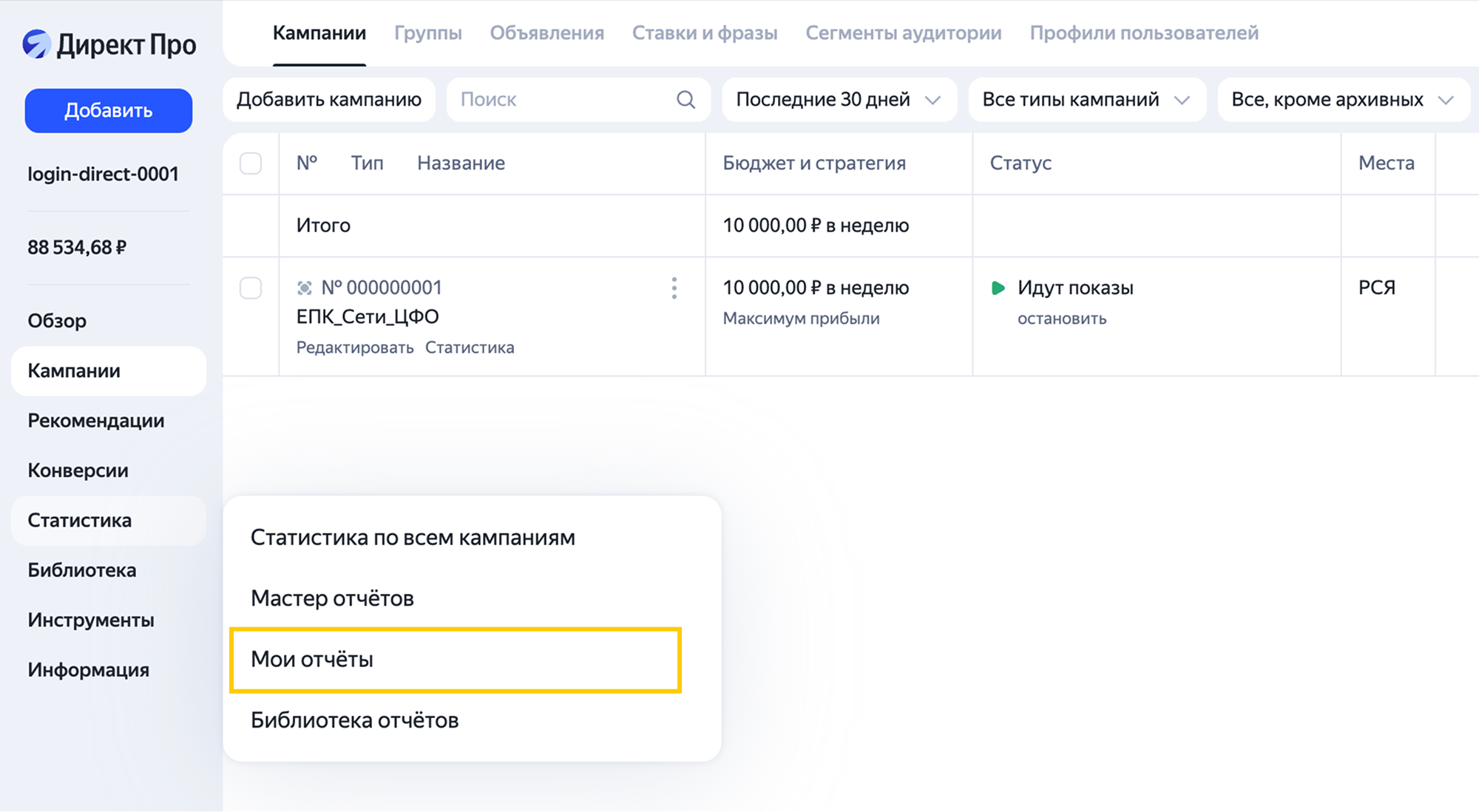
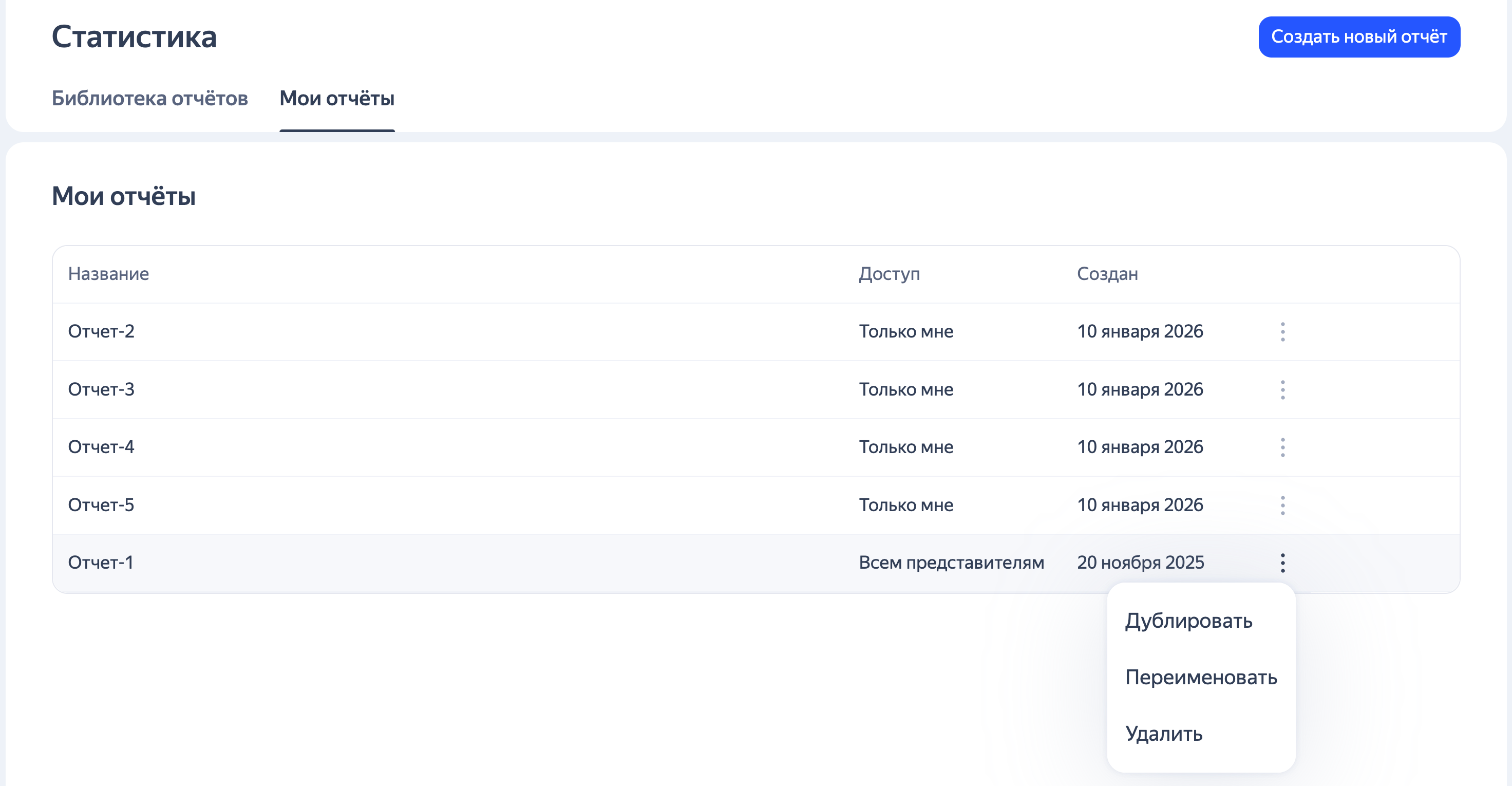
Yeni sekmede, raporların temel bilgileriyle (adı, erişim düzeyi ve oluşturulma tarihi) birlikte rapor listesini bulacaksınız. Burada hızlı eylemler yapılabilir: raporu kopyalayabilir, yeniden adlandırabilir veya silebilirsiniz.
Rapor oluşturmak için Rapor Sihirbaz’ına gidin: bu, yan navigasyon menüsü aracılığıyla veya Benim raporlarım sayfasında Rapor oluştur düğmesiyle yapılabilir. Gerekli gruplamaları, metrikleri, filtreleri ve diğer ayarları yaptıktan sonra  → Benim raporlarıma kaydet butonuna tıklayın.

Oluşturulan raporları düzenleyebilir, güncellenmiş ayarlarla kaydedebilir veya yeni olarak kopyalayabilirsiniz. Ayrıca, bu raporlara ilişkin bağlantıları iş arkadaşlarınızla paylaşabilirsiniz.
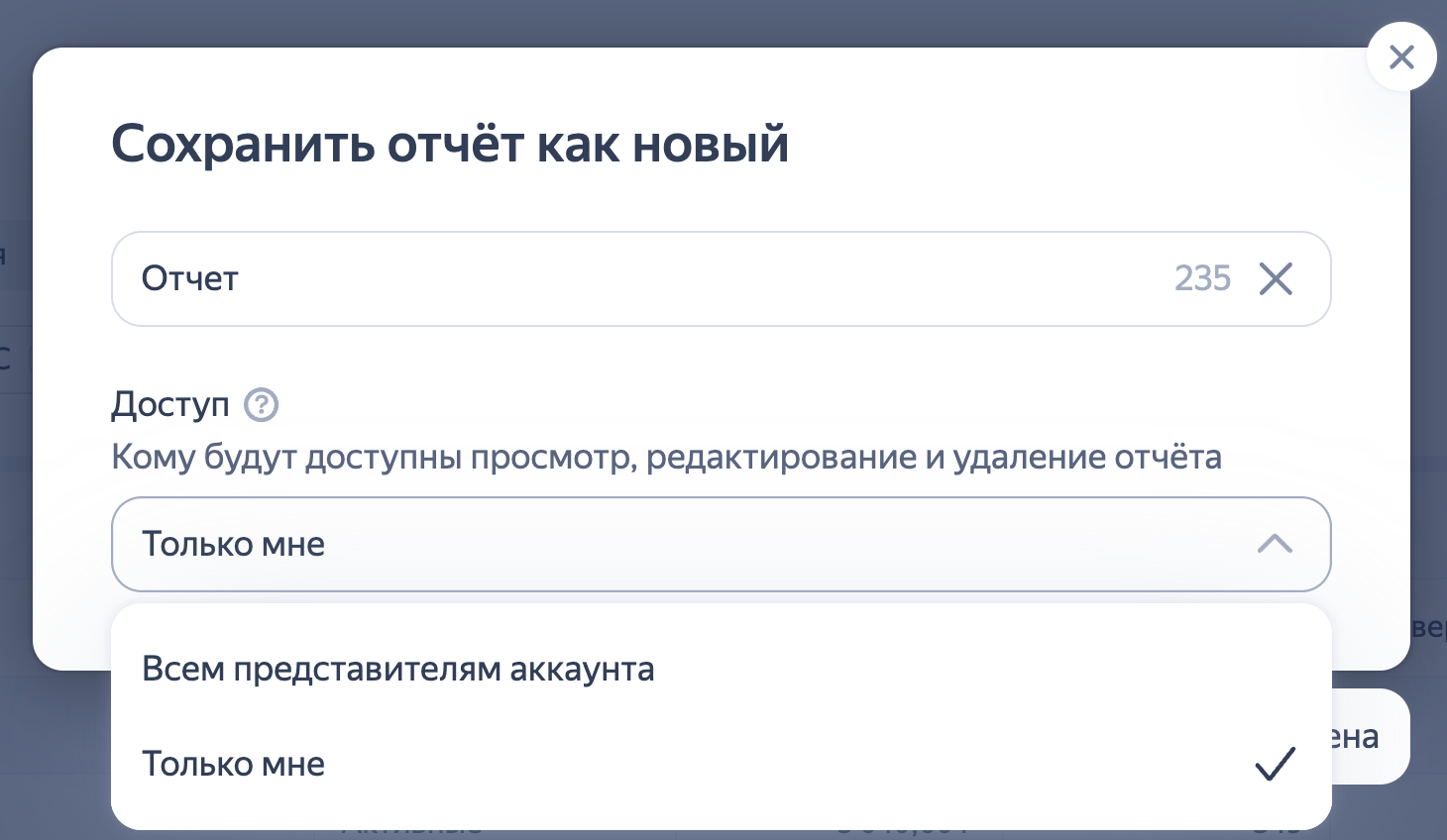
Eğer hesabı birden fazla kullanıcı kullanıyorsa, rapor oluştururken kimlerin erişebileceğini seçebilirsiniz: sadece siz mi yoksa hesabın tüm temsilcileri mi.
Eski Rapor Sihirbazı'ndan raporları nasıl kaydedebilirim
Eski Rapor Sihirbazı’ndan kaydedilmiş raporlarla çalışmaya devam etmek için, bunları Rapor Sihirbazı temelinde yeniden oluşturmanız gerekir.
Bunun için aşağıdaki olanakları kullanın:
-
Rapor Sihirbaz'ını açın, rapora gerekli gruplamaları, metrikleri ve filtreleri ekleyin ve raporu kaydedin. Bunun için sağ üst köşede
→ Benim raporlarıma kaydet butonuna basın. -
Kitaplık'ta hazır bir raporu açın, rapora gerekli gruplamaları, metrikleri ve filtreleri değiştirin veya ekleyin ve sağ üst köşede
→ Benim raporlarıma kaydet düğmesine basarak raporu kaydedin. -
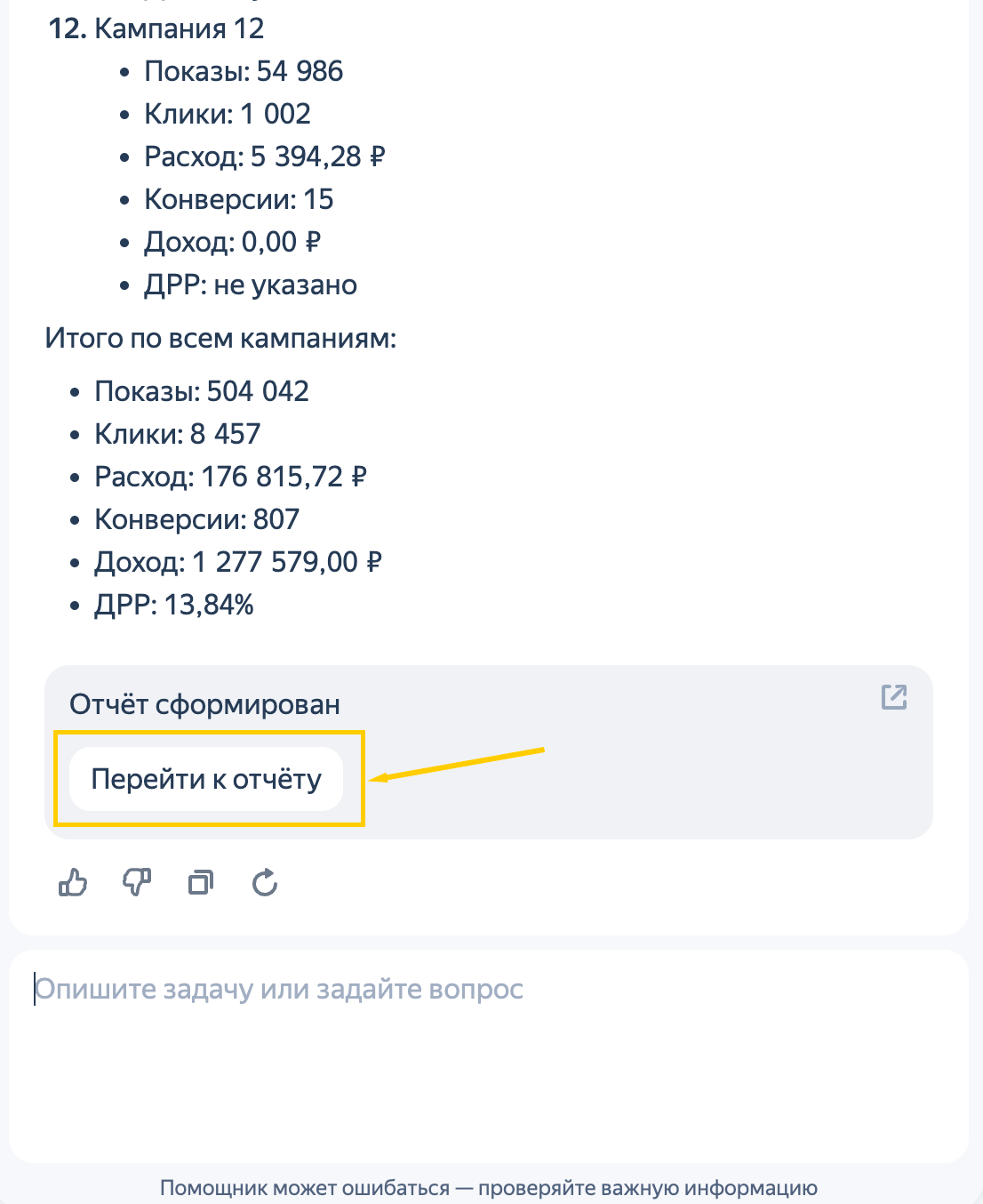
AI asistanı kullanarak gerekli gruplamalar, metrikler ve filtrelerle rapor oluşturun. Gerekli ayarlar ve verileri belirtin. Örneğin, kampanyalara göre rapor oluşturulmasını isteyebilirsiniz; raporda gösterimler, tıklamalar, harcamalar, dönüşüm sayısı, gelir ve DRR olmalıdır.
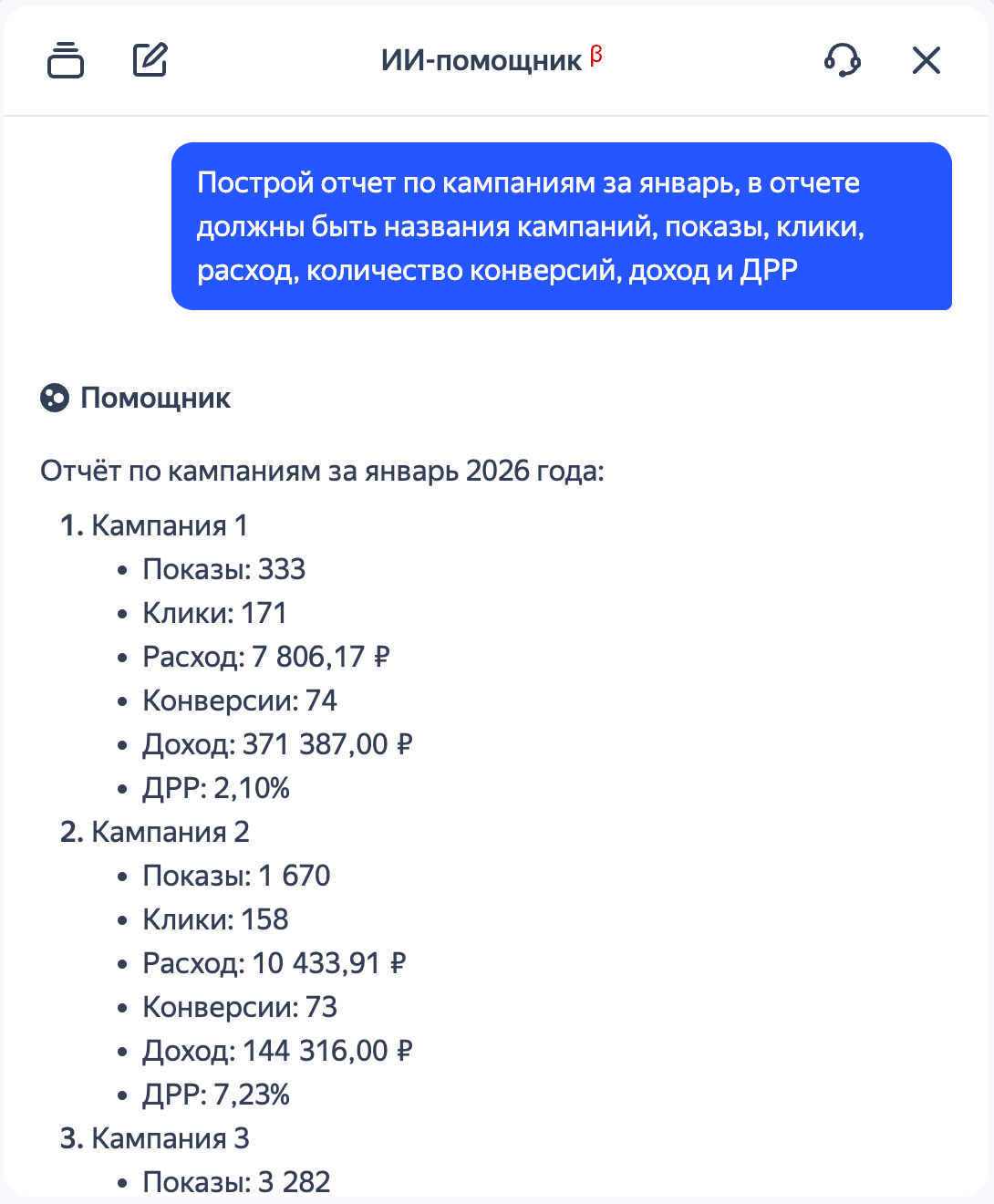
Asistan ile sohbet ederken hem sorgu için sonuç sayılarını görebilirsiniz hem de rapora geçip onu kaydedebilirsiniz. Bunun için sohbetten rapora gidin ve gerekirse ayarları değiştirin.
Raporu kaydetmek için, sağ üst köşede
→ Benim raporlarıma kaydet butonuna tıklayın.
Tüm kaydedilen raporlar Benim raporlarım bölümünde görünecektir.
Başka sorunuz var mı?
Dikkat
Müşteri Hizmetleri uzmanı, siz hangi kullanıcı adından iletişime geçtiyseniz yalnızca o kullanıcı adından başlatılmış olan kampanyalarla ilgili danışmanlık verebilir. Kullanıcı adı, ya.ru’yu komşu tarayıcı sekmesinde açarsanız görülebilir. Uzman, verilerinize yalnızca talebi işlerken erişebilecektir.
QR kodunu tarayın veya bağlantıya gitmek için koda tıklayın.