Query language
The query language allows you to enter sophisticated object selection criteria, apply various conditions to the field values, and combine them using boolean operators.
|
|
Video tutorial. Query language Watch video
|


How to form a query
Enter your query in the search bar at the bottom of any Direct Commander tab.
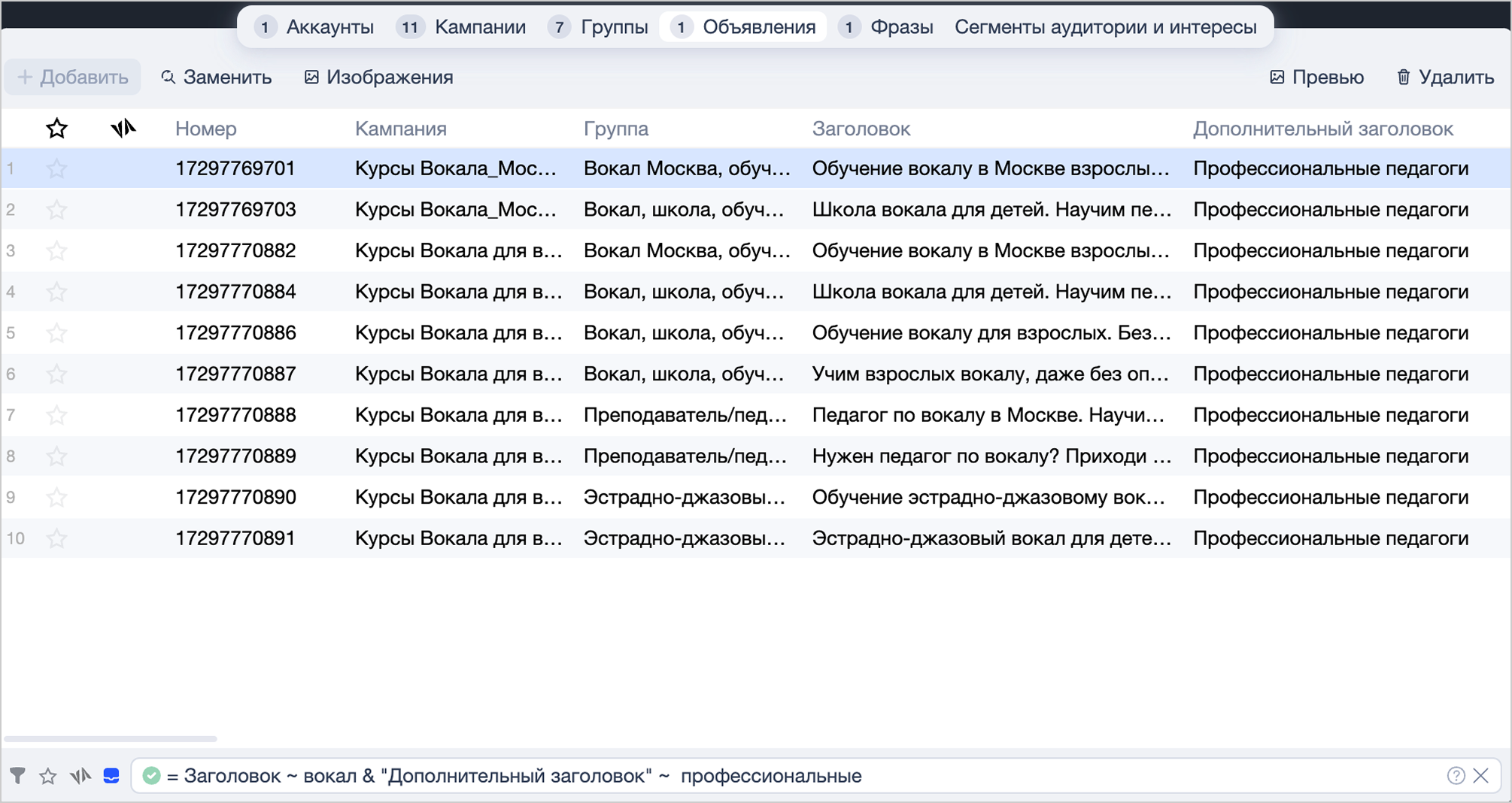
A simple search term consists of three parts:
= Field Operator Value
For example, the query:
= text ~ lesson
shows all ads containing the word lesson in the Text column.
Start entering your search term following the = symbol. You can choose field and operator names from the popups.

When entering field names and values, please keep in mind:
-
The input is not case sensitive.
-
If the field name or value consists of multiple words separated by spaces, enclose it in quotation marks:
= "Title 1" = "Singing lessons" -
If you need to find a substring that itself contains quotation marks, use the \ character:
= "Title 1" = "\"Singing lessons\"" -
If you want to specify multiple values, use square brackets:
= "Title 1" = ["learn"; "singing"]or
= "Title 1" = [learn singing] -
For fields that may include a fixed number of values (Placements, Moderation, Status, Priority, and others), always use the ~ and !~ operators with square brackets, even when querying a single value.

If the search term was not correctly formulated, the  icon in the input field will change to
  and an error message will appear.

Requests containing multiple conditions
You can use the & (boolean AND) and | (boolean OR) operators to make combined queries.
Search term operations are executed strictly from left to right, but the order can be changed by using round brackets. Operations enclosed in brackets take priority over the standard order of operations.
Example 1
-
= Keyword ~ vocal | Keyword ~ coachThis query returns keywords containing the words vocal or coach.
Example 2
-
= Keyword ~ vocal | Keyword ~ coach & Bid > 1This search term will return keywords that meet two conditions simultaneously:
- Contains the word vocal or coach.
- Has a search bid greater than 1.
Example 3
-
= Keyword ~ vocal | (Keyword ~ coach & Bid > 1)This search term will return keywords that meet at least one of the two conditions:
- Contains the word vocal.
- Contains the word coach and has a search bid greater than 1.
Query language operators
|
Operator |
Value |
Example |
Result |
|
~ |
Contains |
= "Display region" ~ austr |
Selects ad groups with the Display region field containing Australia or Austria (and maybe some other regions also) |
|
~ |
Contains |
= "Image" ~ [black white] |
Selects ads with the Image field containing black or white as a substring |
|
~ |
Contains |
= "Display scope" ~ [Network] |
Selects campaigns that have the Ad networks value in the Display scope field. |
|
!~ |
Doesn't contain |
= "Display region" !~ austr |
Selects ad groups with the Display region field not containing Australia and Austria |
|
!~ |
Doesn't contain |
= Keyword !~ [vocal coach] |
Selects keywords with the Keyword field not containing the substrings vocal and coach |
|
!~ |
Doesn't contain |
= Moderation !~ [Pending] |
Selects ads where the Moderation column contains any value except Pending. |
|
= |
Equal/match |
= "Display region" = Australia |
Selects only groups that have Display region set to Australia |
|
= |
Equal/match |
= Number = [111111 222222] |
The request picks up ads with numbers 111111 and 222222. |
|
!= |
Not equal/don't match |
= "Display region" != Australia |
Selects groups that have Display region different from Australia |
|
!= |
Not equal/don't match |
= Number != [111111 222222] |
The request picks up ads with all numbers except 111111 and 222222. |
|
> |
More |
= ctr > 0.5 |
Returns keywords with a CTR higher than 0.5 |
|
< |
Less |
= ctr < 0.5 |
Selects keywords with a CTR less than 0.5 |
|
>= |
More than or equal to |
= Bid >= 1 |
Returns keywords for which the bid for search is greater than or equal to 1 |
|
<= |
Less than or equal to |
= Bid <= 1 |
Returns keywords for which the bid for search is less than or equal to 1 |
|
& |
Boolean AND in complex search terms |
= Text ~ singing & Image = microphone |
Selects ads with text containing the substring singing and an image name containing the substring microphone |
|
| |
Boolean OR in complex search terms |
= Text ~ vocal | Text ~ coach |
Selects ads with text containing the substring vocal OR coach |
Alert
The operators ~ and !~ can't be used for columns with numeric values.
The operators >, >=, <, and <= can only be used for columns with numeric values.
You can also go to
