Address and location
You can change the actual company address and the service area of an online business.
After the address is changed, we can ask you to verify the company.
Business with an actual address
- On the Businesses page, click the link with the company name.
- In the left-side menu, go to About the business → Data.
- Go to the Location and entrances section.
- Enter the new address or select the point on the map where your customers can visit.
- Click Save changes at the bottom of the page.
Note
Yandex Business doesn't accept the following for publication on Yandex Maps:
- Addresses of rental properties (apartments, private houses).
- Online stores that have no street address or are registered at the owner's place of residence.
You can add online stores without a street address as online businesses.
To change the address, specify the location, or add an entrance, choose the type of edit in the Location and entrances section:
If you can't edit an address or entrance, use the feedback form.
Moving
Moving means changing the address within one locality.
Note
Moving a business is not allowed if:
- The company moves to another city.
- The company changes its name or business category along with the address.
- The company's business category is in the List of business categories that cannot be moved.
If your business belongs to one of the categories, instead of moving the company, you need to create a new profile for it.
To change the address if your business moved somewhere else within the same city:
-
On the company page, go to About the business → Data → Submit and change the business address or move the placemark on the map to the correct location.
-
Check the new address and select Moving. If you want to keep the photos and reviews at the old address, uncheck the appropriate checkboxes.
-
Click Save changes. The company profile at the new address is created automatically.
If you agreed to transfer the photos and reviews, they are added to the company profile at the new address.
On Yandex Maps, the business at the old address will be shown with the Moved status. You can't edit information for your business at the old address in your profile.
Note
It may take up to seven days to fully update the information in the profile for the new address.
Migratable information:
- Price list.
- Contact info (phone number and website address).
- Reviews and ratings*.
- Photos*, except for exterior, interior, and panoramic photos.
- Videos.
- Posts.
- Promotions.
- Landmark.
- Company's website.
- Online booking settings.
- Verified icon.
QR codes and Yandex Metrica tags are created anew.
Edit address
If the company address hasn't changed, but the business has moved to a different location in the same building, select Editing current address. Edit the information, add an entrance, and click Save changes. The company profile will be updated.
Add an entrance
If the building where your company is located is large and has multiple entrances, mark your entrance on the map to make it easier for customers to find you. To do this:
- In your account, select the company and click About the business → Data → Location and entrances.
- Click Edit entrances.
- Click Add entrance to add an entrance on the building or Remove entrance to remove it.
- Click Save changes.
Online businesses
To add new regions or change the service area:
- Go to your account.
- If there is only one company there, you'll be directed to its account. If there are multiple companies, select the one you need on the Businesses page.
- In the left-side menu, go to About the business → Data.
- Go to the Service area section.
- Select the regions from the list or set a radius around a point with a specific address. The radius value can only be an integer no more than 10,000 km.
- Click Save changes at the bottom of the page.
If an online business gets an actual street address:
-
Go to your account.
-
If there is only one company there, you'll be directed to its account. If there are multiple companies, select the one you need on the Businesses page.
-
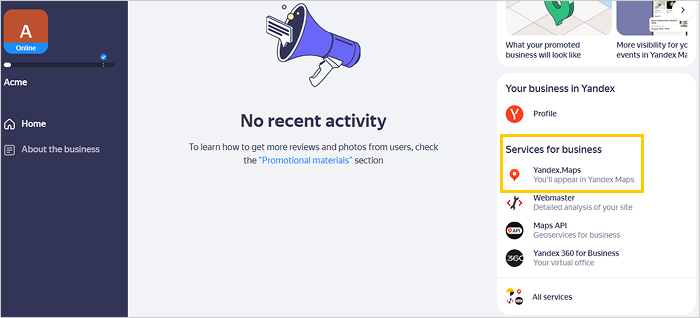
On the main page of the company's account, find the Services for business list in the right-hand part of the page and click Yandex.Maps. You'll be directed to the application form.
Screenshot — Services for business
-
Fill in the following fields:
- Name: Enter a name we can address you by.
- Email: Enter the email address to send our reply to.
- Link to video of the office: Attach a link to the video hosted on Yandex Disk or other cloud storage.
- Your office address: Enter your company's full address.
- Comment: Enter additional information, if any.
-
Click Send to submit the video for review.
This process may take up to three calendar days. Once the review is complete, we'll contact you via email.

If you agreed to the transfer.