FAQ about Yandex Browser settings and interface
Settings
Where are the settings?
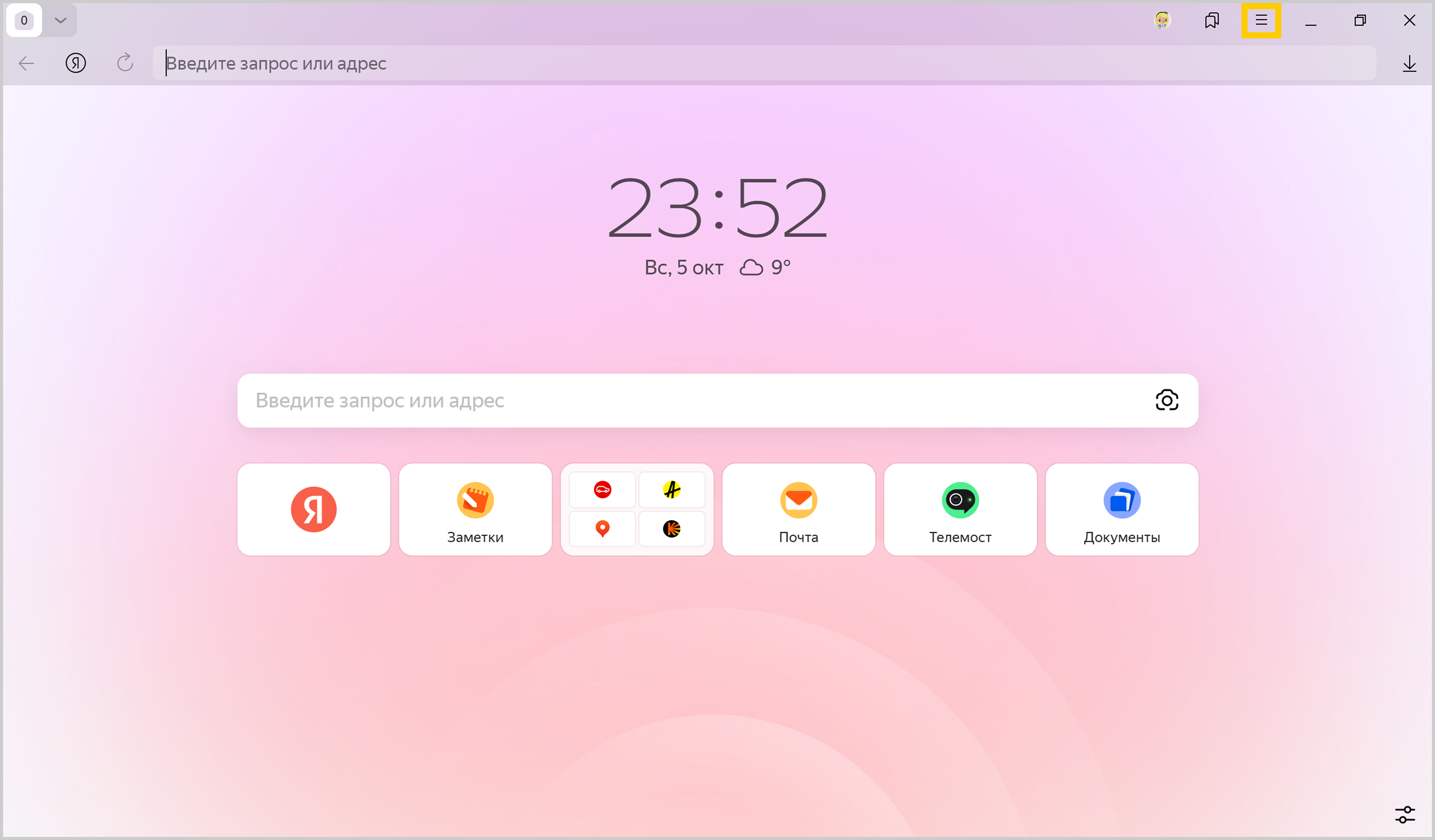
In the upper-right corner, click → Settings.
To go to the necessary setting quickly, enter its name in the search box in the upper-left corner of the page.
To learn more about the Yandex Browser interface, see About appearance.
The settings that I need are unavailable
If you can't find some settings or they can't be changed, you're probably using Yandex Browser for business, and the restrictions are set by the group policies.
To change the settings, contact your system administrator.
If you've accidentally installed Yandex Browser for organizations, please install the standard version.
What happens when Yandex Browser settings are reset?
If you reset your Yandex Browser settings, the basic settings will be restored:
- The Tableau will display the default tabs.
- The SmartBox will use the default search engine.
- All Yandex Browser extensions will be disabled.
- Your pinned tabs will be unpinned.
- Cookies and other temporary site data will be deleted.
To reset Yandex Browser settings:
-
Click → Settings → System.
-
Click Reset settings.
-
Confirm the reset.
How do I prevent automatic logout on sites?
Disable the "Clear data on exit" option
-
Click → Settings → System.
-
Under Privacy, deselect Clear data on exit.
Disable system cleaners
If you have system cleaning utilities (such as CCleaner) installed, make sure they aren't deleting Yandex Browser files. Disable your system cleaners temporarily or configure them so they don't delete Yandex Browser data.
Disable some applications
Some utilities or antivirus software with anti-tracking and cookie auto-clean features may clear your site login data. Examples include AdGuard, Adblock, Self-Destructing Cookies, Kaspersky Antivirus, and 360 Total Security. If you have such software installed, disable the anti-tracking and auto-clean features in their settings.
Turn off extensions
Some extensions may clear your login data. Here's how you can check your installed extensions:
-
Click → Extensions and turn off all extensions.
-
Restart Yandex Browser: close it by pressing Ctrl + Shift + Q (on Windows and Linux) or ⌘ + Q (on macOS), then open it again.
-
Clear your cache so Yandex Browser doesn't load a copy of the page that was saved earlier.
-
If this solves your problem, go through your extensions and turn them back on until you find the one that causes the problem. Restart Yandex Browser every time.
-
Disable this extension. You may want to let the developers know about the problem.
How do I pin Yandex Browser?
From the Start menu or the desktop
- Right-click the Yandex Browser shortcut icon (on the desktop or in the Start menu).
- Choose Pin to Taskbar.
If you want to remove the Yandex Browser shortcut from the taskbar, select Unpin from task bar.
From the taskbar
- Open Yandex Browser.
- Right-click the Yandex Browser icon in the taskbar.
- Choose Pin to Taskbar.
If you want to remove the Yandex Browser shortcut from the taskbar, select Unpin from task bar.
- Right-click the Yandex Browser shortcut icon.
- Choose Pin to Start.
To undo the action, choose Unpin from Start.
How do I allow Yandex Browser to access application data in macOS?
In the macOS 10.14 Mojave operating system, access to application data is automatically restricted. If you want Yandex Browser to be able to access data from other applications (for example, other browsers):
- In the upper-left corner, click → System settings.
- Click Security & Privacy.
- Click Privacy.
- In the lower-left corner of the window, click the
 icon.
icon. - Go to Accessibility and select Yandex Browser.
Why do I need background mode?
Alert
Background mode isn't supported on macOS.
In the background, some of Yandex Browser functions work after you close the browser, and start automatically when you turn on your computer. The Windows notification area features the Yandex Browser icon even if the browser is closed.
Advantages of Yandex Browser running in the background:
- Antivirus databases are updated more often.
- Yandex Browser opens faster at startup. This matters if there are many open tabs.
- You receive notifications from websites.
- Background extensions (such as proxy extensions) work.
Note
When running in the background, Yandex Browser doesn't track user actions. But it uses your computer resources.
Configure background mode
-
Click → Settings → System.
-
The Background mode section includes two options:
- Use background processes to speed up Yandex Browser launch time.
- Show the Yandex Browser icon in the tray and allow Yandex Browser to run in the background.
Yandex Browser's behavior in the background depends on which options are enabled.
Background mode configurations
|
Background mode options |
Yandex Browser behavior |
|
|
1 |
Use background processes to speed up Yandex Browser launch time |
Push notifications, background extensions, and updates remain active in the background. Yandex Browser starts faster, and its icon appears in the system tray. |
|
2 |
Use background processes to speed up Yandex Browser launch time |
|
|
3 |
Use background processes to speed up Yandex Browser launch time |
Background mode consumes minimal resources and is used only for quicker Yandex Browser startup. |
|
4 |
Use background processes to speed up Yandex Browser launch time |
Yandex Browser doesn't run in the background. |
For optimal Yandex Browser performance, enable both options.
Interface
How do I restore the standard window appearance on Linux?
By default, Yandex Browser doesn't use the Linux system window frame and changes control design. If you wish to restore the standard appearance of windows and controls on Linux:
- In the SmartBox, enter
browser://flags. - Type the
#enable-system-frameflag in the search bar. - Select the System window controls option.
- Restart Yandex Browser. Click → Close Yandex Browser, or press Ctrl + Shift + Q (on Windows) or ⌘ + Q (on macOS), then open the browser again.
Alert
This setting is experimental. Turning it on might cause problems in Yandex Browser. If you encounter problems, disable the option and us the form to write to us.
How can I remove the Yandex Browser icon from the notification area?
If you close Yandex Browser, but the icon remains in the notification area, the Yandex Browser is running in background mode. To terminate all Yandex Browser processes, right-click its icon in the notification area and select Close browser.
To prevent Yandex Browser from running in the background:
-
Click → Settings → System.
-
Under Background mode, disable these options:
- Use background processes to speed up Yandex Browser launch time
- Show the Yandex Browser icon in the tray and allow Yandex Browser to run in the background
How do I remove the Yandex button?
The button is located in the SmartBox on the left. To remove it:
- In the upper-right corner of the Yandex Browser window, click → Settings → Interface.
- Under General settings, deselect Show the Yandex button.
How do I change the context menu appearance?
When you select text on a web page, Yandex Browser shows a context menu for the selected fragment. For example, you can copy the text, listen to it, or print it. The context menu may appear as a small toolbar with icons or as a list of commands.
Toolbar
The toolbar lets you copy the selected text, search for it on Yandex, translate it, print it, have it read aloud, and more. To see all the available tools, click .
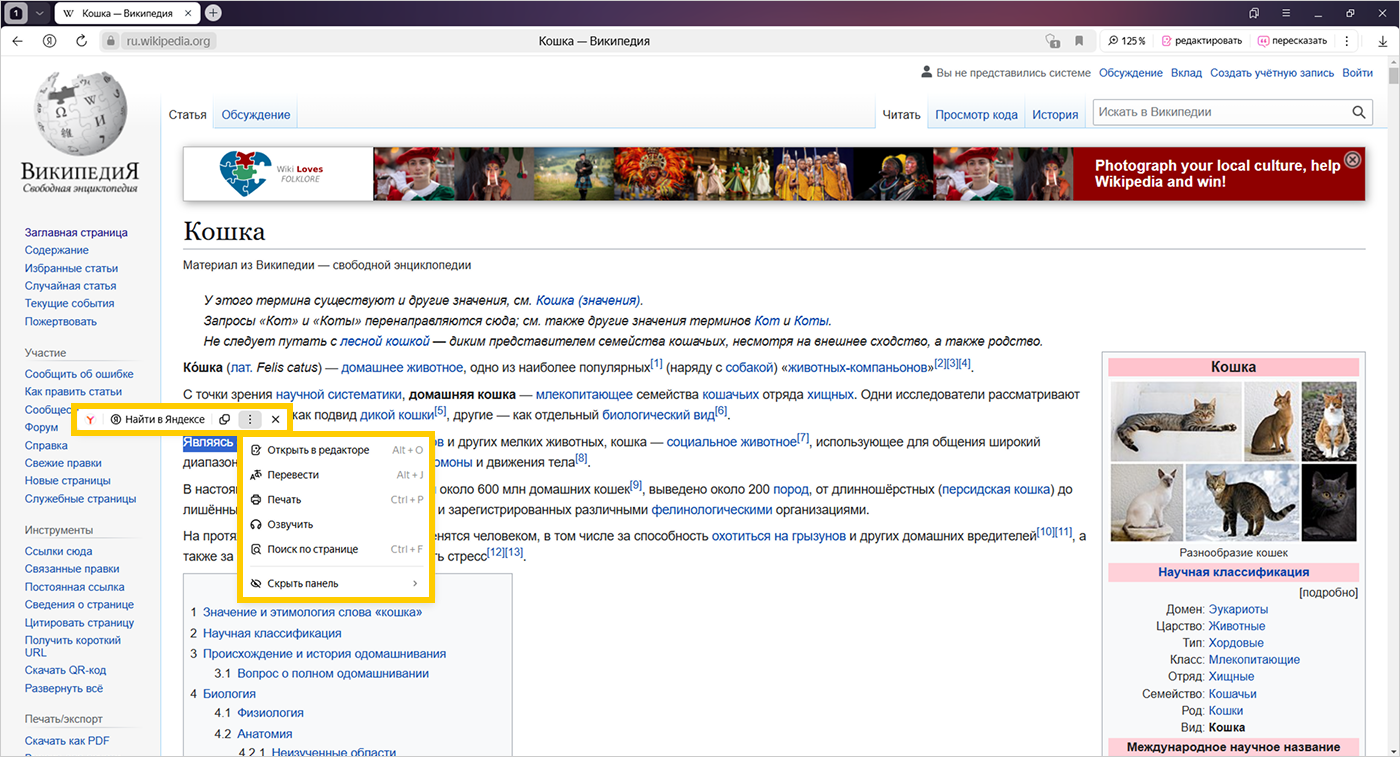
To disable the toolbar:
-
Click → Settings → Tools.
-
Under Context menu, disable the option Show toolbar when text is selected.
List of commands
You can use the context menu that appears when you right-click the selected text. This menu offers more options than the toolbar, such as Find on page. You can't disable the context menu, but you can make it compact:
-
Click → Settings → Tools.
-
Under Context menu, select Compact context menu.
This will move some commands to the Advanced section.
There's no print button on the page
-
Open the context menu by right-clicking anywhere on the page and select Print.
-
Select the connected printer. The interface switches to print mode.
Background animation doesn't work
Animation is paused
-
Open a new tab.
-
In the bottom-right corner, click .
-
On the background preview, click .
The video-card driver is outdated
Update the driver for each video-card that is installed on your computer:
- Click Start → Control Panel → Device Manager.
- Open Video Adapters: a list of video cards will appear.
- Right-click the name of your video card.
- In the context menu, select Update drivers.
Hardware acceleration is problematic
Try turning the hardware accelerator on or off:
An extension is blocking animation
Check Yandex Browser extensions
-
Click → Extensions and turn off all extensions.
-
Restart Yandex Browser: close it by pressing Ctrl + Shift + Q (on Windows and Linux) or ⌘ + Q (on macOS), then open it again.
-
Clear your cache so Yandex Browser doesn't load a copy of the page that was saved earlier.
-
If this solves your problem, go through your extensions and turn them back on until you find the one that causes the problem. Restart Yandex Browser every time.
-
Disable this extension. You may want to let the developers know about the problem.
If these recommendations didn't help, contact us via this form. Describe the situation in detail, and attach a screenshot if possible.
The background doesn't change on the Tableau page
Delete the File System folder and check whether the problem persists. The folder is located in the Yandex Browser profile folder:
-
Open the file search box in Windows 7, 8, or 10.
-
Copy the string below and paste it into the file search box:
%USERPROFILE%\AppData\Local\Yandex\YandexBrowser\User Data\Default\ -
Press Enter.
Note
Support for Microsoft Windows 7, 8, and 8.1 ended in December 2024.
Support for Microsoft Windows XP and Vista ended in April 2017.
I can't delete the background
You can't completely disable or remove a Yandex Browser background. Try setting a single-color background instead of an image. Open the Colors album in the Yandex Browser background gallery, select the color you like, and click Use this background.
Restriction
You can't select a white background. This is because Yandex Browser elements (like links, widgets, and button names) should be visible on any background.
The background changed by itself
-
Open a new tab.
-
In the bottom-right corner, click .
-
Disable the Change the background daily option.
You can enter search queries in the address bar and Yandex Browser will understand what you need.