Neuroprotect: password manager
You can easily view, change, and delete your passwords using the password manager.
Save password
Entered on a website
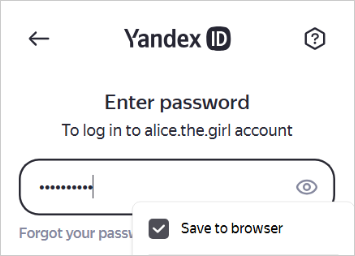
If you enter a password with no username, Yandex Browser suggests a previously saved username.
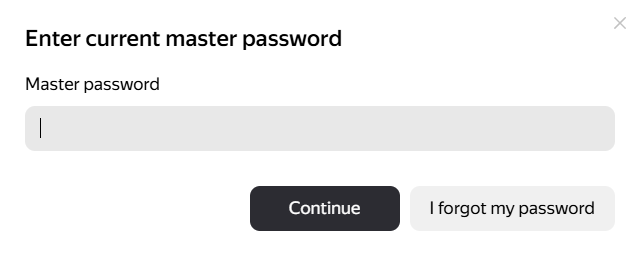
If you previously set a master password, type it. The master password is used in the encryption algorithm to reliably protect the password vault (because only you know the master password).
Note
If you don't have a master password but do have a Windows or macOS password, the browser will ask you to enter it. This is safe: Yandex Browser can't access your system password since you enter it in a system window. Linux doesn't have system passwords.
Generated on a site
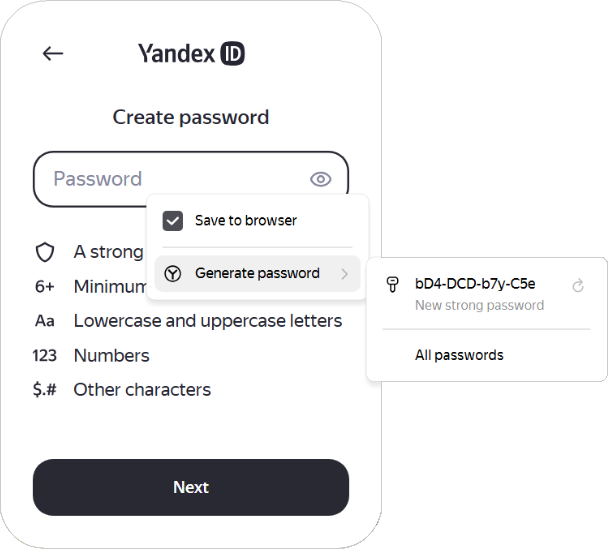
An automatically generated password is not easy to hack, because it is a random set of letters, numbers, and punctuation marks. You don't need to memorize such passwords because the password manager auto-fills them for you, and you can view them whenever you want. To protect passwords in the vault, use a master password.
To generate a password:
- Place the cursor in the password field. Yandex Browser will automatically generate a password for you.
- Click the generated password. It will be automatically inserted into the input field.
Entered in the Password Manager
-
Click → Passwords, cards, data.
-
If you have already created a master password, enter it to access your vault.
-
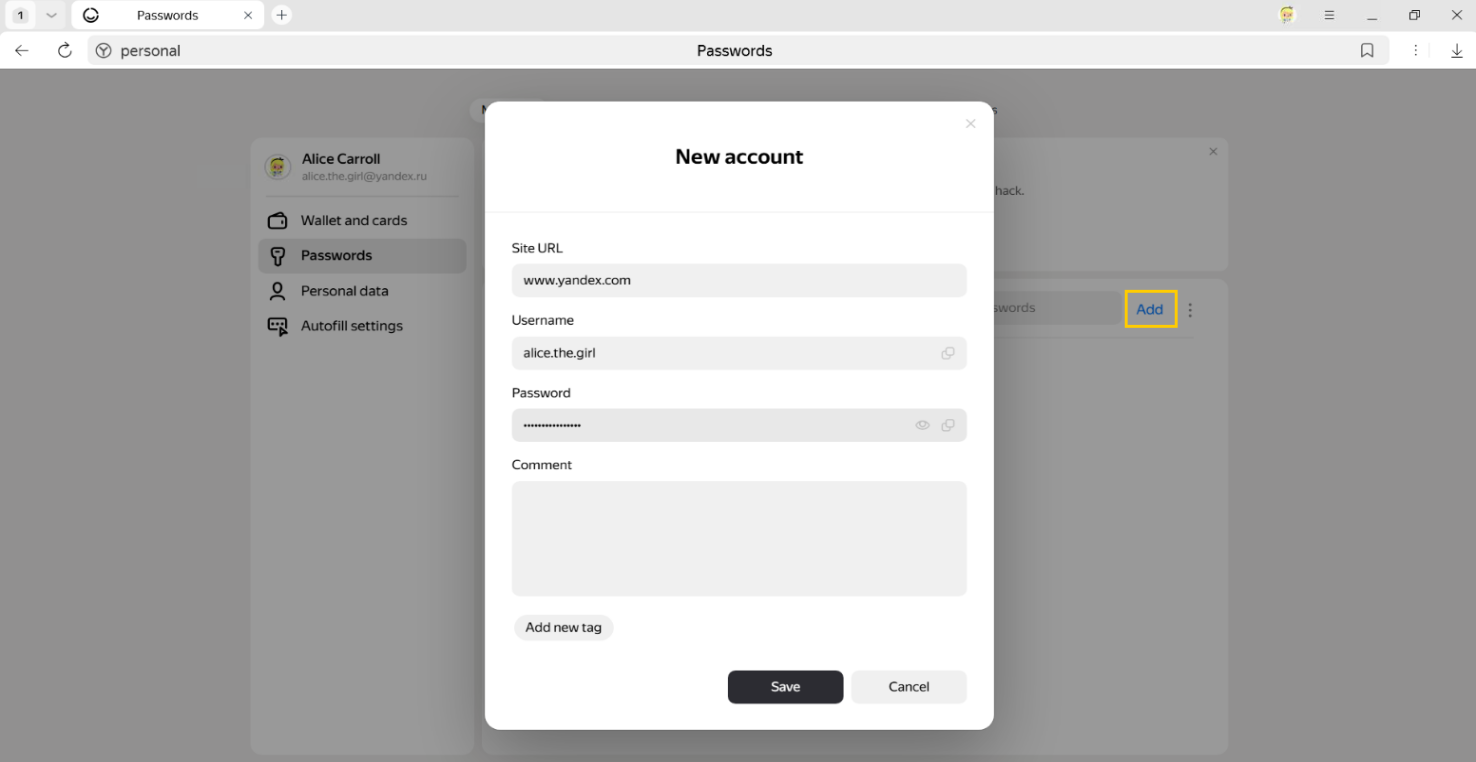
In the upper-right corner of the Passwords section, click Add.
-
In the window, enter the website address, login and password. To check if you entered the password correctly, click the icon.
Note
If you don't have a master password but do have a Windows or macOS password, the browser will ask you to enter it. This is safe: Yandex Browser can't access your system password since you enter it in a system window. Linux doesn't have system passwords.
Tip
Similarly, you can save in the password manager your passport number and other confidential information. If bank card saving is enabled, the data will be available on all your devices. You don't have to worry about the security of your data because it is stored in encrypted format.
View, change, or delete your password
Tip
To be able to open the password manager quickly, click → Settings → Interface and check the Show the password and bank card storage button in the toolbar box. The button appears next to the SmartBox.
-
Click → Passwords, cards, data.
-
If you have already created a master password, enter it to access your vault.
-
A list of websites you have saved passwords for appears on the screen. Select one of them. If there are too many sites in the list, start entering the site URL in the Search passwords field in the upper-left corner. This will shorten the list.
-
Click the name of the appropriate site.
-
View, change, or delete the password.
In the window that opens, click the icon in the Password field.
Note
If you don't have a master password but do have a Windows or macOS password, the browser will ask you to enter it. This is safe: Yandex Browser can't access your system password since you enter it in a system window. Linux doesn't have system passwords.
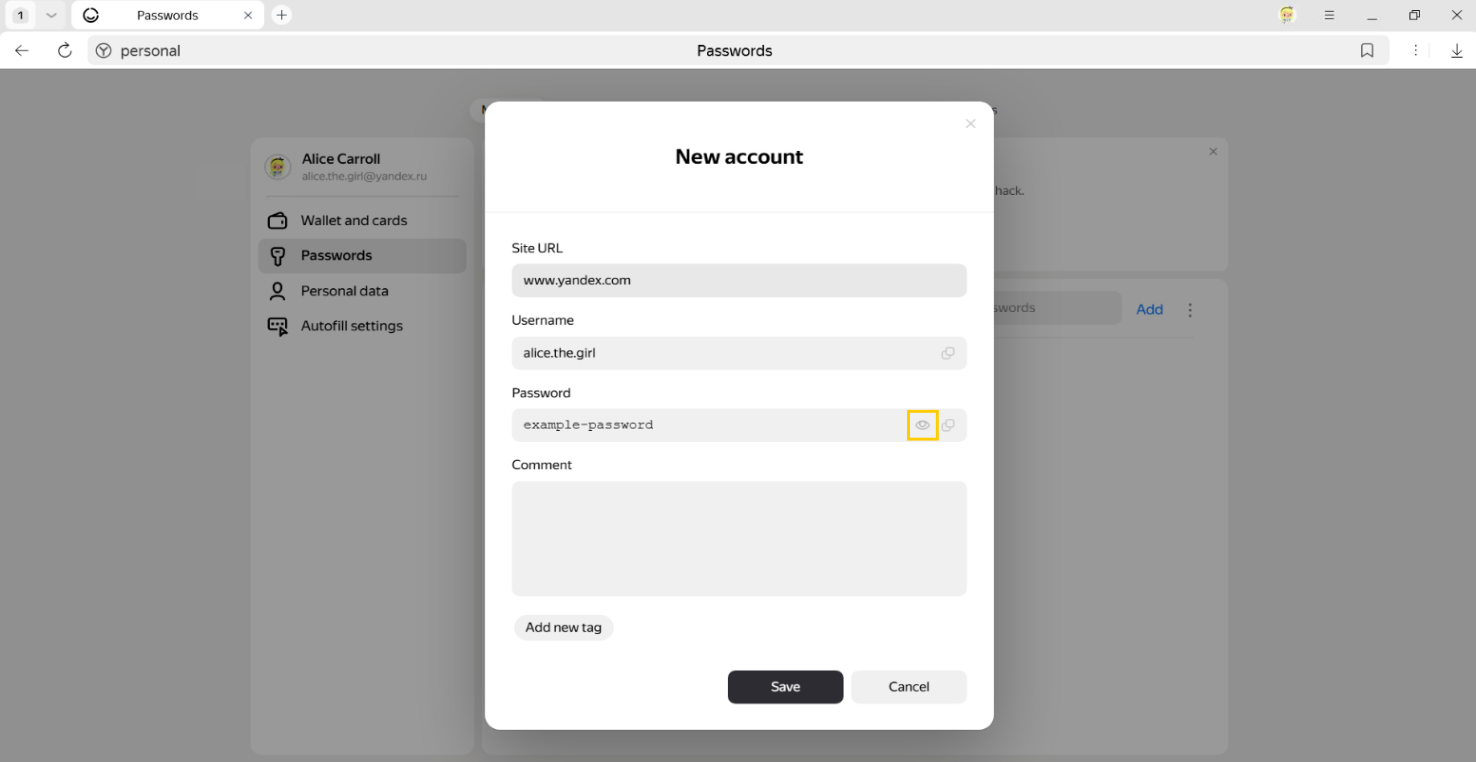
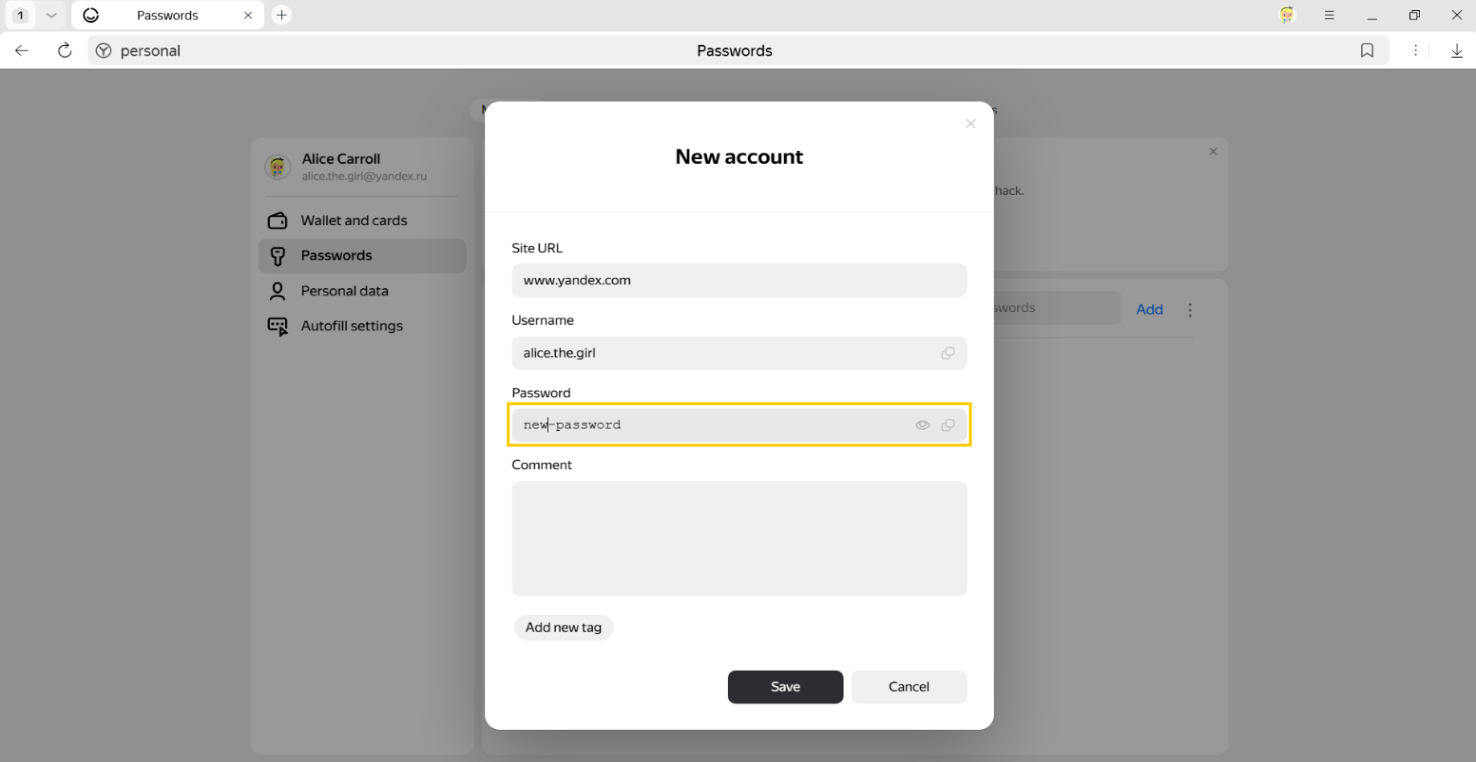
In the Password field, enter your new password. To make sure you entered it correctly, click the icon.
Note
If you don't have a master password but do have a Windows or macOS password, the browser will ask you to enter it. This is safe: Yandex Browser can't access your system password since you enter it in a system window. Linux doesn't have system passwords.
-
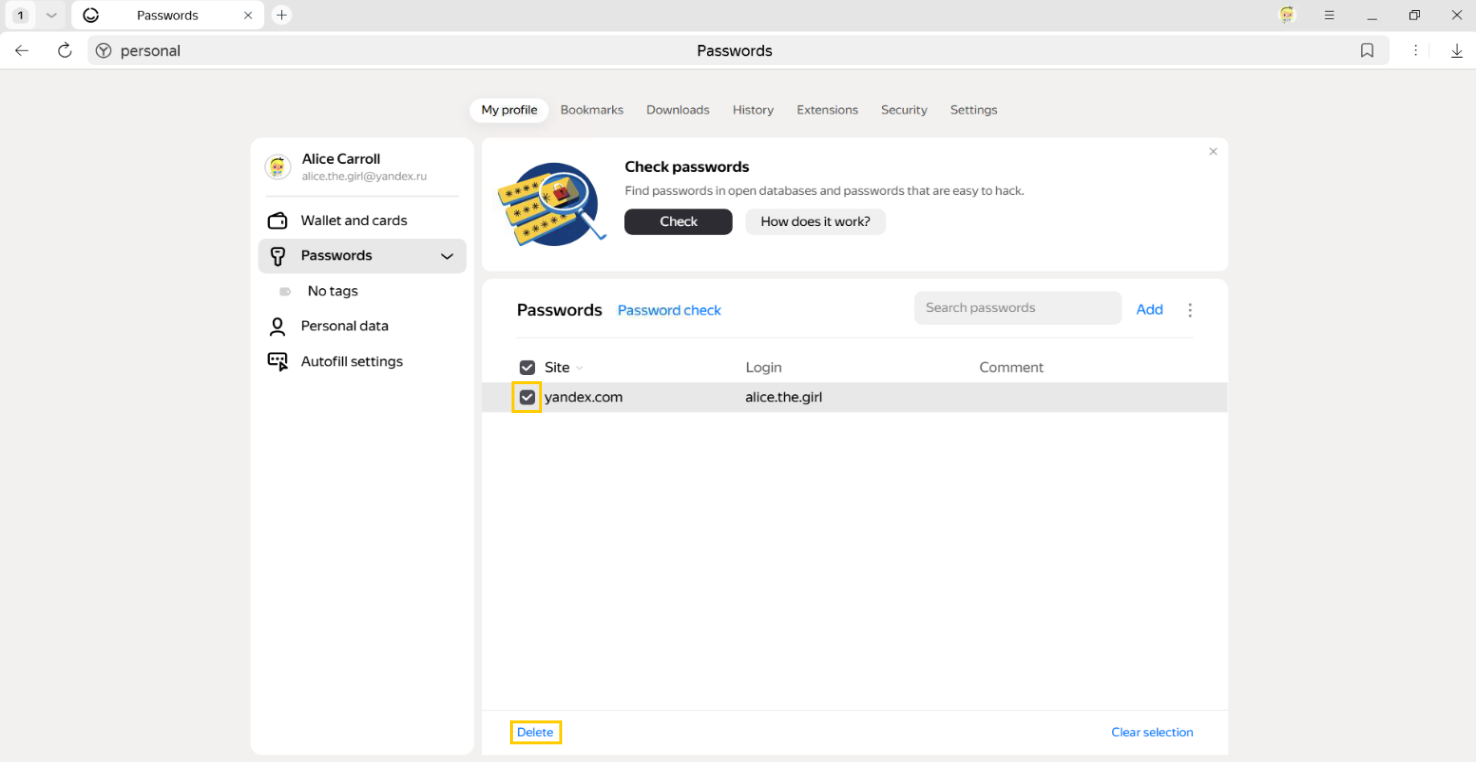
Click on the favicon to the left of the appropriate site.
-
At the bottom of the window, click Delete.
Tip
If you deleted a password by mistake, you can restore it immediately. In the lower-left corner of the password manager, click Restore. If you reload the page or switch to a different tab, you won't be able to restore the password.
Change the manager settings
-
Click → Passwords, cards, data.
-
If you have already created a master password, enter it to access your vault.
-
Click Autofill settings.
-
In the Passwords section, select the desired options:
- Save passwords by default. If you untick this option, Yandex Browser won't save the passwords you enter, but it will insert passwords you previously created into login windows.
- Auto-fill login forms. If you deselect this option, Yandex Browser won't insert usernames and passwords in login windows. If this box is checked, you can allow Yandex Browser to insert either just usernames or both usernames and passwords.
- Allow sites to save passwords in the browser and log you in automatically. You can log in to some websites (those that support the CredentialManager API) without entering a password. In this case, you can log in by clicking the icon and selecting your username. If you want to disallow automatic authorization, disable this option.
- Show the password and bank card storage button in the toolbar. If you select this option, you'll be able to view your passwords and cards by clicking the icon.
Note
If you don't have a master password but do have a Windows or macOS password, the browser will ask you to enter it. This is safe: Yandex Browser can't access your system password since you enter it in a system window. Linux doesn't have system passwords.
Disable the password manager
Note
Even if you disable the password manager on your computer, it still stays enabled on other devices.
If you use a third-party password manager and don't want Yandex Browser to save and autofill passwords:
-
Click → Passwords, cards, data.
-
If you have already created a master password, enter it to access your vault.
If you forgot your master password, left-click anywhere on the screen outside of the window. -
Click Autofill settings.
-
In the Passwords section, click Disable Password Manager.
The browser will stop saving passwords, inserting them in login forms, and requesting your master password to access your vault. Previously entered passwords are stored on your computer encrypted. They become available again if you reenable the password manager.
To do this, click Enable password manager in the manager settings.
Note
If you don't have a master password but do have a Windows or macOS password, the browser will ask you to enter it. This is safe: Yandex Browser can't access your system password since you enter it in a system window. Linux doesn't have system passwords.
Disable automatic password saving
-
Click → Passwords, cards, data.
-
If you have already created a master password, enter it to access your vault.
-
Click Autofill settings on the left and in the Passwords section, uncheck the Save passwords by default box.
Note
If you don't have a master password but do have a Windows or macOS password, the browser will ask you to enter it. This is safe: Yandex Browser can't access your system password since you enter it in a system window. Linux doesn't have system passwords.
-
Go to a site and open the login window.
-
Left-click the Password box.
-
Disable the Save to browser option.
I can't save my password
-
Click → Settings → Websites.
-
Scroll the page down and click Advanced site settings.
-
In the Cookies section, select the Allowed option.
-
Deselect the Block third-party cookies option.
-
Click Site settings.
-
Check whether the Only for session or Not allowed lists contain the problematic site. If they do, hover your mouse cursor over it and click Allow.
Learn more
Recover deleted passwords
For security reasons, passwords are stored on the server in encrypted form. That's why even Yandex can't decrypt your passwords.
If you deleted passwords on one of your devices, you can try to restore them using another one. You can do this if your other device hasn't received the information about deleting passwords from the server yet. For example, if it's been turned off or if you deleted the passwords only a short while ago:
-
Disconnect your device from the Internet. To do this:
MobileDesktop1.1 Power off the device and remove the SIM card.
1.2 Turn off your Wi-Fi router.
1.3 Power on the device.
Use one of these options:
- Turn off the router.
- Disconnect the network cable from the device.
-
Launch Yandex Browser.
-
In the upper-right corner, click your profile picture → My profile in Yandex Browser.
-
Under My profile, click Manage data.
-
Disable all options. If the options are disabled, data is only saved on this device.
-
Connect your device to the internet.
-
Enable all options.
Wait while the data from the device is sent to the server.
You can enter search queries in the address bar and Yandex Browser will understand what you need.