|
macOS users You're reading Help for the beta version of Yandex Browser, which isn't available for macOS. For information on Yandex Browser for macOS, see Help for the main browser version. |
Interface language and spell-check
Interface language
Restriction
In Linux, Yandex Browser interface language is set in the system settings and cannot be changed.
-
Click → Settings → System.
-
Choose Language and region settings.
-
Select the desired language from the list in the Interface language field.
-
If you can't find the language you need on the list, go to Page display language, click Add language, and select the language from the list.
Spell-check
In the Yandex Browser beta version, spell-check is enabled for the language selected as the default one in your operating system.
Set spell-check for the selected language
Restriction
Spell-check isn't available for all languages.
-
Click → Settings → System.
-
Select Language and region settings.
-
In the Spell-check section, click Add language.
-
Select a language.
Note
If the language you need is not in the list, go back to the Language and region settings page. In the Page display language section, click the Add language link and select the language you need from the full list of languages supported by Yandex Browser.
Correct a spelling error
An incorrectly typed word is underlined with a wavy red line. You can correct it manually or open the context menu to select one of the spelling options suggested by Yandex Browser.
If you are sure the underlined word is spelled correctly, right-click it and select Add to dictionary. The word will be added to your user dictionary.
You can edit it:
-
Click → Settings → System.
-
Select Language and region settings.
-
In the Spell-check section, click Custom dictionary.
-
Edit the dictionary:
Add a word
-
In the upper-right corner of the screen, click Add.
-
Enter a word.
-
Tap Add.
Remove a word
-
Select the desired word.
-
In the lower-left corner of the page, click Remove.
-
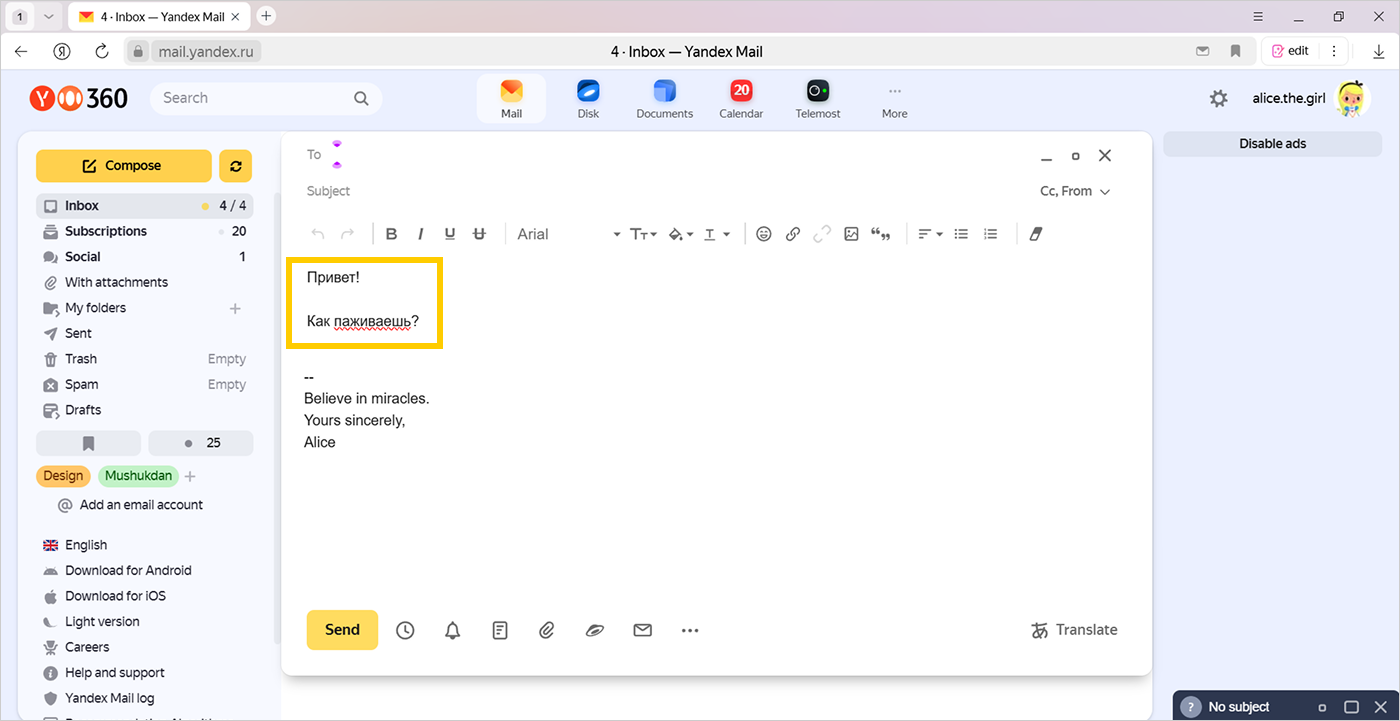
Check spelling in a foreign language
Yandex Browser checks spelling in input forms. For example, when you work with mail.
Enable spell-check using a built-in dictionary
-
Click → Settings → System.
-
Open Language and region settings.
-
In the Spell-check section, click Add language.
-
On the left side of the Languages window, select the language.
Note
If the language you need is not in the list, go back to the Language and region settings page. In the Page display language section, click Add language and select the language you need from the full list of languages supported by Yandex Browser.
Add a word to the user dictionary
When you enter text, Yandex Browser underlines unfamiliar words. If you are sure the underlined word is spelled correctly, right-click it and select Add to dictionary.
You can edit the user dictionary:
-
Click → Settings → System.
-
Open Language and region settings.
-
In the Spell-check section, click Custom dictionary.
-
Edit the dictionary:
Add a wordRemove a word4.1. In the upper-right corner of the screen, click Add.
4.2. Enter a word.
4.3. Tap Add.
4.1. Hover your mouse cursor over the word.
4.2. On the right, click Delete.