|
macOS users You're reading Help for the beta version of Yandex Browser, which isn't available for macOS. For information on Yandex Browser for macOS, see Help for the main browser version. |
Data sync
Restriction
You can't sync data between different browsers, for example the Yandex Browser beta version and Google Chrome.
Sync your data to access it across all your devices.
Why sync data?
By default, your data is automatically saved to your account linked to Yandex ID and is available across all your devices (such as your computer, smartphone, and tablet) where Yandex Browser is installed.
Here's what data is saved: your passwords and bank card details, bookmarks, personal data, active tabs and tab groups, browsing history, Tableau, extensions, and settings.
With saving and syncing your data, you can:
-
Use the password manager on all your devices. This lets you autofill your passwords, store them in an encrypted vault, and restore access to a site if you forget your master password.
-
View tabs and tab groups (if you enabled cloud storage in the groups menu), history, and bookmarks on your devices.
-
Recover your passwords, bookmarks, Tableau, tabs, and Yandex Browser settings even if your device is lost or damaged.
At any time, you can change what data is synced.
How often is data saved?
Data is saved each time you make changes to it. For example, when you add a bookmark on your device, Yandex Browser sends it to the server and at the same time downloads all the changes that you made on your other devices (starting from the last save).
Is it safe?
Yes, your data is protected. For intermediate data storage, the Yandex server is used. The data is passed to it over a secure channel, while passwords are passed in an encrypted format. The data on the server is protected by the authorization system.
How do I enable data sync?
Data is saved to your account automatically if:
-
Yandex Browser is installed on all your devices (your computer, smartphone, tablet).
-
You use the same account linked to Yandex ID on all your devices.
Warning
To sync tab groups, open the groups menu and select the groups you want to save to the cloud.
Change what data to save and sync
-
In the upper-right corner, click your → My profile in Yandex Browser.
-
Under My profile, click Manage data.
-
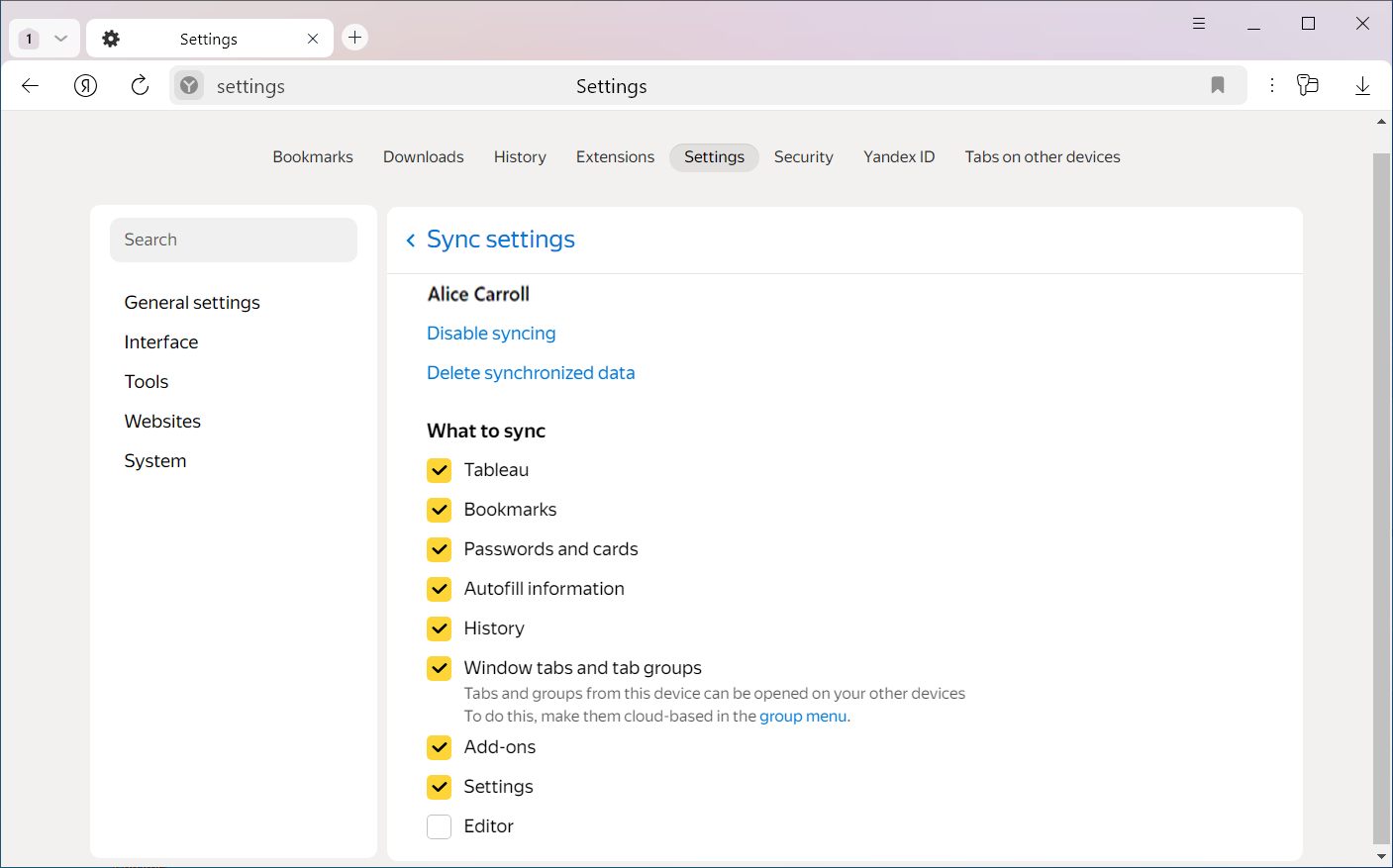
Enable options in such a way that only the data you need is synced:
- If an option is enabled, the corresponding data is available across all your devices.
- If an option is disabled, the data is only saved on this device.
Note
Your cache isn't synced between your devices.
Saving your bank card details is available if the master password is enabled.
Delete saved data
Alert
After the data has been deleted from the server, no one can recover it.
To delete data from the device you're using:
-
In the upper-right corner, click your → My profile in Yandex Browser.
-
Under My profile, click Manage data.
-
Select Delete profile from this device.
-
In the Delete profile from this device? window, select Delete.
This will delete your data from this device. But this data will be retained in your account linked to Yandex ID. You'll be able to access the data from any device, if you add your profile linked to the same account again.
To delete data from Yandex:
-
In the upper-right corner, click your → My profile in Yandex Browser.
-
Under My profile, click Manage data.
-
Click Delete data from Yandex ID account.
-
In the Delete data from Yandex ID account? window, click Clear data.
After this, your data will be deleted from the server and will only be available on the devices that were linked to your account.