Segments based on location data
You can create a segment based on data about users in specific locations. In the Segments tab click Create segment → Locations. Choose the type of location: circles or polygons. Specify a name for the segment.
Choose a suitable way to add locations:
- Find on map
- Search for locations or mark them on the map, and then add them to your segment. You can search for locations by name, address, or geographic coordinates. Enter the coordinates without the degree symbol °, primes, or additional letters, for example: 55.755831,37.617673. The search will cover only the visible area of the map. After the location marker is added to the segment, it turns red, and the row with the location's address or coordinates goes to the block Locations. You can add up to 1,000 locations (up to 100 for the condition Audience: visited N days within the period). To remove a location, click on its marker on the map. The marker will turn blue, and the location's address or coordinates will disappear from the Locations block.
- Add as a list
- Enter manually or copy the list of necessary addresses or geographic coordinates, one location per string. Click on Add to locations. If more than one location or no locations have been found in a string, the string is ignored when locations are added.
You can add up to 1,000 locations (up to 100 for the condition Audience: visited N days within the period). All the locations you have added to this segment before will be lost when you add the list.
To remove a location, click
 in the string.
Increase the Coverage radius if you are interested in the surrounding areas rather than the locations themselves. You can choose a radius of 0.5 km to 10 km. You can change the active radius and the frequency of visiting a selected area at any time, both before and after adding the location.
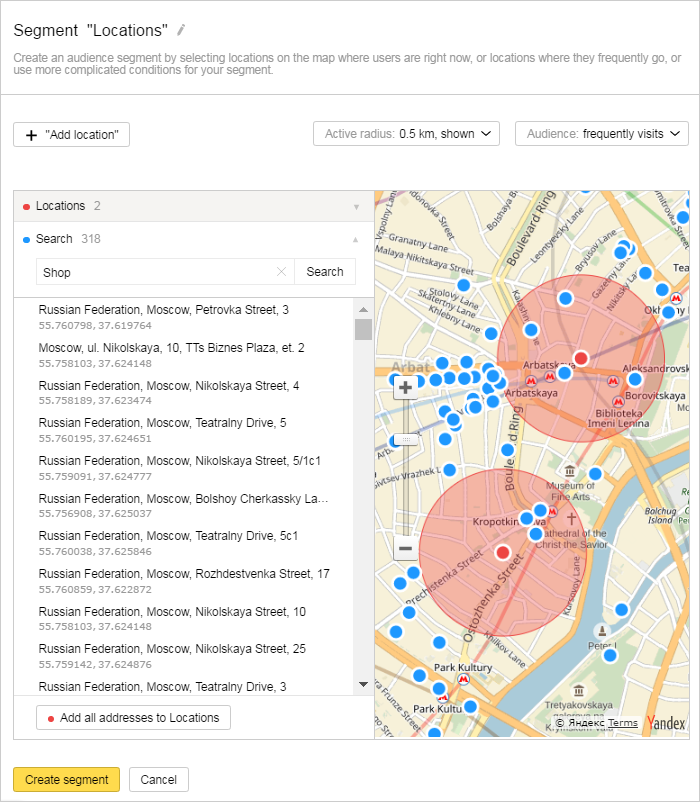
Choose how often your target users should be visiting the area added to the segment:
-
Audience: frequently visits, lives or works — The segment includes the cookies of users who regularly spend time, live, or work in the selected area. Targeting is based on the data from the past 45 days. Ads are shown to users selected for the segment regardless of their current location.
-
Audience: visited N days within the period — the segment will include the cookies of users who meet the requirement. For example, users who visited the selected locations for 10 days within the last month. You can choose a period of a week, a month, or three months. Several visits in one day count as one. Ads are shown to users selected for the segment regardless of their current location.
-
Audience: currently located — the segment will include anonymous IDs of users who are currently located in the selected area. Ads will be served to users who are located in the specified locations.
Mark at least three points on the map to create a polygon. Each new point will be connected to the previous straight line, forming a side. Sides of a polygon cannot overlap, and their area cannot exceed 10 km2.
To finish drawing a polygon, click on any point and then click Finish. To add new points, click on a point where you want start drawing, and click Continue. You can remove a point by double clicking on it. As a result, the two nearest points will form a side.
Finished polygons can be moved around the map. You cannot add more than 10 polygons to a segment.
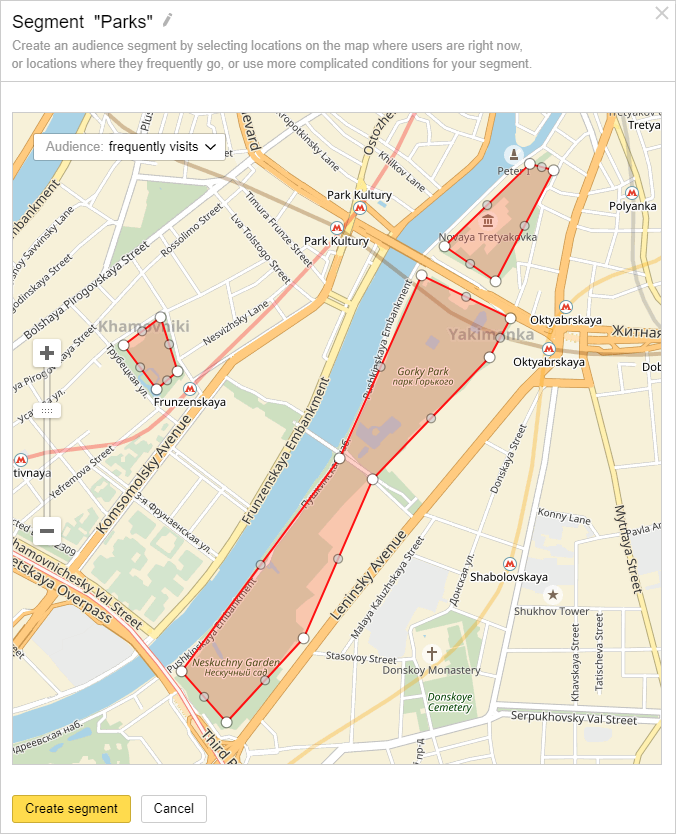
Choose how often your target users should be visiting the area added to the segment:
-
Audience: frequently visits, lives or works — The segment includes the cookies of users who regularly spend time, live, or work in the selected area. Targeting is based on the data from the past 45 days. Ads are shown to users selected for the segment regardless of their current location.
-
Audience: visited N days within the period — the segment will include the cookies of users who meet the requirement. For example, users who visited the selected locations for 10 days within the last month. You can choose a period of a week, a month, or three months. Several visits in one day count as one. Ads are shown to users selected for the segment regardless of their current location.
The segment you create will be assigned the "Processing" status. Processing can take up to two hours. If the audience reach is at least 100 anonymous IDs, the segment's status changes to "Finished". Then you can use this segment to set up your ads.
Restriction on creating geosegments
If your username has 1000 or more location-based segments and fewer than 5% of them are used for targeting in Yandex Direct, you won't be able to create geosegments. Delete unused segments.
Learn more
Still have questions?
Alert
Customer support agents can only assist you with campaigns associated with your username. You can see your current username it in the upper-right corner of the screen. The agent will get access to your data only when processing your request.
Message in WhatsApp