Couriers
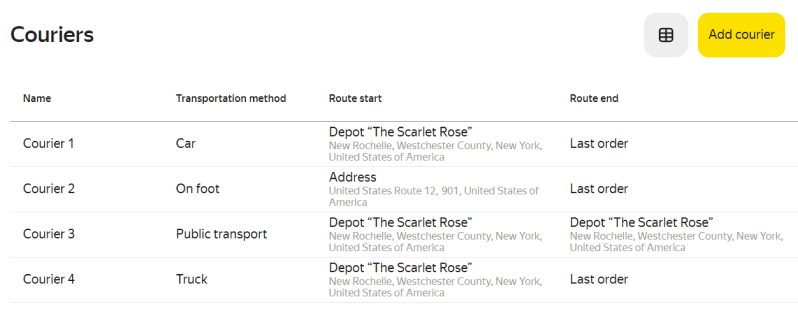
In the Couriers section, you will find a table with your company's couriers. There, you can:
- Add a new courier.
- Update information about an existing courier.
- Customize the view of the courier table.
- Archive couriers.
By default, only active couriers are displayed. To display archived couriers, click  → Show archive.
Look at the field names — they often tell you what to type in. To customize the column display:
- Click .
- Show or hide specific columns.
The Name field can't be hidden.
Full list of fields
- Name
- Transportation method
- Route start
- Route end
- Working hours
- Phone
- Carrying capacity, kg
- Carrying capacity, m3
- Maximum order quantity
Adding a courier
-
Go to Master data → Couriers.
-
In the upper-right corner, click Add courier.
-
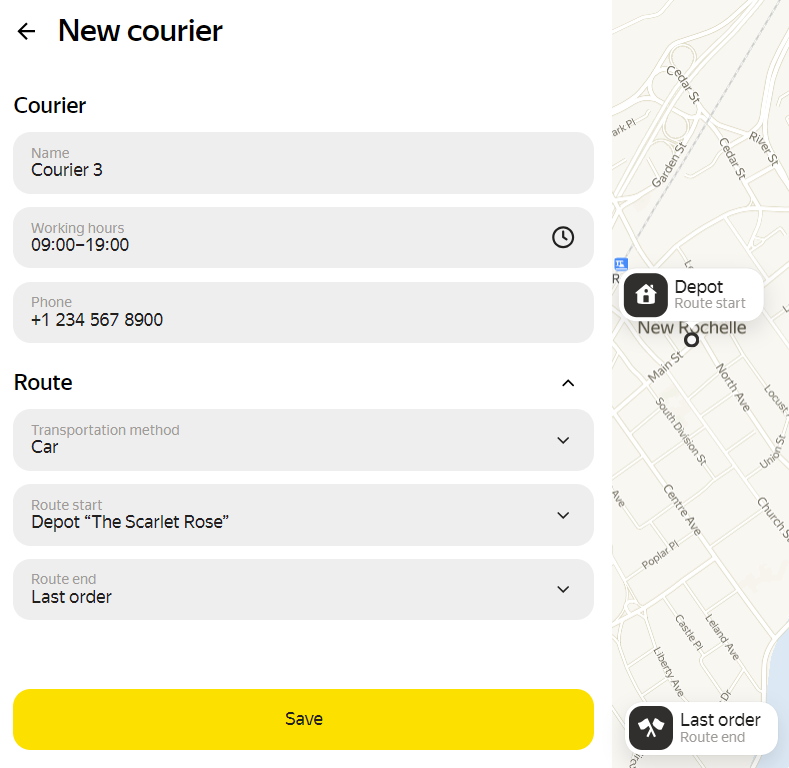
Fill in the following fields:
-
Name*: Courier's name.
-
Working hours*: Courier's working hours.
-
Phone: Courier's phone number.
-
Transportation method*: Car, On foot, Public transport, or Truck. Truck routes are planned using only roads that allow heavy vehicle traffic.
-
Route start* — You can select:
- Depot from depot master data.
- Address: Type in the address or select a location on the map.
-
Route end* — You can select:
- Last order: The last order on the route is considered as the route end.
- Depot from depot master data.
- Address: Type in the address or select a location on the map.
-
Weight, kg*: Carrying capacity of the courier or vehicle by weight.
-
Volume, m3*: Carrying capacity of the courier or vehicle by volume.
-
Maximum order quantity*: Maximum number of orders that can be assigned to a courier.
-
-
Click Save.
Editing courier details
-
Go to Master data → Couriers.
-
Select the courier.
-
Edit the courier details.
-
Click Save.
Archiving a courier
Alert
You can only archive couriers who are not assigned to any depot or route.
-
Go to Master data → Couriers.
-
Select the courier.
-
In the Edit courier window, click → Send to archive.
If you archive a courier and then add a new one with the same phone number, the latter won't have a route history.
Required field.
Available if Capacity is enabled in the company settings.